
 Share
Share
 Print
Print
|
|
|
|
|


Pop-Up Windows
Pop-up windows are used throughout the TRAX system. These are normally indicated by italic text fields. The following is an example of one of the most common pop-up windows (the P/N selection).
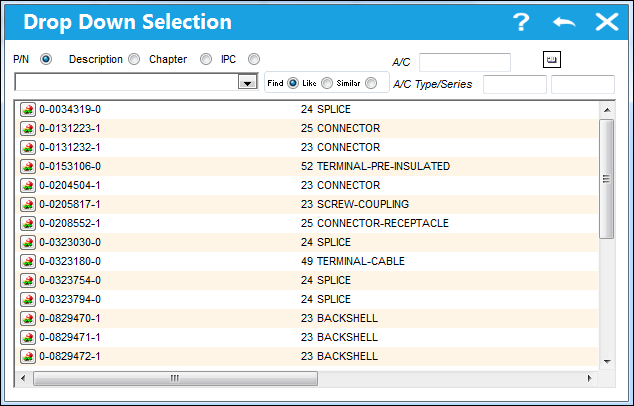
The following information/options are available in this window:
_____________________________________________________________________________________
Data Display
In the middle of the screen is the data for this pop-up (P/N’s for this window). Double click on one of the data rows to select the required item. Data that displays in red indicates that the data item is inactive. The above example illustrates icons displaying an interchangeable part.
Scroll Bars
The scroll bars (left and right) can be used to scroll through the data on the screen.
Sort/Selection Order
At the top of the window is the sort selection (in this case by P/N, description or chapter). Click on the required sort/selection order.
Search Selection
These are the blue highlighted area in the search selection. If the cursor is in this area, click on the blue to select. When text is entered, the window will automatically position the data according to the entry. By clicking on the drop down selection, the user can see the previous six data entries that took place.
Find radio button - Selected by default. Utilized to display search results that BEGIN with the information entered in the search field. Upon the field being cleared, all records will appear, as the search function initially showed.
Like radio button - Utilized to display search results that CONTAIN the information entered in the search field. Upon the field being cleared, all records will appear, as the search function initially showed.
Similar radio button - Utilized to display search results that BEGIN with the information entered in the search field. Upon the field being cleared, no records will show.
Clear Selection  button
Select this button once to remove one character at a time from the search selection. Double click to reset the search criteria to blank (back to the top of the data selection).
Exit  button
Click this button to exit the pop-up window.
_____________________________________________________________________________________
Share
Print
|
©1997-2026 Trax USA Corp. All rights reserved. This manual may not be copied, photocopied, reproduced, translated, or converted to any electronic or machine-readable form, in whole or in part, without prior written approval from Trax USA Corp. |
 |