
 Share
Share
 Print
Print
|
|
|
|
|


Sub Query Button
The Sub Query function is used to query for detailed information. In the following example the user will create a sub query for the last order created for a certain part.
- From the Update window, open a table.
- In the lower half of the window, specify a column, operator and value.
- Enter a title for the print.
- Select the Sub Query
 button.
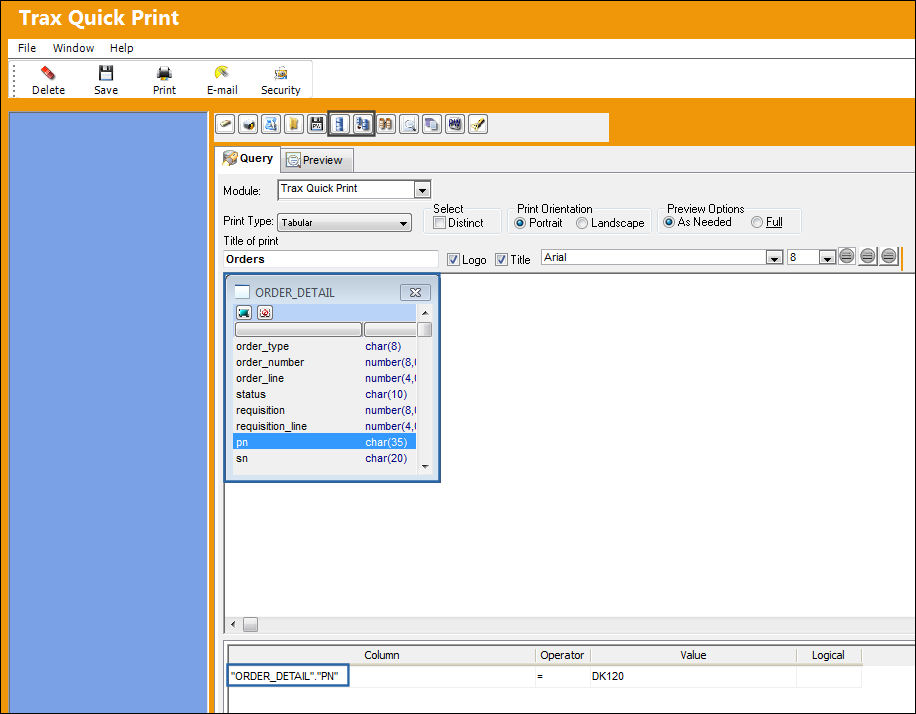
TRAX displays the Sub Query window.
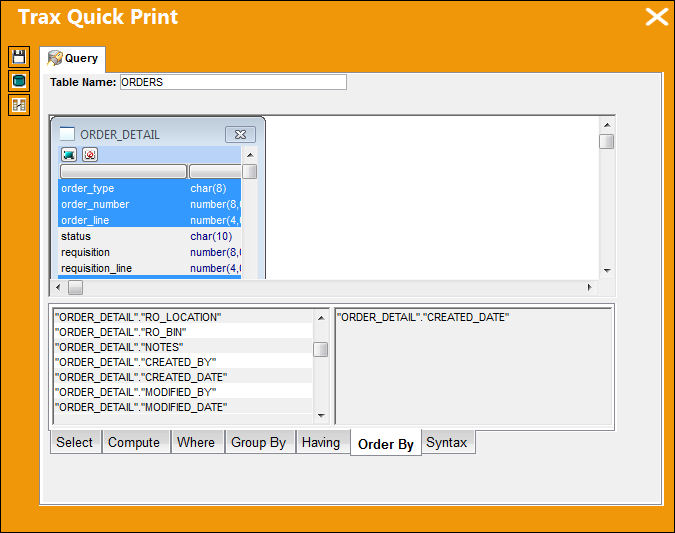
- Enter a name for the table.
- Open a table and select desired fields.
- In the lower half of the window, select the Order By tab.
The options will appear on the left side of the pane.
Select the criteria to appear in the sub query, (ie. "ORDER_DETAIL"."CREATED_DATE"). To do this, simply drag the selection from the left side of the window to the right side of the window.
- Select the 'D' for descending. In this example, the user is querying for the last order created for a certain part, therefore 'Descending' is selected.
- Select the Save
 button.
The sub query created now appears in the Update window. The user may delete the table titled "ORDER_DETAIL."
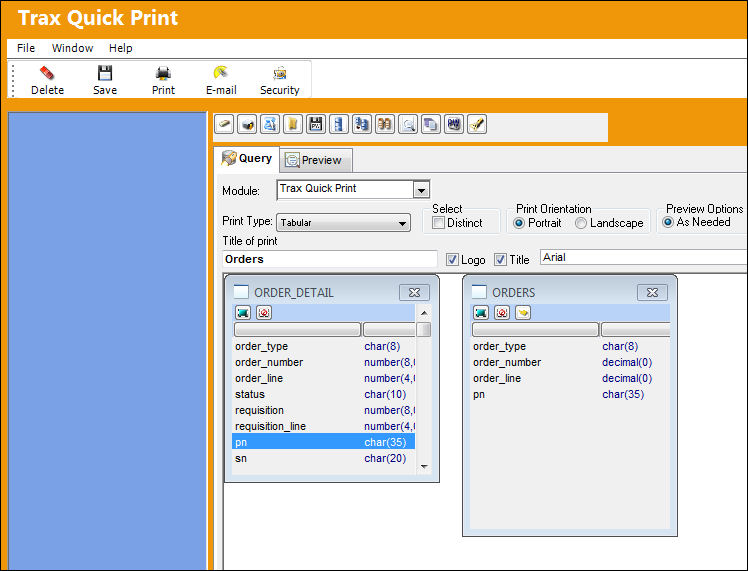
- Right click in the Column section of the window and select 'Delete Clause' from the drop down selection.
- In the table, select the fields to be included in the sub query preview.
- Select the Preview
 button.
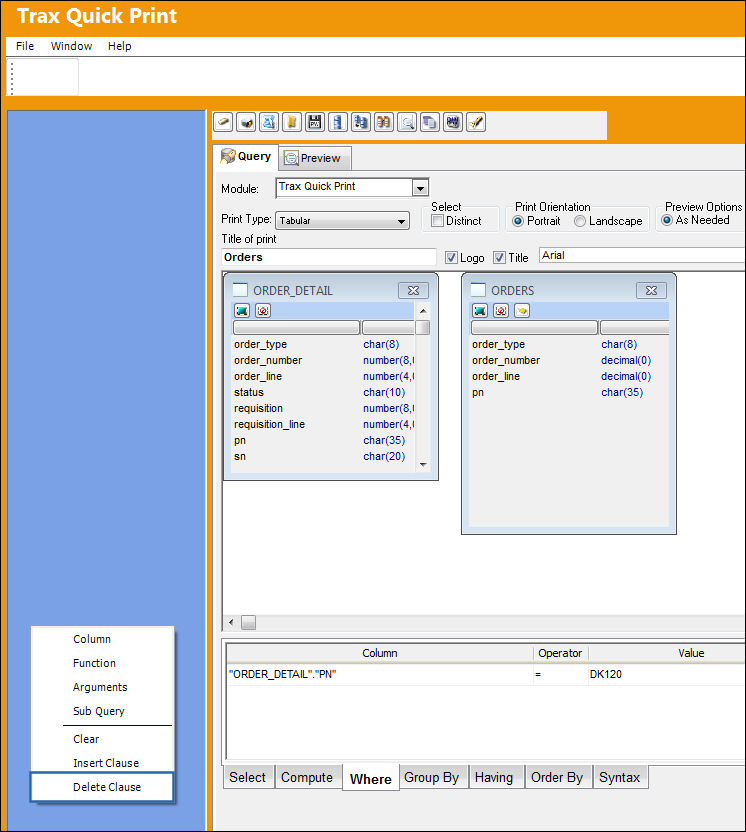
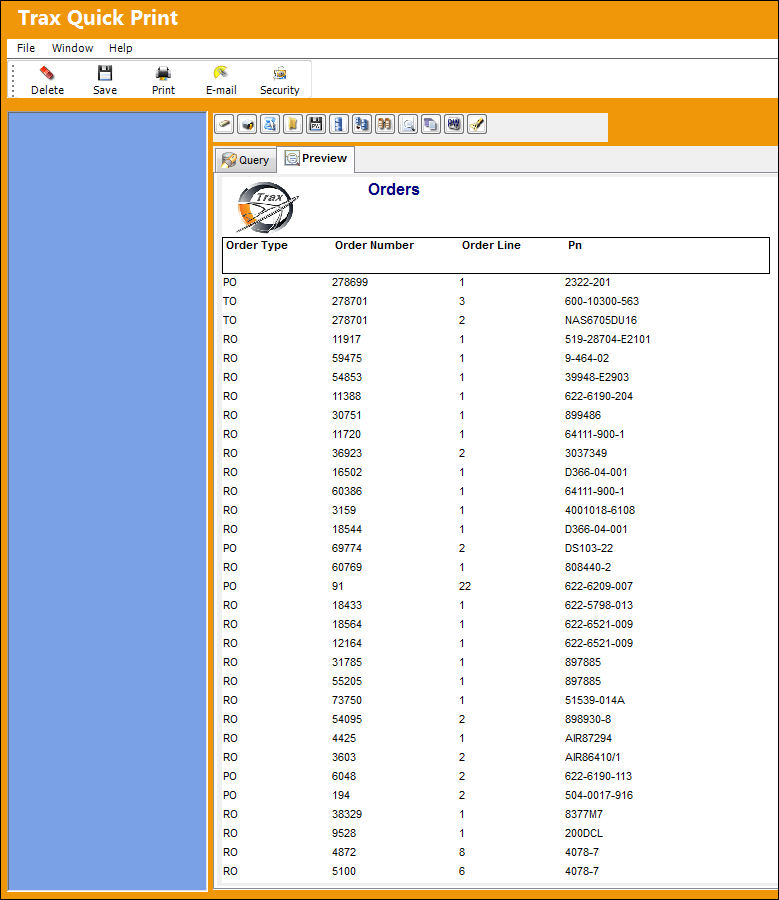
The preview appears as shown below including all criteria selected in the above screen.
Return to the Query window by selecting the Query button.
Share
Print
|
©1997-2026 Trax USA Corp. All rights reserved. This manual may not be copied, photocopied, reproduced, translated, or converted to any electronic or machine-readable form, in whole or in part, without prior written approval from Trax USA Corp. |
 |