
 Share
Share
 Print
Print
|
|
|
|
|


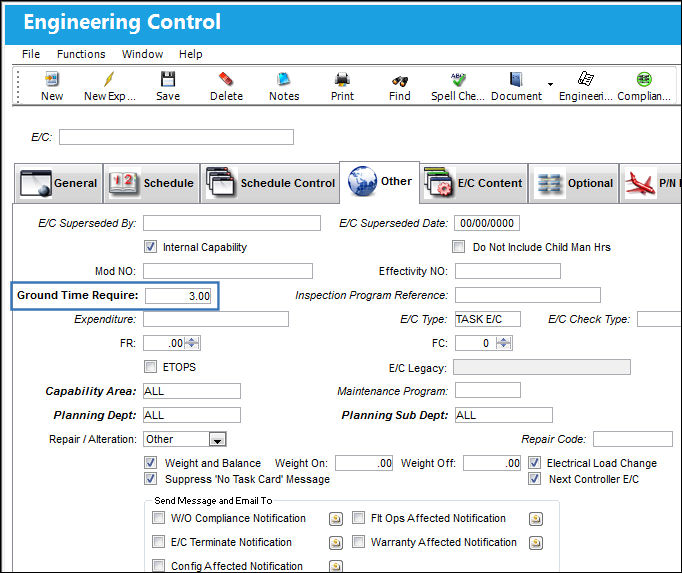
By selecting the Auto Reschedule checkbox via the Engineering Control, Schedule tab, compliance for an aircraft Engineering Control is scheduled to take place by or before the due date/time by auto-creating a Work Order. However, if one already exists, the system adds it to the existing W/O. For this to function properly, at least one (1) compliance must have occurred after the selection of the checkbox. The system schedules the Work Order in accordance with the E/C’s Repeat Schedule (repeat interval) unless the aircraft is in flight at that time. If the aircraft is in flight at the due date/time, the system will look for sufficient ground time between the aircraft's scheduled flights--prior to the time that the E/C is due---when and where the Work Order can be scheduled. In this case the system refers to the schedule of the specific aircraft tail number, not just the blanket schedule found in the Engineering Control, Schedule tab. The amount of scheduled down time needed for the E/C is entered through the Ground Time Required field via the Engineering Control, Other Tab. This field is mandatory when the Auto Reschedule checkbox is selected.
This feature does not function with the Next E/C functionality. The Auto Reschedule functionality should only be used with daily E/Cs, not with larger heavy checks.
 Note: The Auto Reschedule checkbox has been renamed to the Auto Schedule checkbox in TRAX Version 12.5 and all later releases. This checkbox contains the same functionality in TRAX Version 12.5, however the Daily checkbox need not be selected in order to utilize the Auto Schedule functionality.
The locations where the scheduled ground times take place must be Maintenance Facilities for the system to validate the auto Work Order creation. For more information refer to the Location Master via the Settings Training Manual.
For example, create an Engineering Control and schedule several consecutive flights for the same aircraft. To note the functionality, the E/C must be due during one of the later scheduled flights.
The Auto Reschedule checkbox must be selected from the Schedule tab of the Engineering control.
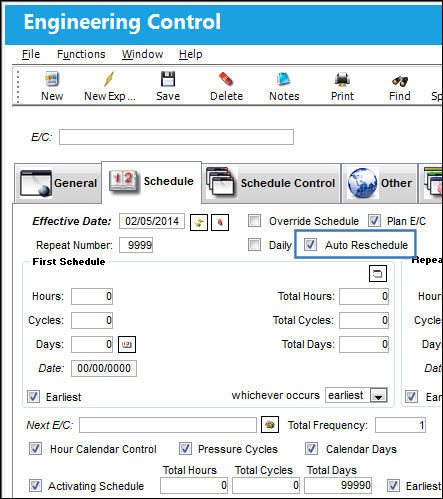
Only the Daily checkbox or the Auto Reschedule checkbox should be selected at the same time, not both.
From the Other tab, the Ground Time Required for the E/C to be complied against must be entered. The described functionality will search for scheduled ground times that meet the required time listed in this field.
Create a Work Order and attach the Engineering Control to it. Once the E/C is complied against, a new W/O will be automatically created and scheduled prior to the E/C's Due Date. The scheduling of the auto-W/O is as follows:
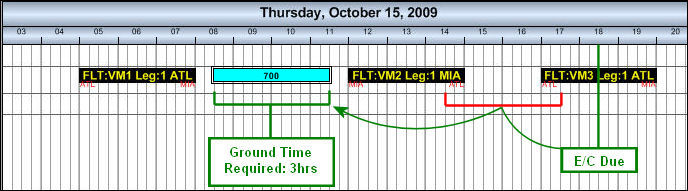
From the Interactive Planner, notice the aircraft that the E/C was created for. Note that the E/C is due while the A/C is in flight.
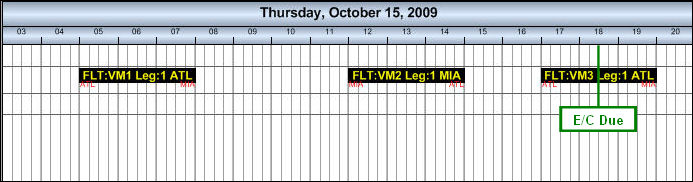
The functionality then looks for a scheduled available down time where compliance can be completed.
In this example, the first available ground time is two (2) hours. Because the Ground Time Required field for the E/C is three (3) hours, the system will recognize that the first available scheduled ground time does not contain sufficient time for the E/C to be complied against.
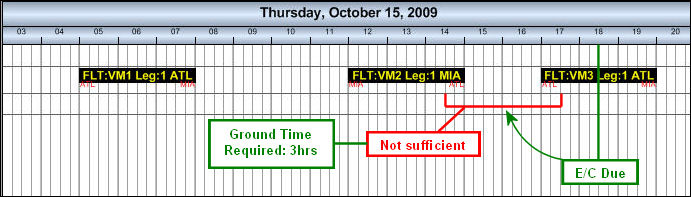
The system then looks for a previous scheduled ground time that meets the three (3) hours of Ground Time Required. When a scheduled ground time with sufficient time is found, TRAX creates a Work Order to comply with the E/C during that time.
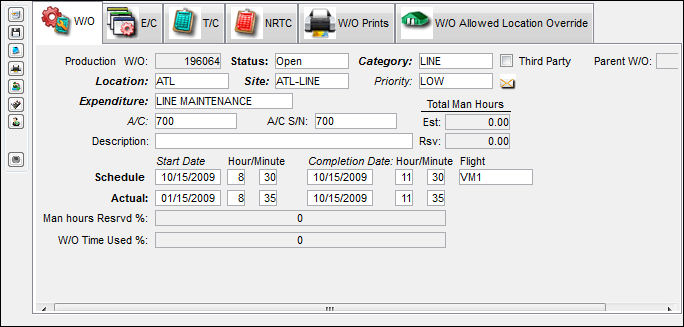
Below is the automatically created W/O that includes the start/end time as well as the Flight number that the E/C is scheduled for.
The Priority 'LOW' is hard-coded and will be the default Priority unless a Priority is indicated in the A/C Master, Auto W/O tab. For additional information, refer to the A/C Master, Auto W/O tab via the Aircraft Master of the Settings Training Manual.
In order for this procedure to function properly, Planning Switch  OVNTACMS must be set to No. When set to No, for an E/C that is set to Auto Reschedule, an automatic W/O will be generated for the location of the last destination. When set to Yes, scheduled flights will be ignored when the automatic Work Order is generated for the next time compliance is due. For more information refer to the Switch OVNTACMS via the Planning Switches Manual.
Share
Print
|
©1997-2026 Trax USA Corp. All rights reserved. This manual may not be copied, photocopied, reproduced, translated, or converted to any electronic or machine-readable form, in whole or in part, without prior written approval from Trax USA Corp. |
 |