 Download Online Help
 Print
|
|
|
|
|


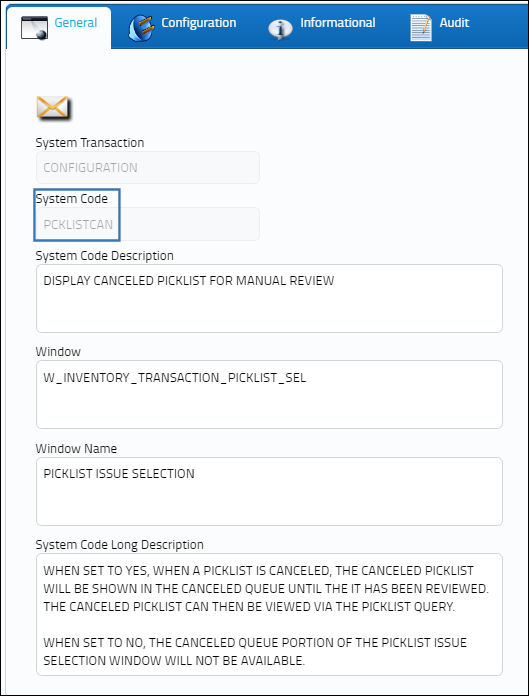
PCKLISTCAN - Display Canceled Picklist for Manual Review
Display Canceled Picklist for Manual Review
Affected Window: w_inventory_transaction_picklist_sel
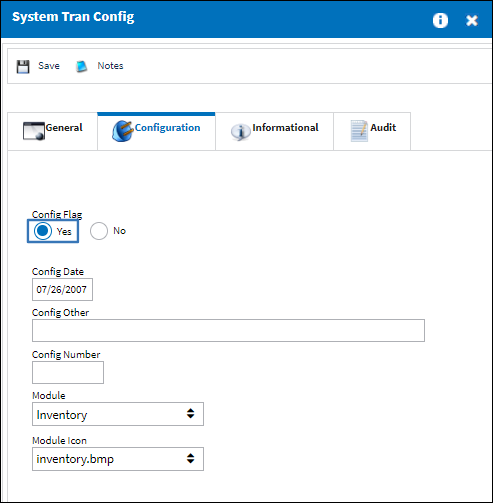
Switch Set to Yes:
When set to Yes, when a Picklist is canceled, the canceled Picklist will be shown in the Canceled Queue until it has been reviewed. The canceled picklist can then be viewed via the Picklist Query.
From the W/O Task Card window, select the Picklist  button.
The Create P/N Reservation (Picklist) pop up appears. Select 'Yes.'
The Picklist Print appears once the picklist has been created.
Navigate to the Picklist Issue Selection window. The new picklist appears at the bottom of the Open Picklist queue.
Note: The Canceled Picklist queue in the lower portion of the window appears because Switch  PCKLISTCAN is set to Yes.
Select the Marked As Picked  button. If the Wall Security is enabled, the system will prompt the user for their password.
Note: The Marked As Picked button only appears if Switch PKLSTMRVW is set to Yes.
The Picked By and Picked Date fields have been auto populated for the new picklist.
Note: If the Wall Password functionality is enabled, the Picked By will auto populate with the Employee number rather than with the User name.
Return to the Work Order and cancel the picklist reservation.
The Picklist Cancel Print appears.
The canceled picklist has been moved to the Canceled Picklist queue. Select the Mark As Reviewed  button.
The picklist disappears from the Canceled Picklist queue.
Navigate the the Picklist Query window and query for Canceled picklists.
The canceled picklist is shown below.
This switch functions the same way for every instance in the system where a picklist has been deleted. a picklist can be deleted via the following windows.
- Picklist Creation, via Inventory
- Picklist Creation Supervisor, via Inventory
- Picklist Issue (Quantity field), via Inventory
- W/O (Cancel Reservation Button), via Production
Switch Set to No:
When set to No, the Canceled Queue portion of the Picklist Issue Selection window will not be available.
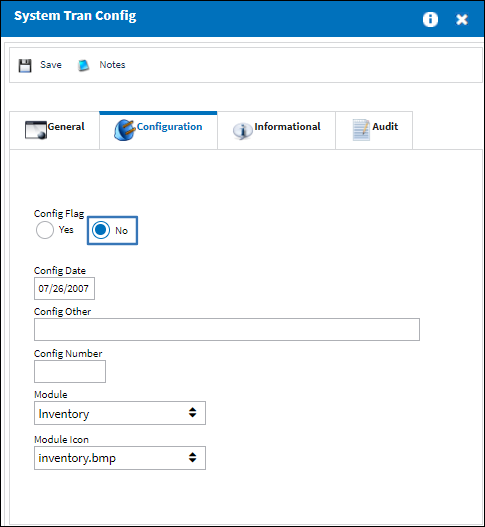
The Canceled Queue is unavailable.
Download Online Help
Print
|
©1997-2018 Trax USA Corp. All rights reserved. This manual may not be copied, photocopied, reproduced, translated, or converted to any electronic or machine-readable form, in whole or in part, without prior written approval from Trax USA Corp. |
 |