 Download Online Help
 Print
|
|
|
|
|


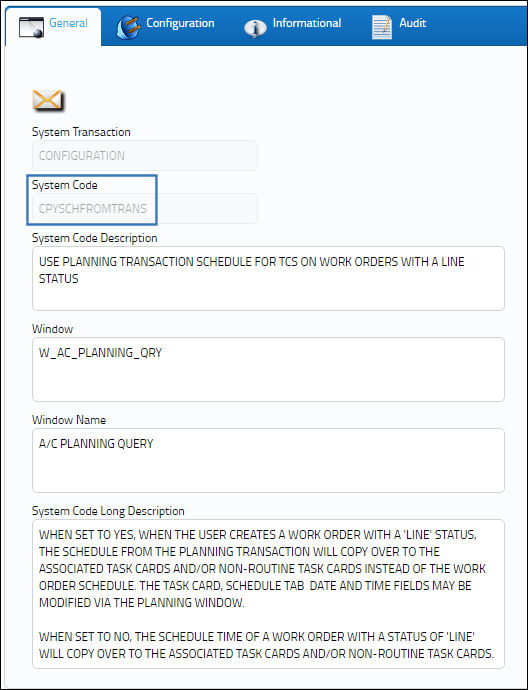
CPYSCHFROMTRANS - Use Planning Transaction Schedule for T/Cs on Work Orders with a Line Status
Use Planning Transaction Schedule for TCs on Work Orders with a Line Status
Affected Window: w_ac_planning_qry
Note: This switch only functions correctly when the Work Order is created via the W/O Auto - New button.
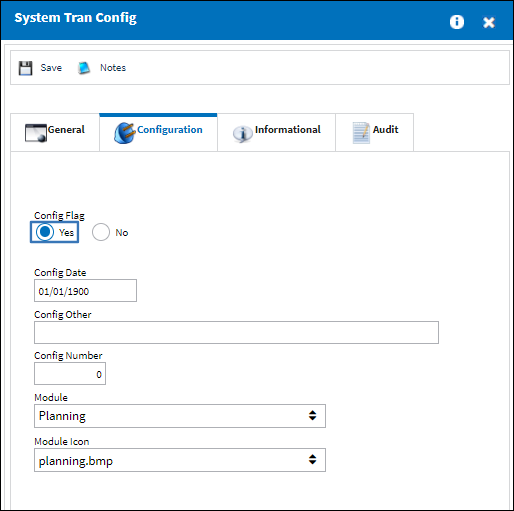
Switch Set to Yes:
When set to Yes, when the user creates a work order with a 'Line' status, the schedule from the planning transaction will copy over to the associated Task Cards and/or Non-Routine Task Cards instead of the Work Order schedule. The Task Card, Schedule tab Date and Time fields may be modified via the Planning window.
When querying for E/Cs, notice that the Date field is not highlighted.
Select the Planning Info  button to open the A/C Planning Transaction window. In the Planned Start Date and End Date fields, input the necessary dates and save the record.
Now the selected E/C displays the new date with the Date field highlighted in yellow:
Select the W/O Auto-New  button and create a new Work Order with the status set as 'Line.'
The Schedule Start Date/Time field and End Date/Time field now populate the Planning Transaction schedule.
Updating the Task Card Schedule:
In the W/O Non-Routine Task Card window, the Schedule Start and End Date/Time field is set to the following values.
In the A/C Planning window, the user can update the Task Card schedule on a 'Line' Work Order by selecting the Planning Info button.
The Non-Routine Task Card displays the new planning schedule.
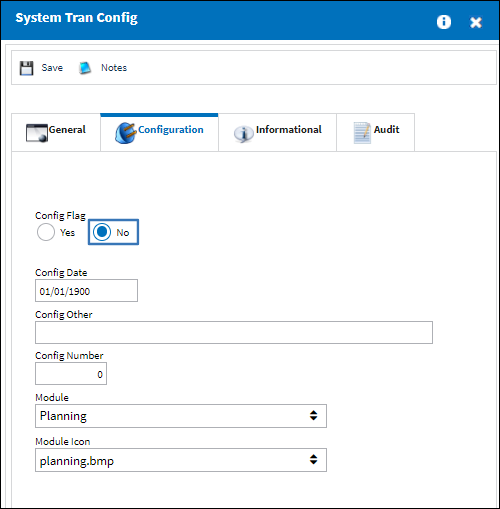
Switch Set to No:
When set to No, the schedule of a Work Order with a status of 'Line' will copy over to the associated Task Cards and/or Non-Routine Task Cards.
When querying for E/Cs, notice that the Date field is not highlighted.
Select the Planning Info  button to open the A/C Planning Transaction window. In the Planned Start Date and End Date fields, input the necessary dates and save the record.
Now the selected E/C displays the new date with the Date field highlighted in yellow:
Select the W/O Auto-New button and create a new Work Order with the status set as 'Line.'
The Schedule Start Date/Time field and Schedule End Date/Time field now populate the Work Order schedule.
Download Online Help
Print
|
©1997-2018 Trax USA Corp. All rights reserved. This manual may not be copied, photocopied, reproduced, translated, or converted to any electronic or machine-readable form, in whole or in part, without prior written approval from Trax USA Corp. |
 |