 Download Online Help
 Print
|
|
|
|
|


PN_EC_INSTDAYS - Count P/N E/Cs by E/C's Calendar Days or Part's Installed Days
Count P/N E/Cs by E/C's Calendar Days or Part's Installed Days
Affected Window: w_ac_planning_qry
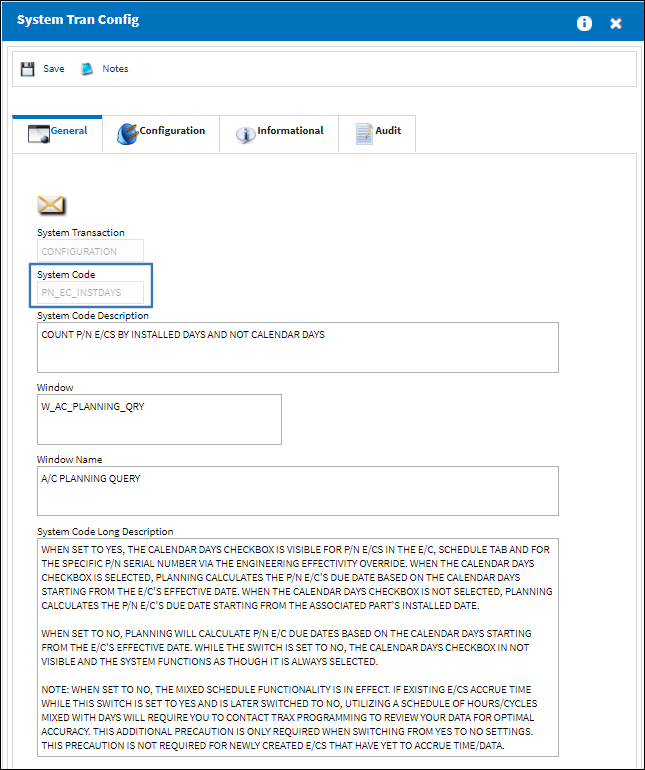
The following is how Planning will calculate the P/N E/C Due Date with each switch setting.
Switch Set to Yes:
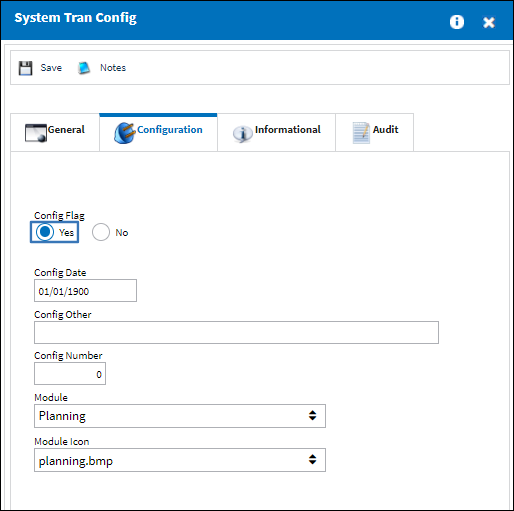
When set to Yes, the Calendar Days checkbox is available for P/N E/Cs in the E/C, Schedule tab and for the specific P/N Serial Number via the Engineering Effectivity Override. When the Calendar Days checkbox is selected, Planning calculates the P/N E/C's Due Date based on the Calendar Days starting from the E/C's Effective Date. When the Calendar Days checkbox is not selected, Planning calculates the P/N E/C's Due Date starting from the associated part's Installed Date (if the part's installed date is after the P/N E/C's Effective Date).
Calendar Days Checkbox NOT Selected:
Notice that the following E/C has an Effective Date and a schedule with a particular number of Days.
Also notice that the Calendar checkbox is not selected.
The following P/N is then linked to the E/C (making it a P/N E/C).
The following specific Serial Number is then linked to the P/N E/C's schedule. Notice that compliance has not yet been met.
Also notice that, while the Calendar Days checkbox is available via the override window for the P/N S/N, the checkbox remains deselected.
The P/N S/N was installed on the specified year.
Planning Query is then run for the P/N E/C. Because the Calendar Days checkbox is not selected, the Due Date for the P/N E/C is based on the part's Installed Date.
The Due Date is therefore the particular number of Days after the part's Install Date.
Note: If the part was installed on the Aircraft prior to the P/N E/C's Effective Date, then planning will count from the E/C's Effective Date, not from the part's installed date.
Calendar Days Checkbox Selected:
Now the Calendar Days checkbox is selected for the same P/N E/C (which is available via the E/C, Schedule tab or via the override window for the P/N S/N).
Planning Query is then run for the P/N E/C. Because the Calendar Days checkbox is selected, notice that the Due Date is calculated based on the amount of days since the P/N E/C Effective Date.
The Due Date is therefore the particular number of Days after the E/C's Effective Date.
Switch Set to No:
When set to No, Planning will calculate P/N E/C Due Dates based on the Calendar Days starting from the E/C's Effective Date. While the switch is set to No, the Calendar Days checkbox in not visible and the system functions as though it is always selected.
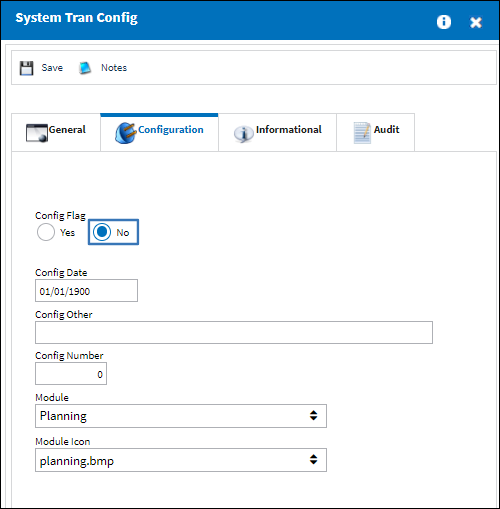
Note: When set to No, the mixed schedule functionality is activated. Therefore, if existing E/Cs accrue time while this switch is set to Yes and is later switched to No, utilizing a schedule of hours/cycles mixed with days will require you to contact Customer Support to review your data for optimal accuracy. This additional precaution is only required when switching from Yes to No settings. This precaution is not required for newly created E/Cs that have yet to accrue time/data.
Notice that the following E/C has an Effective Date and a First Schedule of a particular number of Days.
Also notice that the Calendar checkbox is not available because the switch is set to No.
The following P/N is then linked to the E/C (making it a P/N E/C).
The following specific Serial Number is then linked to the P/N E/C's schedule. Notice that compliance has not yet been met.
Also notice that the Calendar Days checkbox is not available.
The P/N S/N was installed.
When Planning Query is run for the P/N E/C, notice that the Due Date is calculated based on the amount of days since the P/N E/C Effective Date, not the part's Installed Date.
The Due Date is therefore a particular number of Days after the E/C's Effective Date.
Download Online Help
Print
|
©1997-2018 Trax USA Corp. All rights reserved. This manual may not be copied, photocopied, reproduced, translated, or converted to any electronic or machine-readable form, in whole or in part, without prior written approval from Trax USA Corp. |
 |