 Download Online Help
 Print
|
|
|
|
|


LBRBYHCNT - System Labor by Head Count
System Labor by Head Count
Affected Window: w_manhours_schedule_generation_headcount
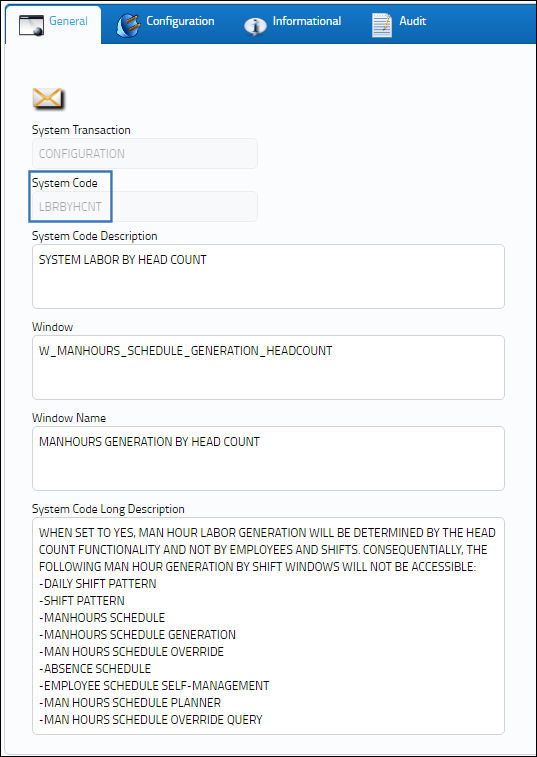
Switch Set to Yes:
When set to Yes, man hour labor generation will be determined by the head count functionality and not by employees and shifts. Consequentially, the following man hour generation by shift windows will not be accessible: Daily Shift Pattern, Shift Pattern, Manhours Schedule, Manhours Schedule Generation, Man hours Schedule Override, Absence Schedule, Employee Schedule Self-Management, Man hours Schedule Planner, and Man hours Schedule Override Query.
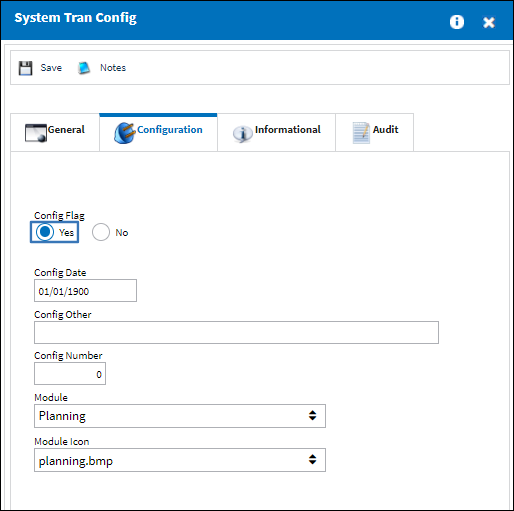
For example, users must first set up a Man Hours Factor through the Location Master window as the head count functionality is based on specific locations. The Man Hours Factor will appear when the Maintenance Facility checkbox is selected via Settings/Update/Location Master, General Tab. This field will only appear then the switch is set to 'Yes.'
The Man Hours field is located on the Location Master, Optional tab and is set.
Select the Planning/Update/Manhours Schedule by Head Count window to access the head count functionality.
Users can also access the Manhours Schedule by Head Count Query window when the switch is set the Yes.
Note: For more information on this functionality refer to Manhours Schedule by Head Count via the Planning Training Manual.
It is also important to note that the manhour shift generation windows will not be available. The following prompt will appear when one of these windows are selected as in the Manhours Schedule Generation window:
Note: The Resource Area functionality of the Interactive Planner only works with the Man Hours Schedule functionality, not the Man Hours Schedule by Head Count functionality. For more information refer to the Resource Area of the Interface Planner Planning Query option via the Planning Training Manual.
Switch Set to No:
When set to No, man hour labor generation will be determined by employees and shifts and not by the head count functionality. Consequentially, the following man hour by head count windows will not be accessible: Manhours Schedule by Head Count and Manhours Schedule by Head Count Query.
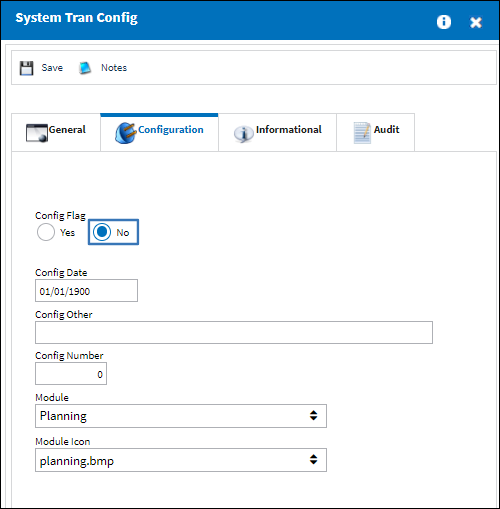
From the Location Master window notice that even when the Maintenance Facility checkbox is selected.
The Man Hours Factor field does not appear.
The Manhours Schedule by Head Count update and query windows cannot be selected. The following prompt will appear when the window is selected.
Download Online Help
Print
|
©1997-2018 Trax USA Corp. All rights reserved. This manual may not be copied, photocopied, reproduced, translated, or converted to any electronic or machine-readable form, in whole or in part, without prior written approval from Trax USA Corp. |
 |