 Download Online Help
 Print
|
|
|
|
|


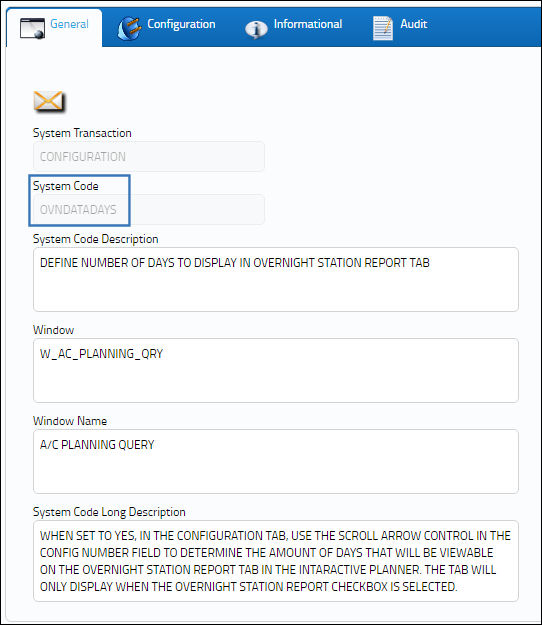
OVNDATADAYS - Define Number of Days to Display in Overnight Station Report Tab
Define Number of Days to Display in Overnight Station Report Tab
Affected Windows: w_ac_planning_qry
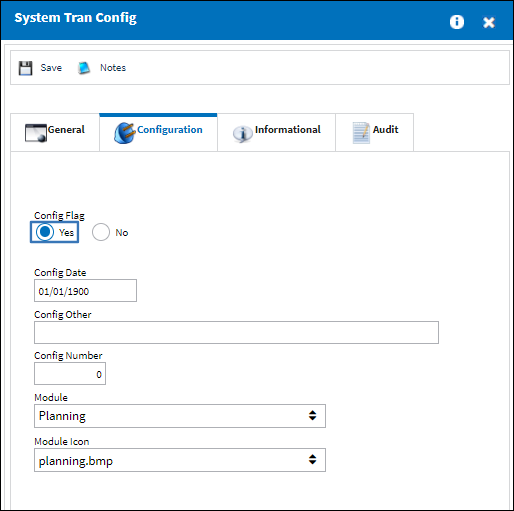
Switch Set to Yes:
When set to Yes, in the Configuration tab, use the scroll arrow control in the Config Number field to determine the amount of days that will be viewable on the Overnight Station Report tab in the Interactive Planner. The tab will only display when the Overnight Station Report checkbox is selected.
The user can define the number of days to display in the Overnight Station Report tab in the Interactive Planner view. Select the number of days using the scroll arrow for the Config Number field. For example, to show five days in the Overnight Station Report then select the number 5, for seven days you would choose number 7 and so on.
The Overnight (St) Station Report checkbox is displayed in the Display Control Area. Select the Overnight (St) Station Report checkbox to display the Overnight Station Report tab. For this example, the Config Number is set to five so the Overnight Station Report, when selected, will display five days for the report data. Use the scroll bar to view all five days of data.
When the Overnight (St) Station Report checkbox is deselected, the Overnight Station Report tab is no longer available.
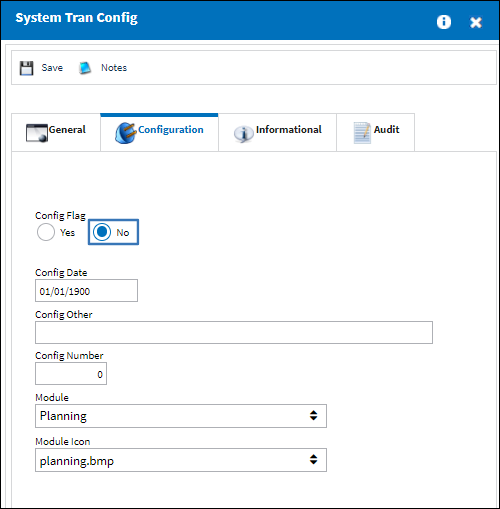
Switch Set to No:
When set to No, the Overnight Station Report in the Interactive Planner view will revert to the default setting and display two days regardless of the value entered in the Configuration tab, Config Number field.
Note: You must log out for this switch configuration to take effect.
After selecting the Overnight (St) Station Report checkbox, the Overnight Station Report tab is displayed in the Display by Area. Only two days are displayed, use the scroll bar to scroll to the right and view the listed days.
Download Online Help
Print
|
©1997-2018 Trax USA Corp. All rights reserved. This manual may not be copied, photocopied, reproduced, translated, or converted to any electronic or machine-readable form, in whole or in part, without prior written approval from Trax USA Corp. |
 |