 Download Online Help
 Print
|
|
|
|
|


OVNTACMS - Overnight Station Default
Overnight Station Default
Affected Window: w_ac_planning_qry
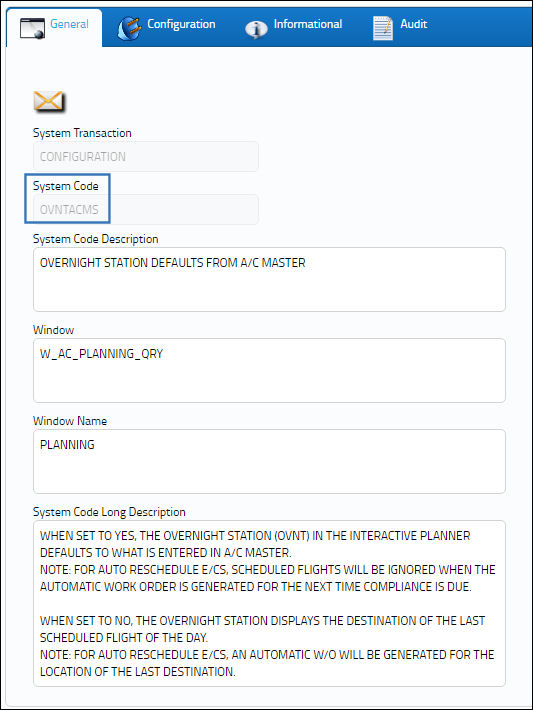
Note: In order for the E/C Auto Reschedule functionality to function properly, this switch must be set to No. When set to No, for an E/C that is set to Auto Reschedule, an automatic W/O will be generated for the Location of the last destination (the W/O's Site defaults to the first Site listed for the Location in the Site Button, via Location Master, not the Over Night Site listed in the A/C Master, Auto W/O tab). When set to Yes, scheduled flights will be ignored when the automatic Work Order is generated for the next time compliance is due. For more information on the E/C Auto Reschedule functionality, refer to the Auto Reschedule Functionality via the Engineering Training Manual.
Switch Set to No:
When set to No, the Overnight Station (OVNT) in the Interactive Planner displays the Destination of the last scheduled flight of the day from the A/C Flight Schedule. In order for the E/C Auto Reschedule functionality to function properly, this switch must be set to No. When set to No, for an E/C that is set to Auto Reschedule, an automatic W/O will be generated for the location of the last destination. For more information on the E/C Auto Reschedule functionality, refer to the Auto Reschedule Functionality via the Engineering Training Manual.
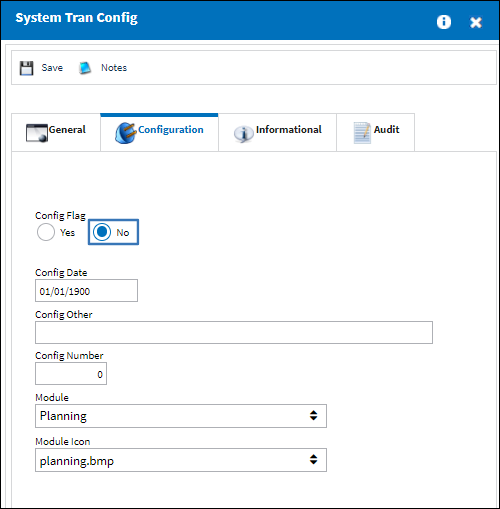
The following A/C Flight Schedule has been set to have a particular Destination and is the last scheduled flight of the day.
Notice in the Interactive Planner, the OVNT is set to that of the last Destination of the A/C Flight Schedule.
Subsequently, the Work Order was created for the overnight station that was the aircraft's last destination for the day. This is only if there is sufficient time for the work to be completed in between scheduled flights. If there is not enough time, the system will look for a scheduled available down time where compliance can be completed. Refer to the Auto Reschedule Functionality for more information.
Note: When set to No, the W/O's Site defaults to the first applicable Site listed for the Location via the Site Button, via Location Master.
Switch Set to Yes:
When set to Yes, the Overnight Station (OVNT) in the Interactive Planner defaults to that of the A/C Master. The Auto Reschedule functionality will be ignored and the Work Order will be generated for the next time that compliance is due.
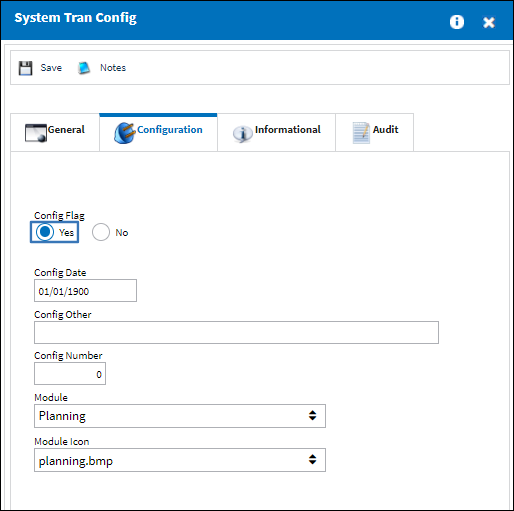
The following A/C Master has been set to have a particular Overnight Station.
Notice in the Interactive Planner, the OVNT is set to that of the A/C Master.
When set to Yes, the W/O's Site will come from the Over Night Site field entered in the A/C Master, Auto W/O tab.
Download Online Help
Print
|
©1997-2018 Trax USA Corp. All rights reserved. This manual may not be copied, photocopied, reproduced, translated, or converted to any electronic or machine-readable form, in whole or in part, without prior written approval from Trax USA Corp. |
 |