
 Share
Share
 Print
Print
|
|
|
|
|


The New Folder  button allows the user to create a new folder within the TraxDoc record.
From the TraxDoc Explorer tab, navigate to the location in the TraxDoc manual where the new folder will be located. Select the New > Folder button.
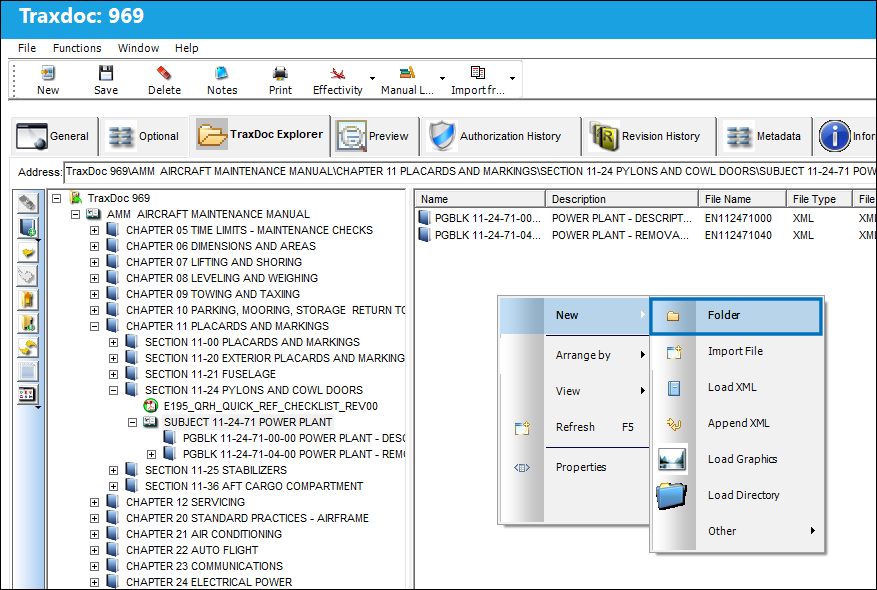
In TRAX versions prior to 15, the new folder is automatically created and named with the user who created the folder. The folder name can then be edited.
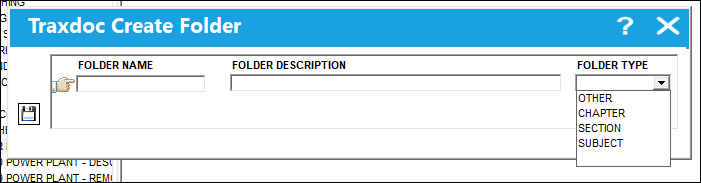
 But in TRAX Version 15, the TraxDoc Create Folder window opens where the File Name, Folder Description, and Folder Type can be specified. The Folder Type options are hierarchical:
- OTHER
- CHAPTER
- SECTION
- SUBJECT
Select the Save  button when ready.
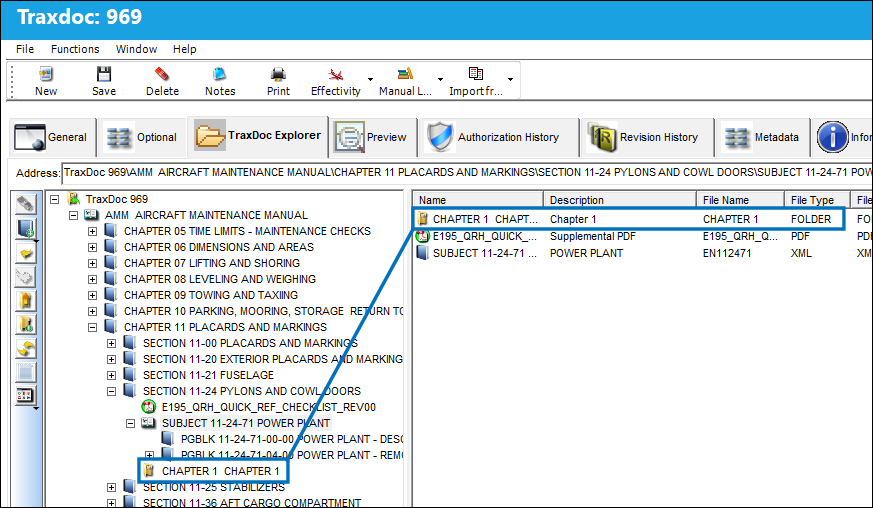
The folder is then created within the TraxDoc's contents and listed in the TraxDoc Explorer tab.
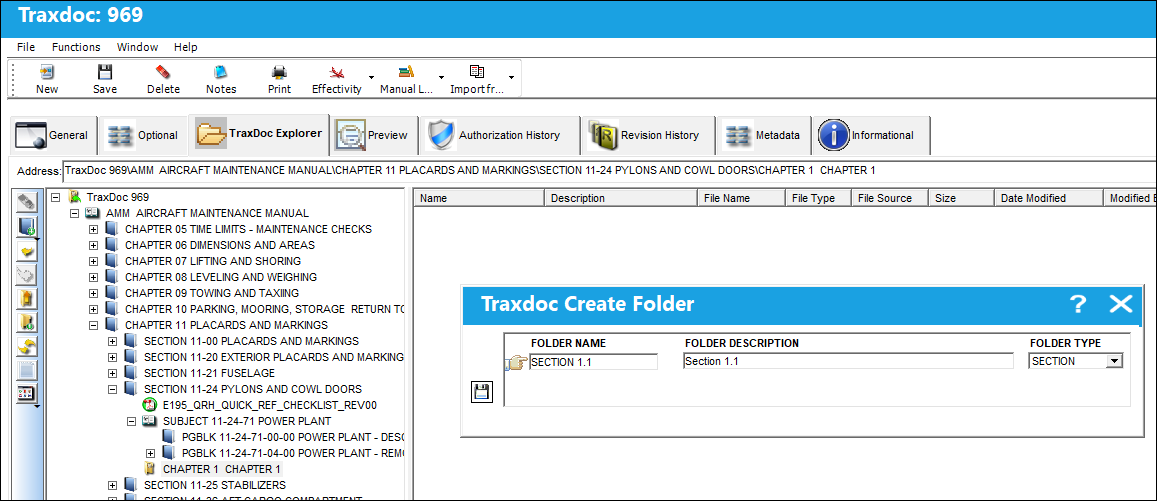
Additional files and folders (and sub folders) can be created following the same steps above.
Share
Print
|
©1997-2026 Trax USA Corp. All rights reserved. This manual may not be copied, photocopied, reproduced, translated, or converted to any electronic or machine-readable form, in whole or in part, without prior written approval from Trax USA Corp. |
 |