
 Share
Share
 Print
Print
|
|
|
|
|


The Load XML  button is used to load an XML file to a TraxDoc.
It is not necessary to convert TIFF and Computer Graphic Metafiles (CGM) images to JPEG. Users may load TIFF and CGM graphics directly to a TraxDoc and preview these images. The option to preview images in TIFF and CGM format is available system wide.
From the TraxDoc Explorer tab, select the Load XML button.
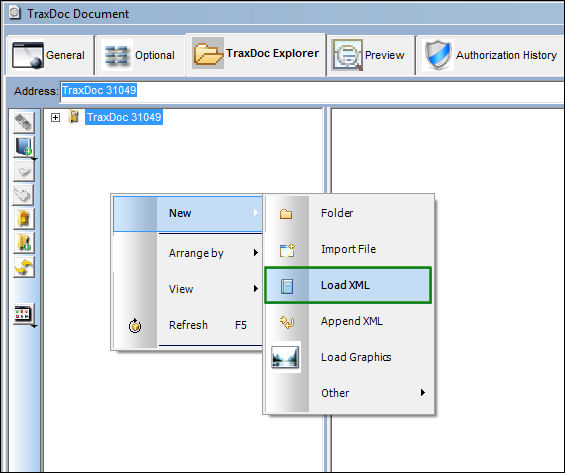
TRAX displays the TraxDoc XML Load window. Populate the DTD File.
Users no longer have to select the Convert SGML to XML  button. This option was replaced with the Load Option drop down menu.
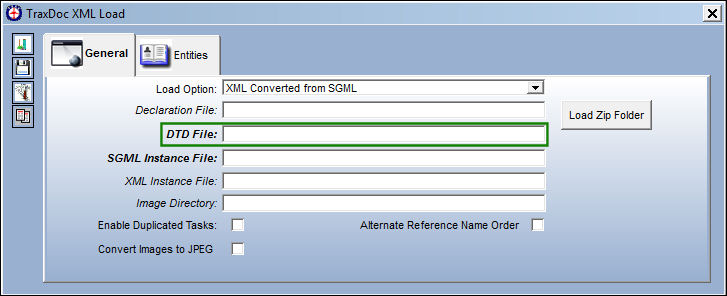
Select the desired DTD file.
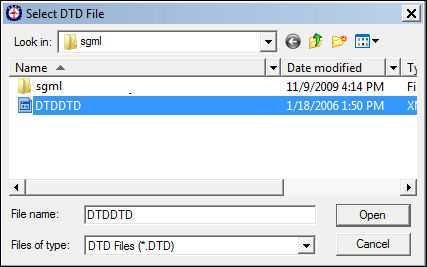
The DTD File is populated and the SGML Instance File auto populates from the same folder.
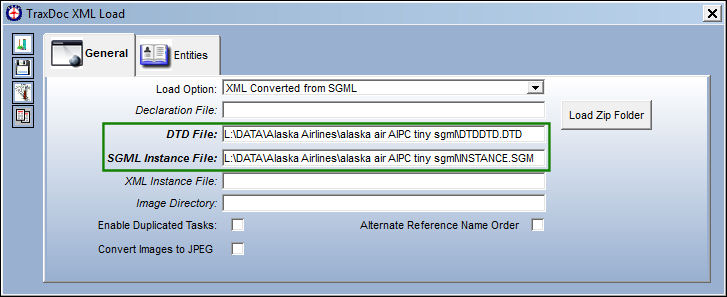
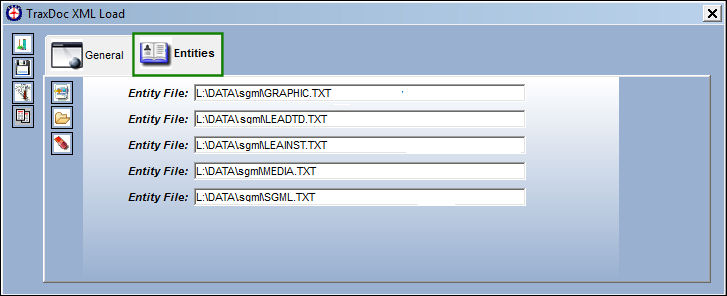
The Entity files have been auto populated.
Delete any zipped files that may have been in the folder.
Select the Save  button.
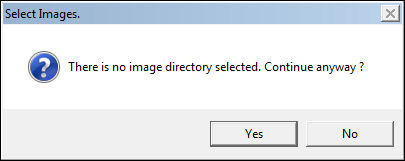
If an image directory was not selected, the system will prompt the user with following message. Select 'No' and return to the TraxDoc XML Load window to populate an Image Directory.
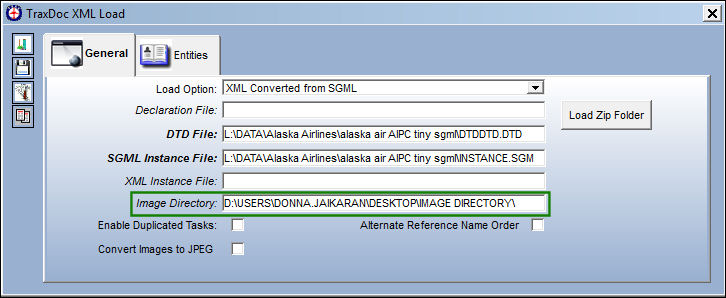
Once the Image Directory is populated, select the Save button.
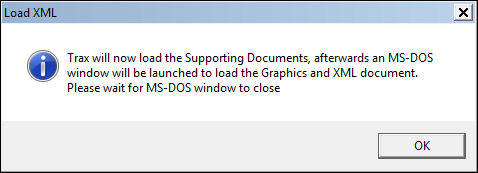
The Load XML informational pop-up appears. Select 'OK.'
The following MS-DOC window will quickly appear:
The below command window will remain open until the XML import is complete. This allows the user to review any errors that may have been generated by the process. The user may then manually close the window in order to continue.
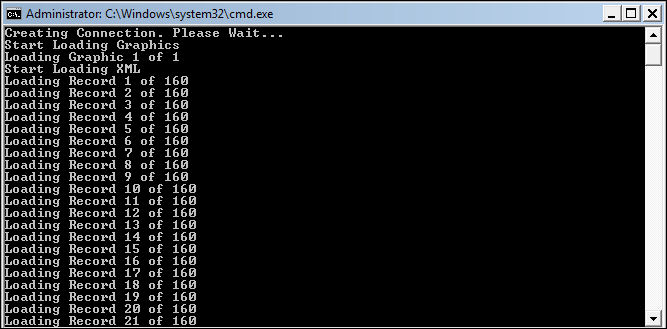
All files are loaded as shown below:
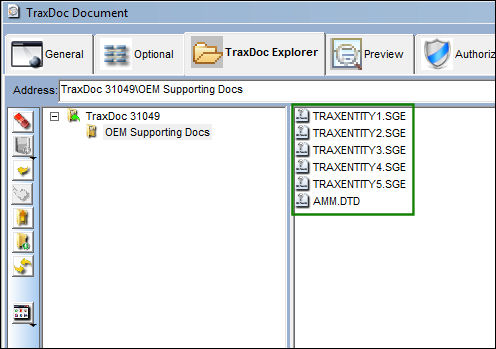
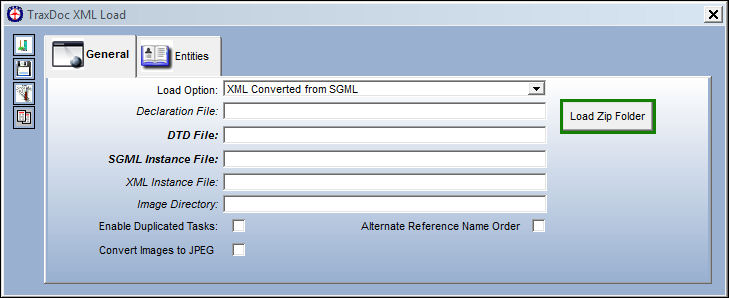
Load Zip Folder Button:
The user is now able to load zipped files.
Select the Zipped file:
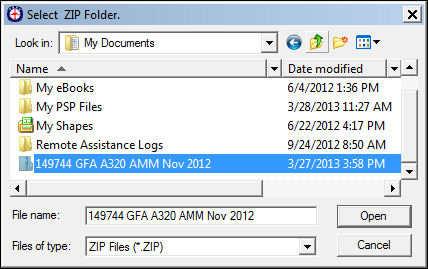
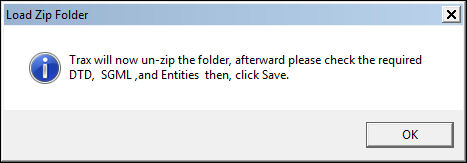
The system displays the following pop-up:
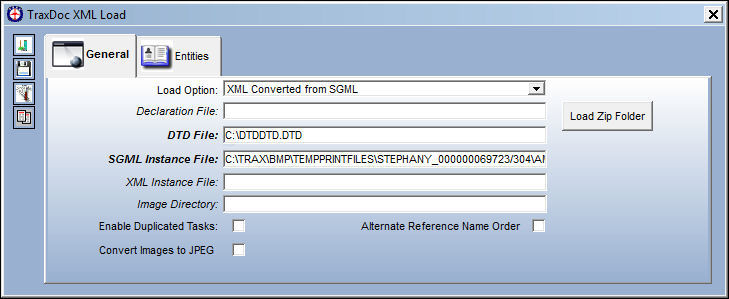
Once the file is loaded, the following fields in the General tab will auto-populate with the required information.
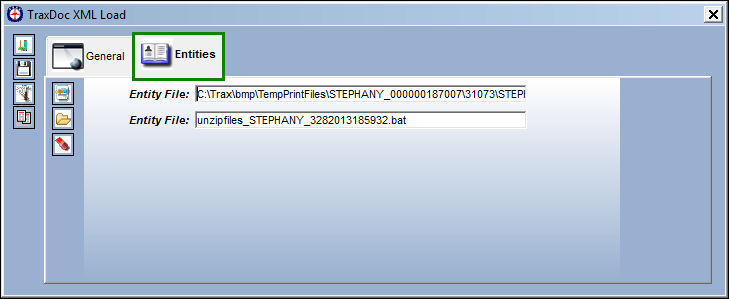
In the Entities tab, the entity files have also auto-populated:
The rest of the loading process continues as explained above in the Load XML Button, via the TraxDoc Explorer Tab.
Share
Print
|
©1997-2026 Trax USA Corp. All rights reserved. This manual may not be copied, photocopied, reproduced, translated, or converted to any electronic or machine-readable form, in whole or in part, without prior written approval from Trax USA Corp. |
 |