|
TRAX MANUALS > TraxDoc > TraxDoc Module > TraxDoc, Update Menu > TraxDoc Master > TraxDoc Document Detail > TraxDoc Document Detail, TraxDoc Explorer Tab > Folder Explorer View, via TraxDoc Document Detail, TraxDoc Explorer Tab > File Multi Button, via TraxDoc Document Detail, TraxDoc Explorer Tab > Load Graphics Button, via TraxDoc Document Detail, TraxDoc Explorer Tab
Load Graphics Button, via TraxDoc Document Detail, TraxDoc Explorer Tab
The Load Graphics  button allows users to load and attach graphics to a TraxDoc. button allows users to load and attach graphics to a TraxDoc.
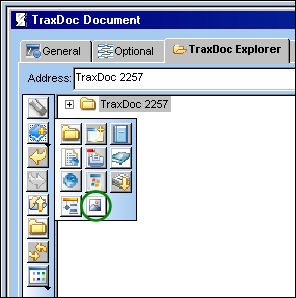
From the File Multi  Button, select the Load Graphics button. Button, select the Load Graphics button.
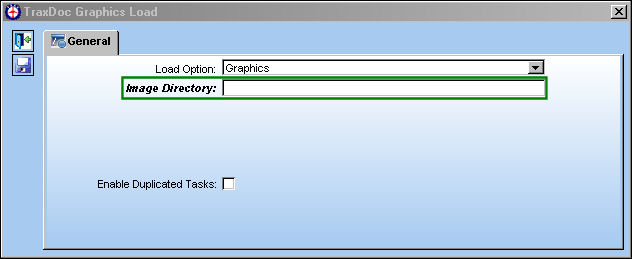
The TraxDoc Graphics Load window appears. Right-click in the Image Directory field.
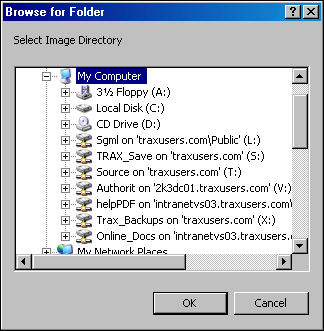
The Browse for Folder pop-up appears. Browse the folder for the desired image. Once found, select 'OK.'
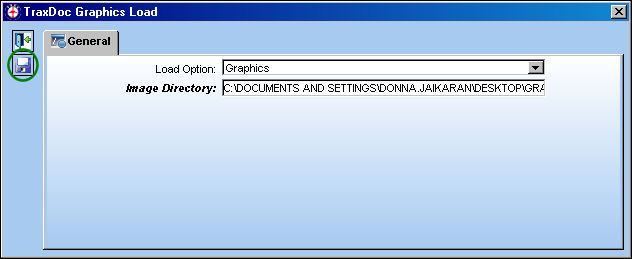
Once the path is specified in the TraxDoc Graphics Load window, select the Save  button. button.
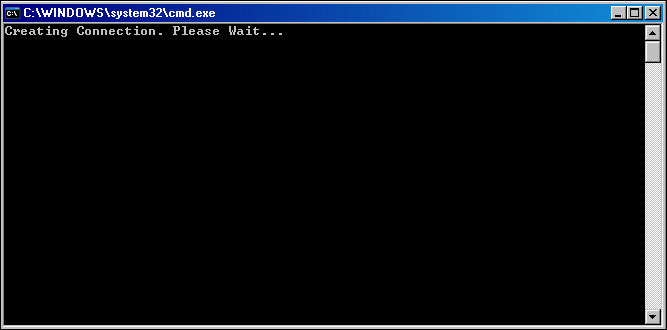
The following data window appears. Wait until the data is loaded.
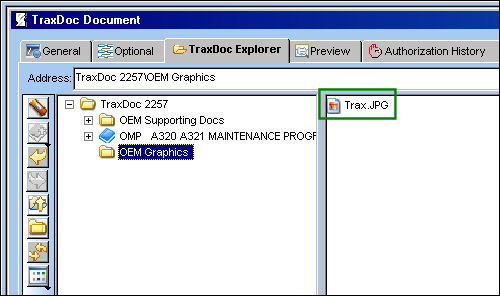
The graphic is loaded on the TraxDoc as shown below. Double click on the .JPG to view graphic.
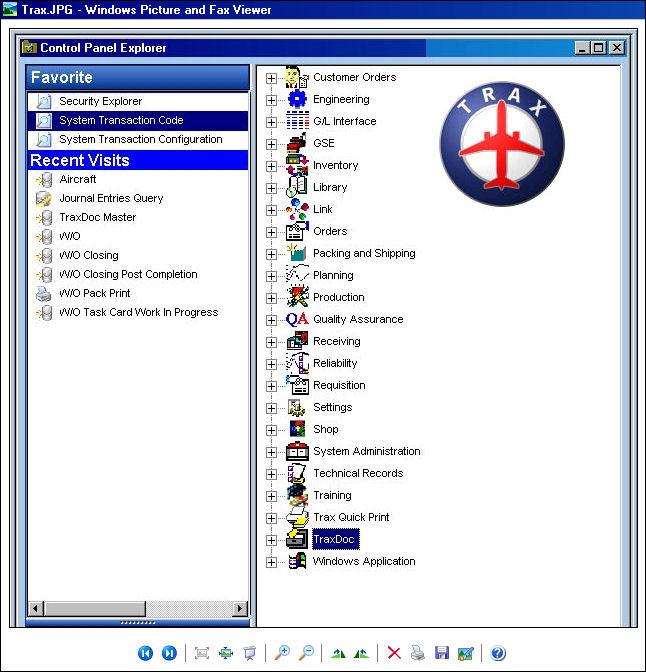
The graphic opens as shown below:
|
See Also File Multi Button, via TraxDoc Document Detail, TraxDoc Explorer Tab New Folder Button, via TraxDoc Document Detail, TraxDoc Explorer Tab Import File Button, via TraxDoc Document Detail, TraxDoc Explorer Tab Load XML Button, via TraxDoc Document Detail, TraxDoc Explorer Tab OCR Text File Button, via TraxDoc Document Detail, TraxDoc Explorer Tab PDF Capture Button, via TraxDoc Document Detail, TraxDoc Explorer Tab Import File via Scan Button, via TraxDoc Document Detail, TraxDoc Explorer Tab Create a Link to a Webpage Button, via TraxDoc Document Detail, TraxDoc Explorer Tab Create a Link to an Application Button, via TraxDoc Document Detail, TraxDoc Explorer Tab Load Files into a Shared Folder Button, via TraxDoc Document Detail, TraxDoc Explorer Tab Create a Link to a File Button, via TraxDoc Document Detail, TraxDoc Explorer Tab |
|

 Share
Share
 Print
Print


