
 Share
Share
 Print
Print
|
|
|
|
|


The Load Files  button works with the Link to a File
  button. These two buttons allow the user to load a file to a designated directory and then link the file back to a TraxDoc.
From the TraxDoc Explorer tab, select the Load Files button.
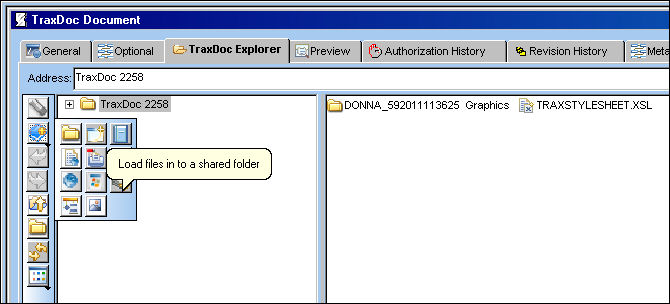
Go to TraxDoc/Update/TraxDoc Master. Create a TraxDoc, or select an existing TraxDoc. Select the TraxDoc Explorer Tab.
The user may also select the Load Files button by following the path shown below:
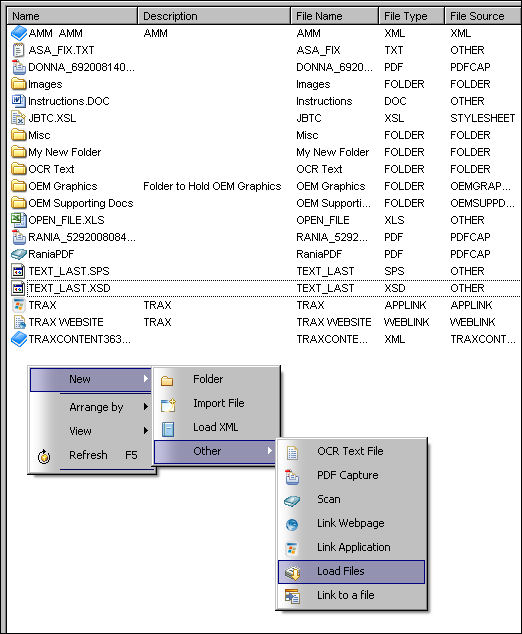
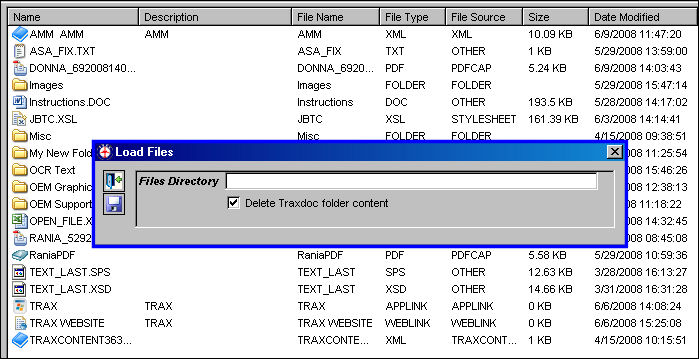
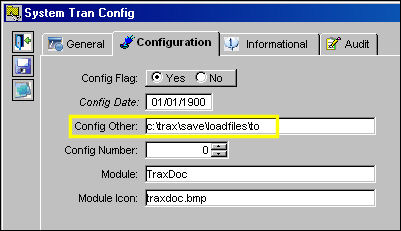
The Load Files window appears. Go to the configuration Switch  TXCDIR via System Transaction Configuration. Go to System Configuration Explorer/TraxDoc/TXCDIR/Update Record/Configuration Tab.
In the Config Other Tab, specify the path to which the user would like to load a file. Select the Save  button.
Enter the same path directory in the Files Directory field in the Load Files window and select the Save button.

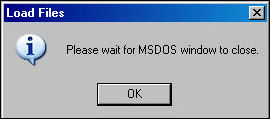
The Load Files pop-up appears. Select 'OK.'
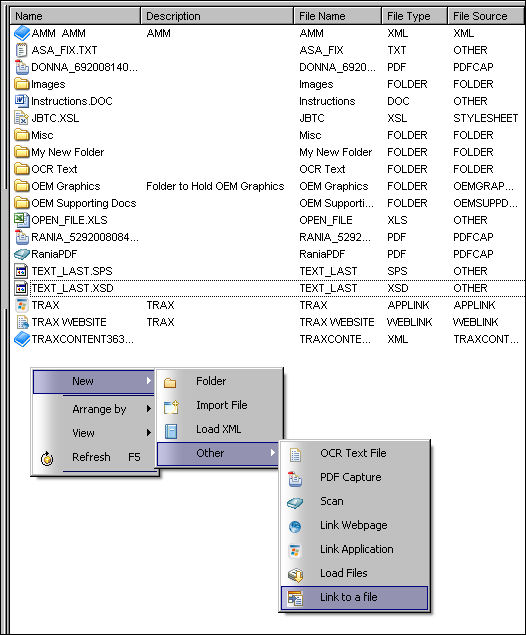
Select the Link to a File button.
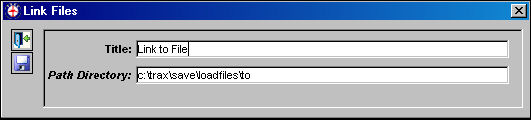
The Link Files window appears. Enter a title and select the path used to load the file. Select the Save button.
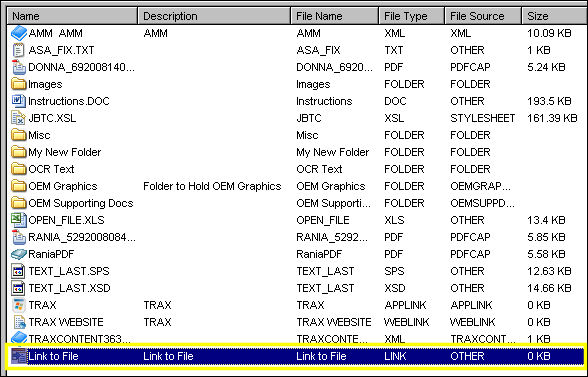
The file is now linked to the TraxDoc as shown below:
Share
Print
|
©1997-2026 Trax USA Corp. All rights reserved. This manual may not be copied, photocopied, reproduced, translated, or converted to any electronic or machine-readable form, in whole or in part, without prior written approval from Trax USA Corp. |
 |