
 Share
Share
 Print
Print
|
|
|
|
|


The Link Application  button is used to link an application to a TraxDoc.
From the TraxDoc Explore tab, select the Link Application button.
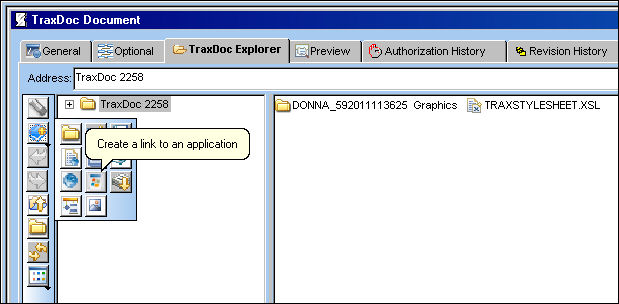
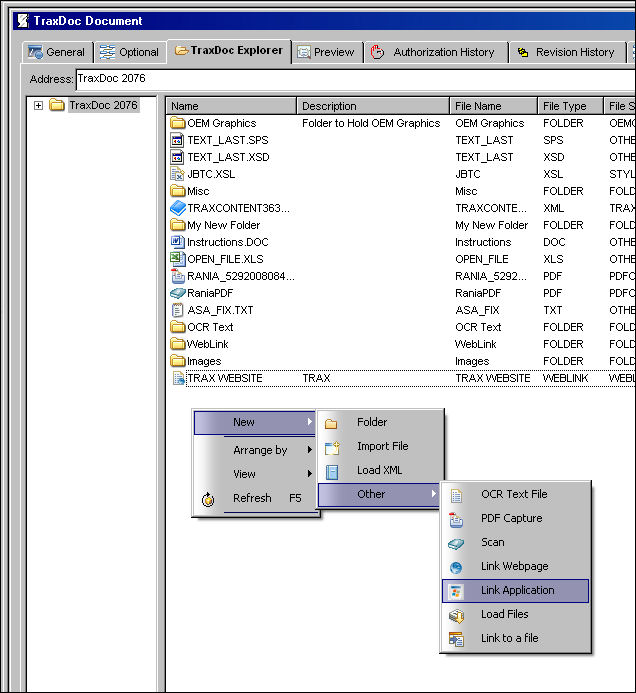
The user may also select the Link Application button by following the path shown below:
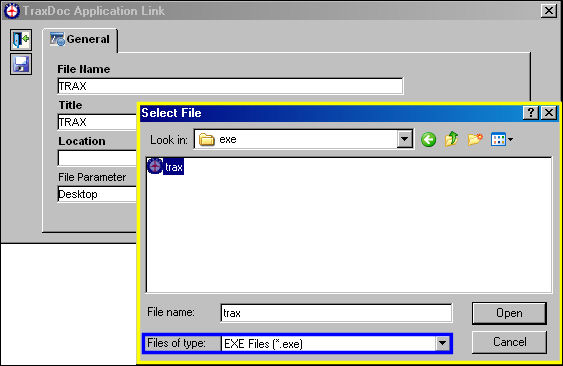
TRAX displays the TraxDoc Application Link window. Populate all fields. Right click in the Location field. The file selected must be a .exe file. Select desired file and select 'Open.'
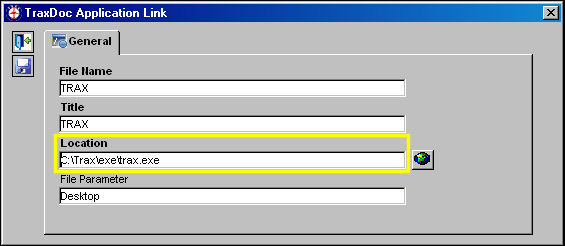
The file and location are saved in the TraxDoc Application Link window. Select the Save  button.
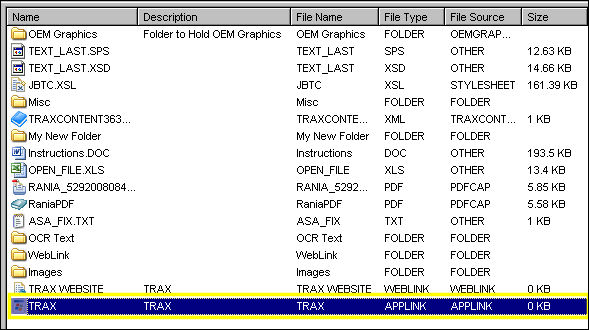
The application is linked to the TraxDoc. Double click on highlighted application link below.
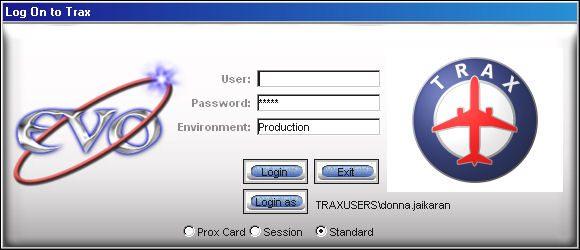
TRAX launches the executable file as shown below:
Share
Print
|
©1997-2026 Trax USA Corp. All rights reserved. This manual may not be copied, photocopied, reproduced, translated, or converted to any electronic or machine-readable form, in whole or in part, without prior written approval from Trax USA Corp. |
 |