|
TRAX MANUALS > TraxDoc > TraxDoc Module > TraxDoc, Update Menu > TraxDoc Master > TraxDoc Document Detail > TraxDoc Document Detail, TraxDoc Explorer Tab > Folder Explorer View, via TraxDoc Document Detail, TraxDoc Explorer Tab > File Multi Button, via TraxDoc Document Detail, TraxDoc Explorer Tab > Create a Link to a File Button, via TraxDoc Document Detail, TraxDoc Explorer Tab
Create a Link to a File Button, via TraxDoc Document Detail, TraxDoc Explorer Tab
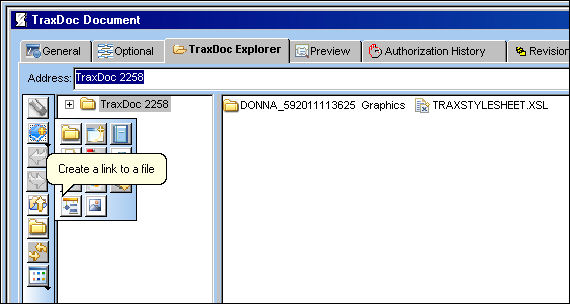
The Create a Link to a File  button is used to link an existing file to a TraxDoc. button is used to link an existing file to a TraxDoc.
From the TraxDoc Explorer tab, select the Create a Link to a File button.
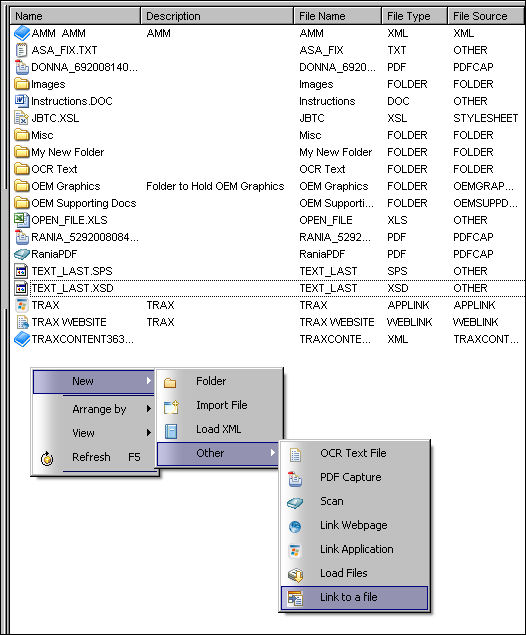
Note: The user may also select the Link to a File button by following the path shown below:
Note: Before a file can be linked, it must first be loaded. For information regarding loading a file, refer to the Load Files into a Shared Folder Button.
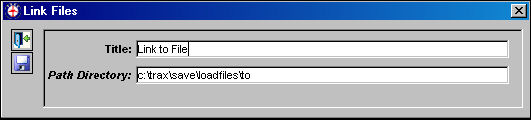
The Link Files window appears. Enter a title and select the path used to load the file. Select the Save  button. button.
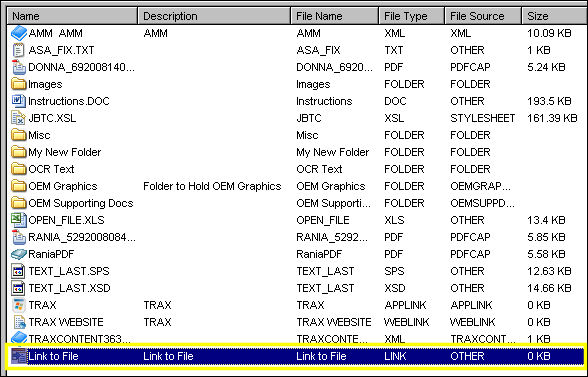
The file is now linked to the TraxDoc as shown below:
|
See Also File Multi Button, via TraxDoc Document Detail, TraxDoc Explorer Tab New Folder Button, via TraxDoc Document Detail, TraxDoc Explorer Tab Import File Button, via TraxDoc Document Detail, TraxDoc Explorer Tab Load XML Button, via TraxDoc Document Detail, TraxDoc Explorer Tab OCR Text File Button, via TraxDoc Document Detail, TraxDoc Explorer Tab PDF Capture Button, via TraxDoc Document Detail, TraxDoc Explorer Tab Import File via Scan Button, via TraxDoc Document Detail, TraxDoc Explorer Tab Create a Link to a Webpage Button, via TraxDoc Document Detail, TraxDoc Explorer Tab Create a Link to an Application Button, via TraxDoc Document Detail, TraxDoc Explorer Tab Load Files into a Shared Folder Button, via TraxDoc Document Detail, TraxDoc Explorer Tab Load Graphics Button, via TraxDoc Document Detail, TraxDoc Explorer Tab |
|

 Share
Share
 Print
Print


