
 Share
Share
 Print
Print
|
|
|
|
|


The Reject  button is available in the Non-Routine Express window for Inspectors who need to reject an Item's completed work. In order for an Item to be rejected, it must first be completed. Once an Item is rejected, a new Item is created automatically which contains the Reason for Rejection as its Description. Once that new Item work is completed, then it can be Inspected. The Task Card then goes onto either 'In Progress' or 'Closed' status.
 This button is security controlled via Production/ Update/ W/O/ W/O Non Routine Express Reject Button. For more information refer to the Security Explorer.
In order for an inspector to reject a T/C Item, the Item work must first be completed. When the Item is completed and the Task Card is ready to be inspected, the T/C Status must be Pending Inspection.
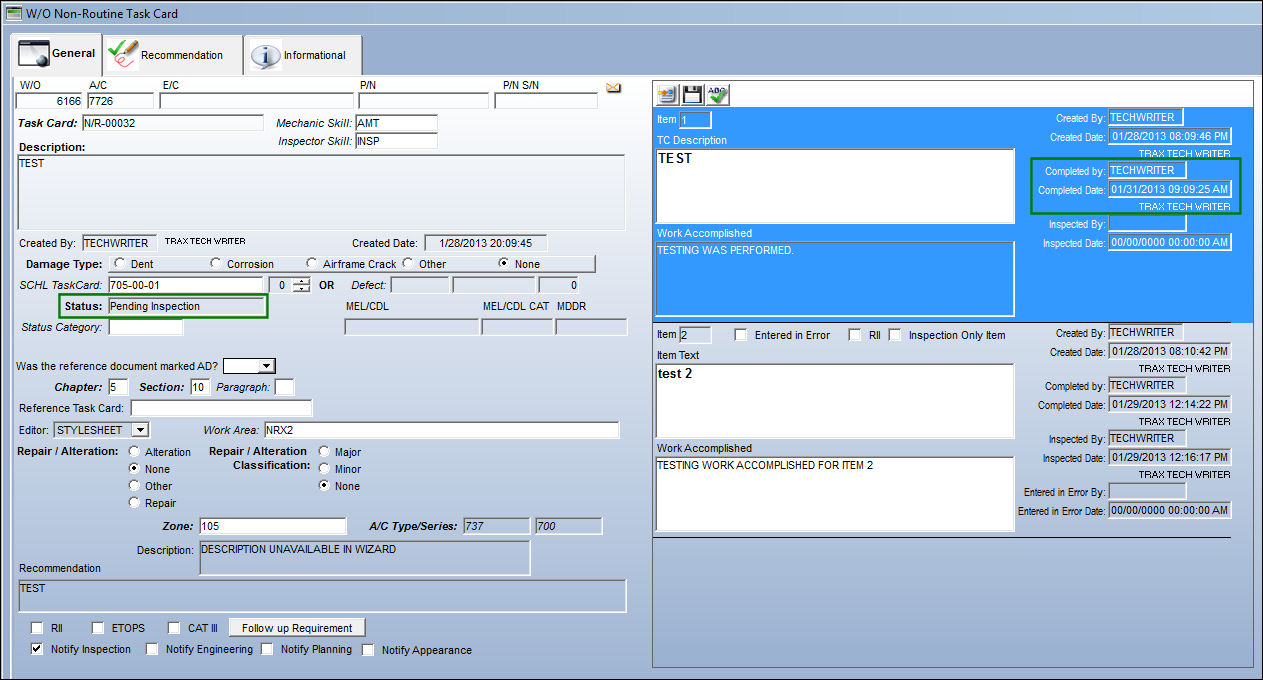
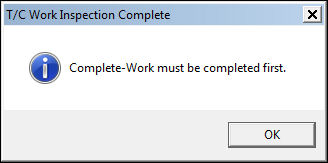
If the Item has not been completed, the Inspector will not be able to Reject the Item work.
When the Reject button is selected, the following W/O Task Card Rejection window pops up.
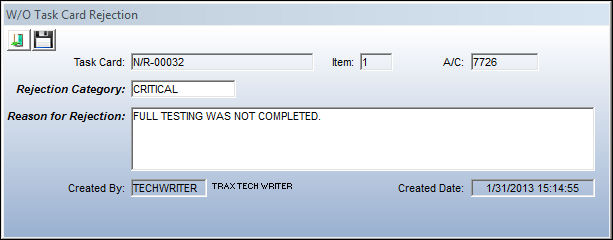
The following information/options are available in this window:
_____________________________________________________________________________________
Task Card
The Task Card / Job Card that details the scheduled maintenance work.
Item
The T/C Item being rejected.
A/C
The individual aircraft tail number.
Rejection Category
The type of Rejection being created. This field is controlled via Production transaction code W/O Task Card Reject Category.
Reason for Rejection
The reason why the Item is being rejected. Once saved, a new Item is created automatically where the rejected work can be completed. The Reason for Rejection becomes the new Item's Description.
Created By
The user who created the record.
Created Date
The date the record was created.
_____________________________________________________________________________________
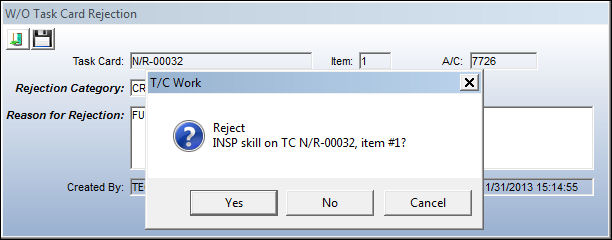
Once all the fields are populated, select the Save  button. Select Yes at the prompt to Reject the Item.
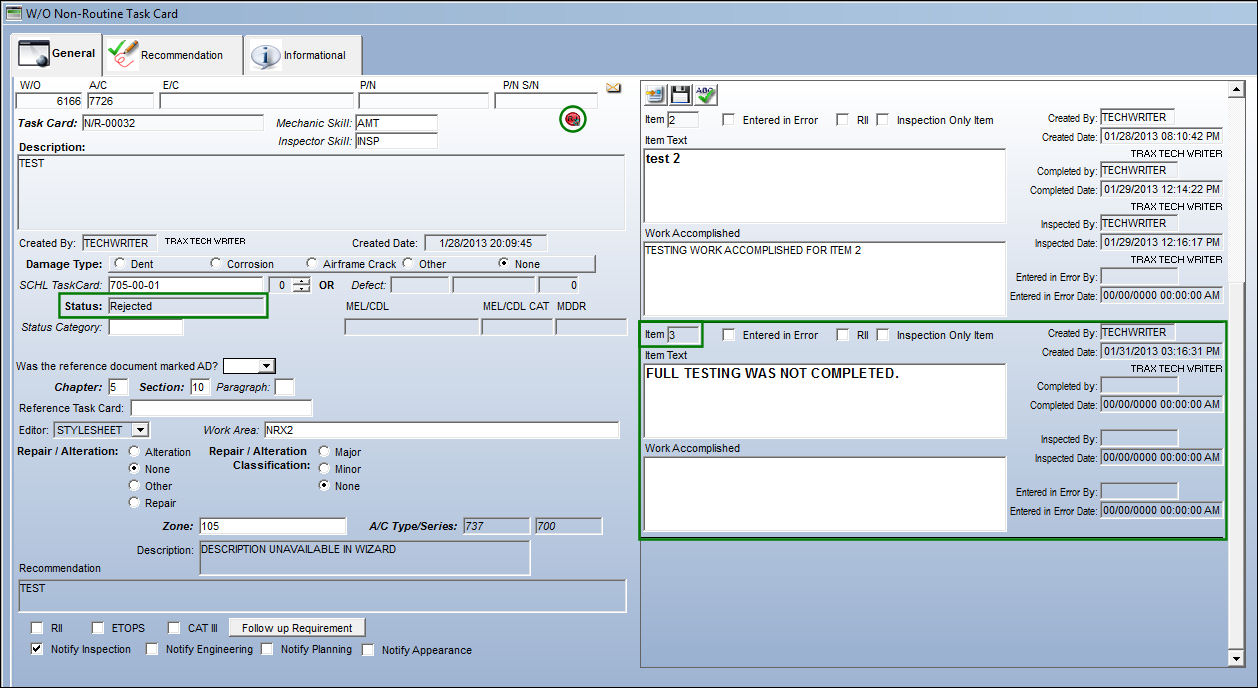
Once the Item is rejected, the entire Task Card goes to 'Rejected' Status and the Rejected  icon appears next to the Task Card Description. Also notice that a new Item is automatically created with the Rejection Reason as its Item Description.
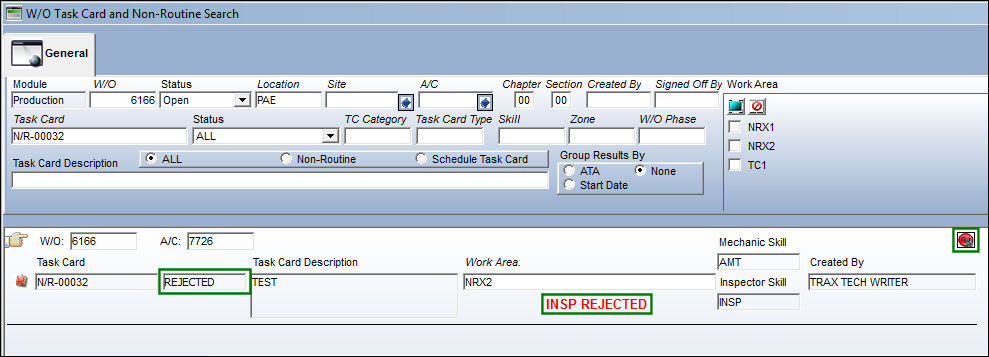
From the W/O Task Card and Non-Routine Search window, when the Work Order Task Card is searched, the results list the 'Rejected' Status, the Inspection Rejected text in red, and the Rejected icon.
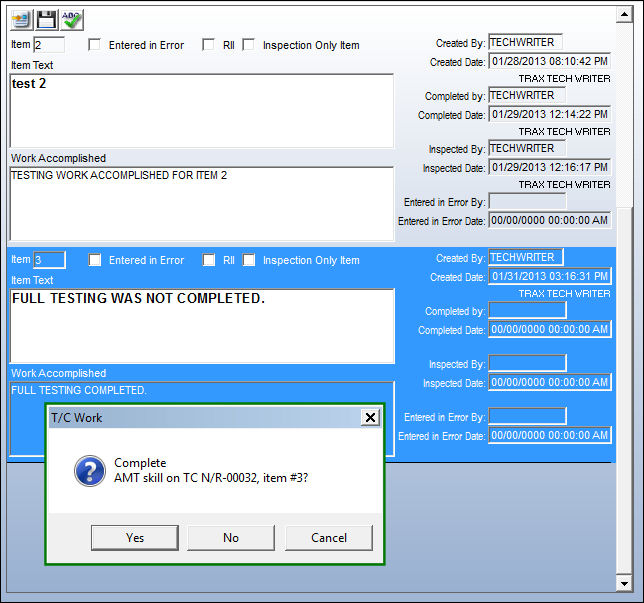
Re-Inspecting Rejected Work:
Once the rejection is corrected by the assigned user, they must select the new Item, fill out the Work Accomplished, then select the Complete Work  button.
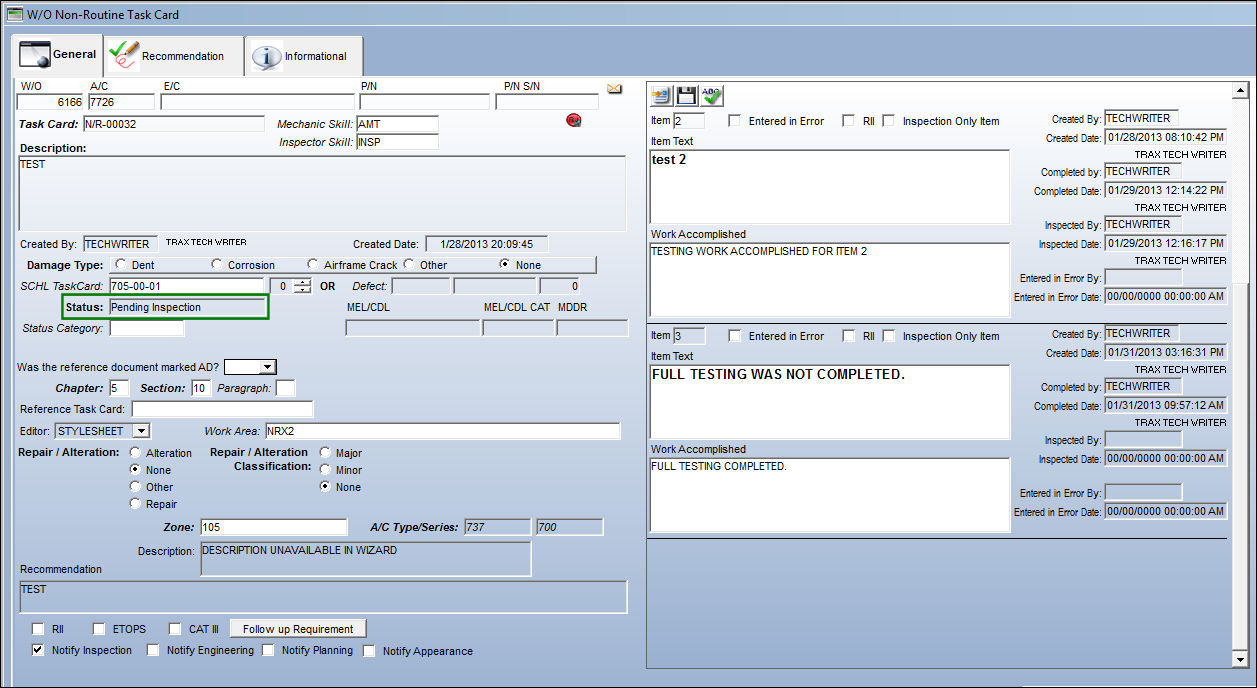
Once work is completed on that Item, the Task Card Status changes to 'Pending Inspection.' Notice that the Rejected icon remains on the Task Card until the Item passes inspection.
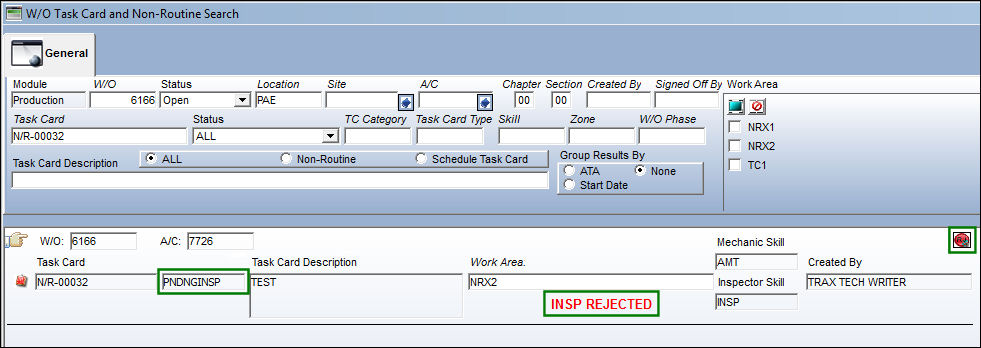
From the W/O Task Card and Non-Routine Search window, when the Work Order Task Card is searched, the results list the 'Pending Inspection' Status, the Inspection Rejected text in red, and the Rejected icon. The Task Card comes up in the search as rejected in order to let the Inspector know that the new Item requires inspection.
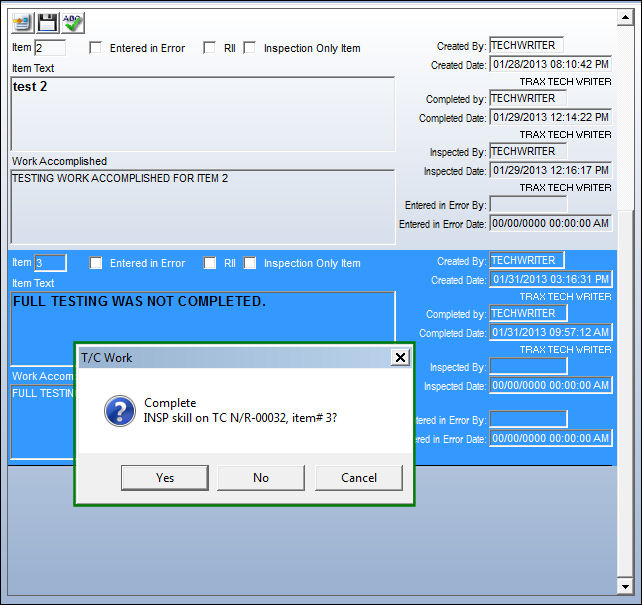
Once the inspector approves the work performed on the Item, they must select the Item then select the Complete Inspection  button.
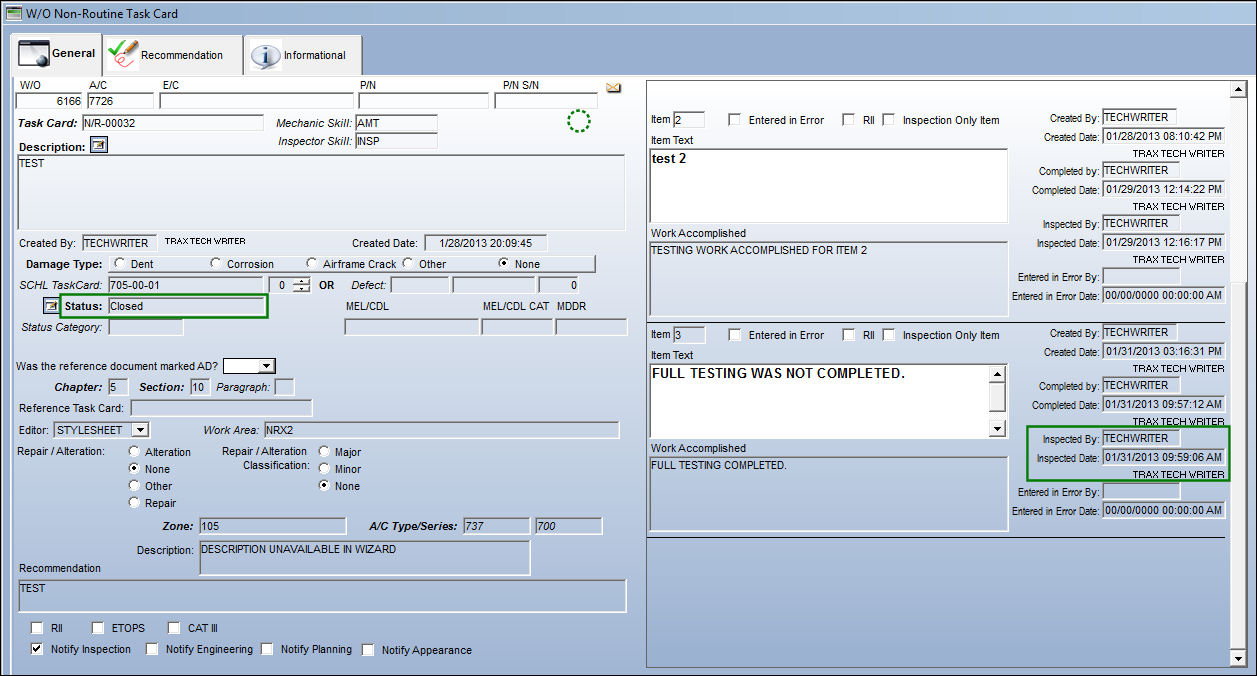
Once the Item is inspected, the Task Card Status changes to 'In Progress' (if there are other Items that require work or inspection) or 'Closed' (if there are not more Items that require inspection, as in the below example).
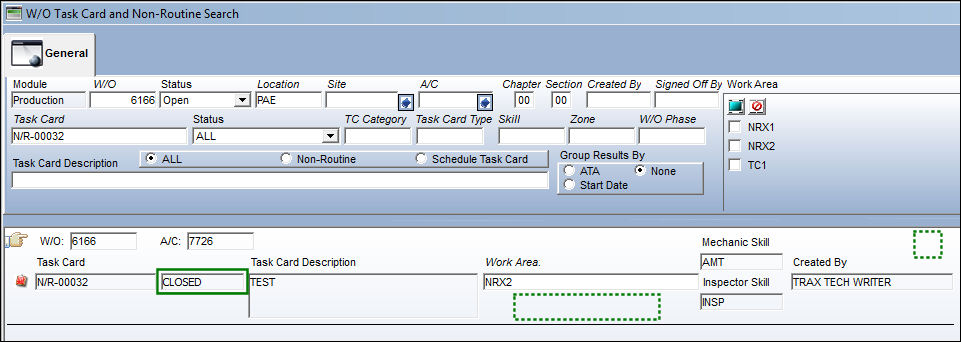
From the Search window, notice that the Task Card Status has also been changed, the Rejection red text has been removed, and the Rejection icon is no longer displayed.
Share
Print
|
©1997-2026 Trax USA Corp. All rights reserved. This manual may not be copied, photocopied, reproduced, translated, or converted to any electronic or machine-readable form, in whole or in part, without prior written approval from Trax USA Corp. |
 |