
 Share
Share
 Print
Print
|
|
|
|
|


Once a checklist has been created against a specified P/N Category Transaction code, the P/N Receiving Check List window will appear during Receiving Inspection of any part with that P/N Category code.
For information on how to set up a receiving checklist survey, refer to the Receiving Check List Button, via the P/N Category Transaction Code of the Settings Transaction Code Manual.
TRAX displays the P/N Receiving Checklist window. This window allows the user to view checklist questions for surveys that have to be answered (if marked as mandatory) before the part can be received. There are several types of actions/responses to select from (i.e Yes, No, Pending, N/A).
The P/N Checklist  button is also available via the Receiving Inspection window. The user may also choose to select the P/N Checklist button to answer the questions on the checklist associated with this part.
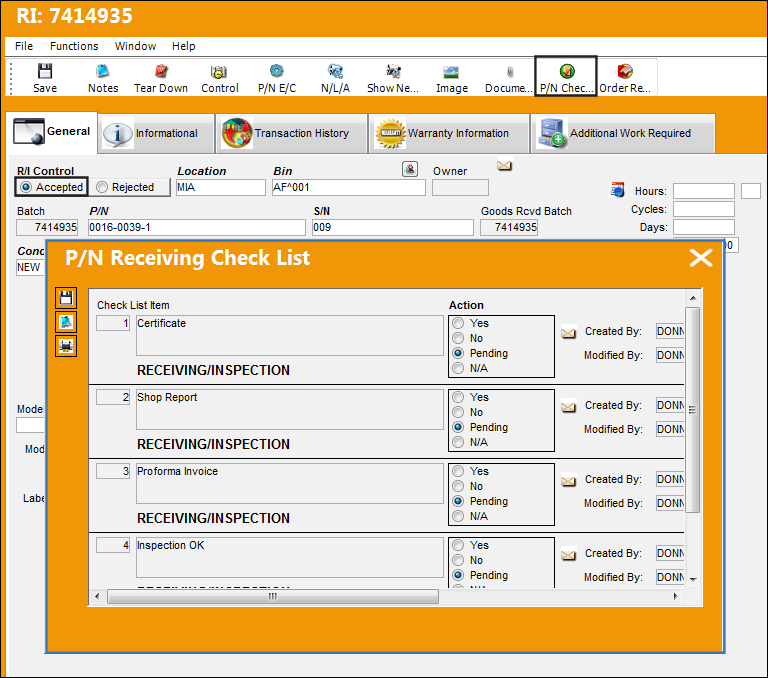
The following information/options are available in this window:
_____________________________________________________________________________________
Checklist Item
The checklist item number and description.
Action
Select from one of the following actions the change the status of each step in the checklist. Select from:
- Yes
- No
- Pending
- N/A
Created By
The user who created the record.
Modified By
The user who last modified the record.
_____________________________________________________________________________________
The Notes  and Print
  buttons are available to include additional information and generate a report.
Share
Print
|
©1997-2026 Trax USA Corp. All rights reserved. This manual may not be copied, photocopied, reproduced, translated, or converted to any electronic or machine-readable form, in whole or in part, without prior written approval from Trax USA Corp. |
 |