
 Share
Share
 Print
Print
|
|
|
|
|


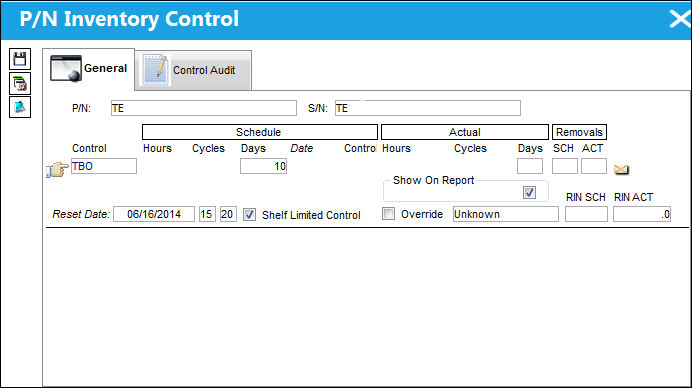
The Control  button allows the user to view the control properties of this part as well as override a schedule if necessary. It is very important that this information (reset dates and actuals) is confirmed against the Tear Down Report because controls dictate due dates. If the Controls need to be modified, this can be done via the R/O Control tab. For additional information, refer to the Receiving Inspection Detail, R/O Control tab.
When selected, the P/N Inventory Control window appears.
From the Receiving Inspection Detail, General tab, select the Control button:
The Confirm/Update Time Controls alert message is informational only. This message is to remind the user to "Confirm" or "Update" P/N Controls if they are associated to the P/N.
This button works like the P/N Control button of the P/N Master, but in the Receiving Inspection window the button refers to the P/N Controls affecting the specific P/N S/N being received. For more information on the P/N Control button refer to the P/N Control Button via the Settings Training Manual.
For additional information on the P/N Inventory Control and its utilization in the Receiving module, refer to Receiving a Time Controlled Part via the Order Receiving section of the Receiving Training manual.
The following are also available to view information relevant to the record:
- P/N Inventory Control, Control Audit Tab
- E/C button
- Notes button
Share
Print
|
©1997-2026 Trax USA Corp. All rights reserved. This manual may not be copied, photocopied, reproduced, translated, or converted to any electronic or machine-readable form, in whole or in part, without prior written approval from Trax USA Corp. |
 |