
 Share
Share
 Print
Print
|
|
|
|
|


From the Receiving Inspection window, select the N/L/A  button to view or modify the next lower assembly information for this record (if applicable).
TRAX displays the P/N Inventory Next Lower Assembly window, as follows:
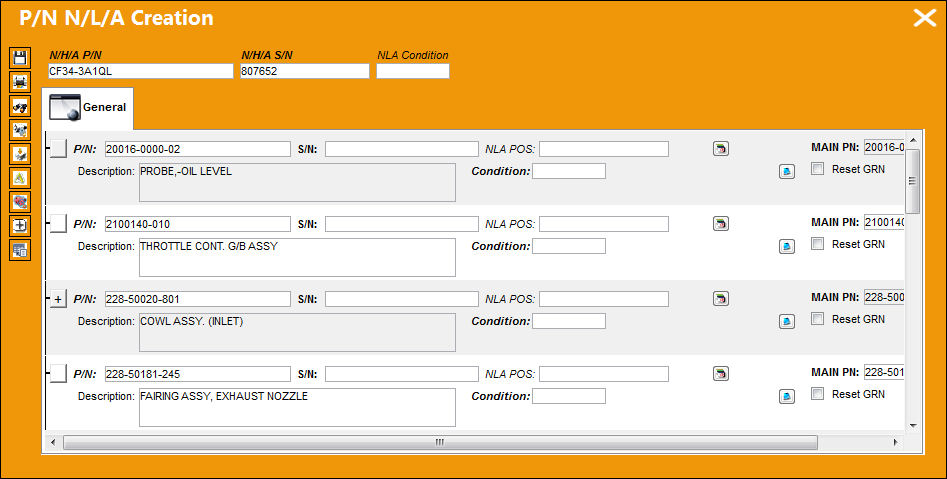
The following information/options are available in this window:
_____________________________________________________________________________________
N/H/A P/N
The part’s Next Higher Assembly P/N (if applicable).
N/H/A S/N
Next Higher Assembly (NHA) serial number.
NLA Condition
The condition of the N/L/A being received. Once the condition has been populated, it will cascade down to all of the N/L/A components.
P/N
The Part Number reference for the aircraft part. This is an NLA of the higher assembly part.
 This field can disabled (grayed out) through the Security Explorer via Receiving/ Update/ Receiving Inspection/ NLA Receiving Inspection Disable P/N Field. For more information refer to the Security Explorer via the System Administration Training Manual.
S/N
The Serial Number for the specific serialized part. The Serial Number of the Next Lower Assembly components.
N/L/A Position
The position of the Next Lower Assembly.
Main P/N
The original Part Number entered into the P/N Master. This P/N is used for parts that are Both Way Interchangeable.
Condition
The condition of the part.
Reset GRN checkbox
Select the Reset GRN checkbox to override the previous goods received number (Goods Received Batch) and have the system automatically create a new GRN for this part after the transaction is completed. This is useful if an assembly is sent for repair and is returned with a new lower component. If the Reset GRN checkbox is checked, a new GRN is created. This will have the system create a new history for the assembly and not associate the new lower component with the history of the prior assembly.
The Reset GRN checkbox is only available via Receiving Inspection and Order Receiving.
 Note: This checkbox is also available if a user creates a P/N N/L/A through Technical Records.
Shelf Life Expiration
Updates the shelf life expiration date of the part. For more information refer to the Override  button below.
Override button
When selected, the Shelf Life Days in the P/N Master, Inventory tab is Overridden by 365 days of the entered date in the below pop-up window.
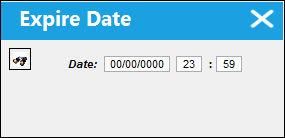
For more information on Shelf Life, refer to P/N Master, Inventory Tab via the Settings Training Manual.
_____________________________________________________________________________________
The following buttons may be selected as follows:
_____________________________________________________________________________________
P/N Control  button
Select this button to update the P/N Inventory Controls.
Once this button has been selected and any changes have been made and saved, the button will change from blue to red.
Delete  button
Select the Delete button to delete the selected N/L/A Serial Number from the assembly then enter a new Serial Number in its place. The new P/N S/N does not have to currently exist in inventory. A history record will be written for the new part. The deleted P/N S/N will be removed from inventory. The following prompt will appear. The user will be asked to confirm your request.
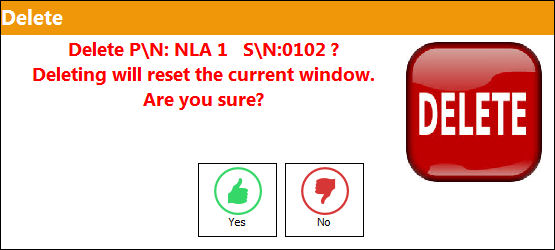
Select Yes. The user will be required to enter a new Serial Number for the specific deleted N/L/A. The P/N Assembly Explorer will indicate that the Serial Number (part) is missing from the assembly until a new Serial Number is input and saved.
P/N E/C  button
Opens the P/N E/C selection window where users can create or edit E/Cs for the selected part. For more information refer to the P/N E/C Button via the Receiving Training Manual.
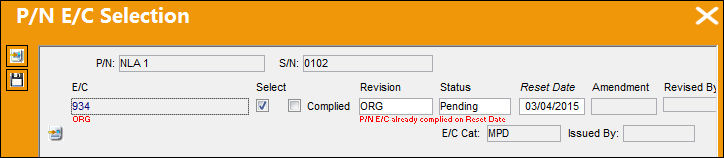
The Select checkbox, Complied checkbox, Revision field, Status field, and Reset Date field each are security controlled via Receiving/ Update/ Receiving Inspection/ P/N E/C Selection. For more information refer to the Security Explorer via the System Administration Training Manual.
P/N Initial Times Accrual  button
When this button is selected, the following window will appear:
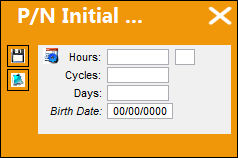
Populate the Hours/Cycles/Days fields and select the Save  button. For additional information regarding this button, refer to the P/N Initial Times Accrual button, via the Inventory Training manual.
Edit  button
Select this button to edit the NLA Part Number, Serial Number, Position, and Condition. Upon selecting the edit button, these fields will be available for update. As seen below:
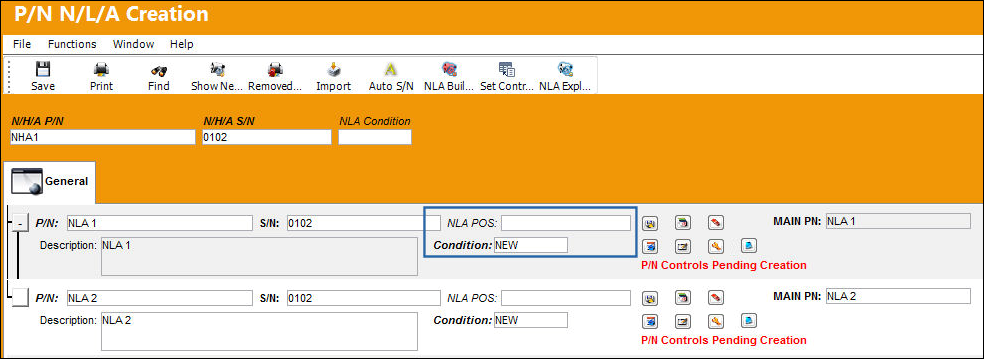
Replace Batch  button
Select this button to replace an existing PN S/N Batch with the new P/N S/N that was added to the assembly via a Repair Following transaction. This button is part of the Repair Following functionality (optional in the Repair Order process) and is only available when a Repair Following transaction took place during the repair. For more information refer to the Repair Following Button via the Orders Training Manual.
_____________________________________________________________________________________
For additional information regarding the P/N N/L/A Creation window, refer to P/N N/L/A Creation via the Technical Records Training Manual.
The following buttons are available for additional functionality:
- Print button
- Show Next Higher Part Number button
- N/L/A Import button
- Auto S/N button
- NLA Build From History button
- Set Control To All button
- NLA Explorer button
Share
Print
|
©1997-2026 Trax USA Corp. All rights reserved. This manual may not be copied, photocopied, reproduced, translated, or converted to any electronic or machine-readable form, in whole or in part, without prior written approval from Trax USA Corp. |
 |