
 Share
Share
 Print
Print
|
|
|
|
|


Interactive Planner, Detail Tab
The Interactive Planner, Detail tab displays maintenance due items. Each item will have its own Schedule Hours/Cycles/Days, Actual Time accumulated on the item, and the Remaining Time shown, along with the actual due date or a calculated due date. Each type of item will show its own information, such as E/C reference, or P/N, S/N. The icon to the left of each item on the screen denotes the type of item (i.e. Defect Report, E/C, P/N E/C or P/N Control).
Once the user has entered the parameters to be queried in the A/C Planning Query option (Planning/Query/A/C Planning Query), they may select the Find  button. The A/C Planning Query Results will appear.
If the sort order of the window is not manually changed, it will default to a sort by Due Date.
Note: If a MEL has been associated to a Defect Report, the MEL  icon will appear in the A/C Planning Query. For additional information, refer to the Defect Report Detail, Defer Tab, via Defect Report of the Technical Records Training Manual.
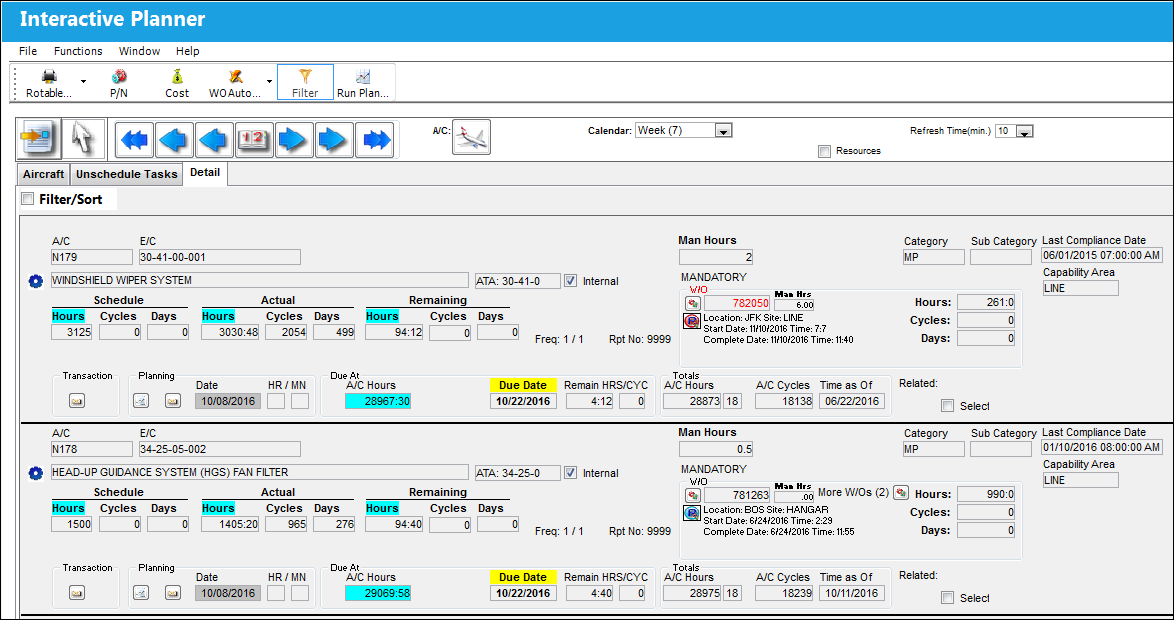
The following information/options are available in this window:
_____________________________________________________________________________________
A/C
The aircraft the user queried in this search
E/C
The Engineering Control queried in this search
Internal checkbox
The internal checkbox is used to determine if work can be done internally. The Internal Capability checkbox will be set to 'On' by default only for those items that a company has the capability to perform internally. The checkbox can be set up through Defect Reports/General Tab,E/C/Other Tab, and P/N Master/P/N Control button.
Authorization  icon
icon
The Authorization  icon indicates that the E/C is pending authorization. For additional information regarding E/C Authorization, refer to the Engineering Authorization Explorer via the Engineering - E/C Training manual.
Calendar Hours  Icon
Icon
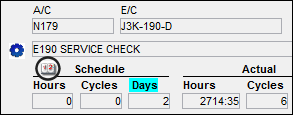
The Calendar Hours  icon indicates that the planned element is controlled by Calendar Hours rather than flight hours.
For additional information, refer to the Engineering Control, Schedule Tab via the Engineering - E/C Training manual.
Schedule Hours/Cycles/Days
The control's hours/cycles/days schedule, as applicable.
Actual Hours/Cycles/Days
The number of hours/cycles/days accumulated against the time control schedule.
Remaining Hours/Cycles/days
The amount of hours/cycles/days remaining against the scheduled amount.
Transaction Notification  button
Select the Transaction Notification button to view any notes related to the planning element. TRAX displays a pop-up window with relevant notes. These transaction notes allow engineering, maintenance programs and maintenance control to flag information for the planner.
Planning Info button
Select the Planning  button to view the A/C Planning Transaction Window.
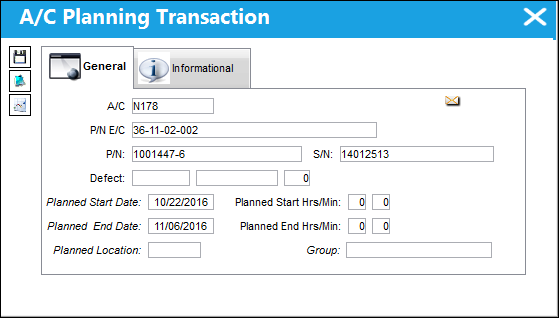
The Planned Start Date is defaulted from the Due Date or the date as defined as the Planning Lead Days on the Engineering Control, Schedule Tab of the Planning Element Item. The user can override this Planned Date as required. For example, if a C-Check is coming due in April, 2017 and an A-Check is scheduled for May, 2017, the user may override the Planned Date to May, 2017 to have both the A-Check and C-Check completed. This way, the aircraft is not down twice in two months.
Planning Date (HR/MN)
The date the maintenance event is planned to take place. This date can be overridden as required. See Planning Info button above.
Note: The color of the Planning Date field will change based on the Planning Transaction Condition Codes via the Planning Transaction code manual.
Due At
The Due At gives the user information about when the planning element item(s) become due.

A/C Hours - The Aircraft Hours that the item is due at.
A/C Cycles - The Aircraft Cycles that the item is due at.
Due Date - The calculated due date of the item (rounded to the nearest date).
 - Warning % Due is between 0-89 days of being due. (normal color)
 - Warning % Due is within 10 days of being due. (Yellow)
 - Warning % Due is 1 or more days past being due. (Red)
EOM (end of Month) checkbox - The EOM checkbox appears when the planned element is coming due during the month but has been flagged to be complete at the end of the month. For additional information regarding the EOM, refer to Engineering Control, Schedule Tab via the Engineering - E/C Training manual.
Note: The Due Date will not appear in red (overdue) until after the EOM has passed.
Remain HRS/CYC - The system automatically calculates based on the mean hours and cycles per day, the remaining hours and cycles which can be flown on that Due Date without the maintenance event being overflown.
For example, with a remaining schedule of 100 and the A/C has mean hours/cycles of 9.33 hours /5 cycles, this means that with 10 days left, the A/C should have 93.3 hours as of the Due Date. Therefore, the A/C has 6.33 hours of flight time before the maintenance event becomes overdue.
Either the A/C Schedule Flight option or the A/C Schedule Flight Daily option stores the averages for each A/C in the fleet. The A/C Schedule Flight option is used for average flying time for user specified date ranges. The A/C Schedule Flight Daily option is used for actual flying time per day.

On performing the forecast for the Due Date, the system will round to the nearest day, before the element becomes overdue. When rounding to the day, there may be a remainder of Hours and Cycles, which will appear in the Remain HRS/CYC field. For example, if the Remaining HRS/CYC displays 5:15; this indicates that there are 5 hours and 15 minutes left over from the forecasted due date.
Note: This should not be confused with the Remaining Time (the Hours/Cycles/Days remaining against the item).
This information is used by the Planner to utilize as much of the item's schedule as possible. Note that this should not be confused with the Remaining Time (the Hours/Cycles/Days remaining against the item).The field will indicate if the item is overdue in red.
The Due Date will appear in yellow if the item has surpassed "X" percentage of its schedule.
 PLANDUE% (Planning Warning When Percent Due): If set to Yes, the system will highlight (in Yellow) the Due Date title in the Planning Query Results for items that have surpassed "X" percentage of their schedule. Enter the percentage in the Config Number field.
Note: This percentage can be overridden via Engineering/Update/E/C/Schedule Tab/Warning Percent Due field. The Config Other field is used.
- ACROLAVG - (Use A/C Rolling Average For Mean Hours And Cycles): If set to Yes, a rolling average is calculated for the mean hours and cycles calculation that is generated via Planning/Update/A/C Schedule Flight.
Totals
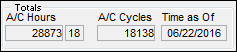
The A/C Totals includes the total number of hours, and cycles an aircraft has accumulated by a the last flight log entered.
Man Hours
The Man Hours for the specific task (E/C, W/O, Defect, etc.)
Work Order  button
The Work Order button shows that the current planning element is associated to a Work Order. The Work Order will be associated to one aircraft. Multiple Work Orders can be assigned to a planning element. This will display in red if the Work Order schedule exceeds the calculated due date of the item. Additionally, the Work Order may be associated to several different planning elements.
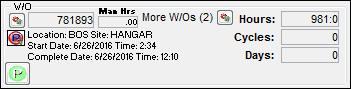
Man Hours - This is the number of Man Hours needed to complete the maintenance event.
Note: The Man Hours listed in the Planning Query also take into account any Called On E/Cs and their Man Hour requirements.
Reservation Status Indicator  icon - The display of the Reservation Status Indicator button allows planners to see when a part(s) has been reserved (partial/all/none).
Reservation Status Indicator  icon - Some parts have been reserved for the Work Order.
Reservation Status Indicator icon - All parts have been reserved for the Work Order.
Reservation Status Indicator  icon - No parts have been reserved for the Work Order.
Reservation Status Indicator  icon - Task have been added to the original Work Order and parts have not yet been reserved for those tasks.
Part Status Indicator  button - Select the Part Status Indicator button to display parts available in inventory, on order, or reserved for a particular location (partial/all/none). For additional information, refer to the Part Status Indicator Button, via A/C Planning Details which can be found in the Planning Training manual.
Location - The Location for maintenance events, inventory stores, orders, transactions, or training events.
Start Date/Time - The start date/time of the Work Order.
Complete Date/Time - The complete date/time of the Work Order.
Work Order Remaining Time - The time remaining from the current date to the Work Order Start Date. For additional information, refer to the Work Order Remaining Time topic via A/C Planning Details of the Planning Training Manual.
Select the W/O button:
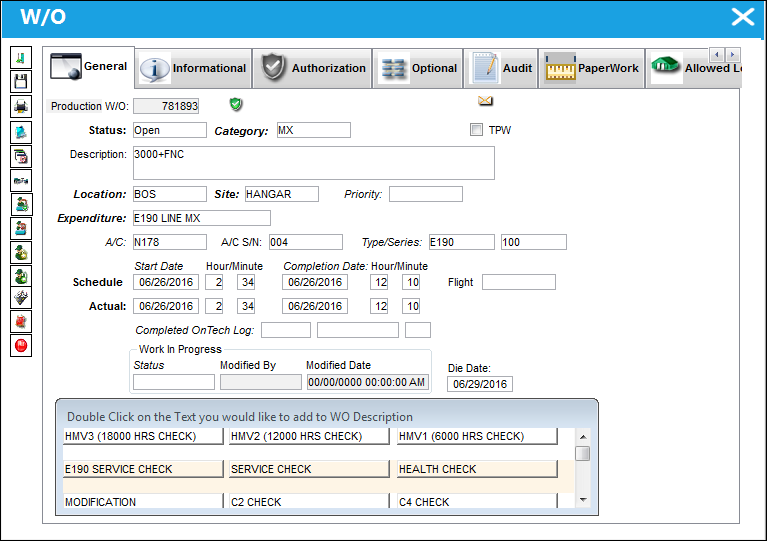
For additional information regarding the fields and buttons in the Work Order window, refer to Work Order, which can be found in the Production Training manual.
Sub Category
The Engineering Control Classification Sub Category for the forecast request
Last Compliance Date
The last date the E/C was complied with.
Capability Area
The Capability Area Code. For more information regarding the Capability Area, refer to the Capability Area section of the Planning Transaction Code Manual.
Part Status Indicator  button

Select the Part Status Indicator button to display parts available in inventory, on order, or reserved.
All available parts and related information are displayed below:
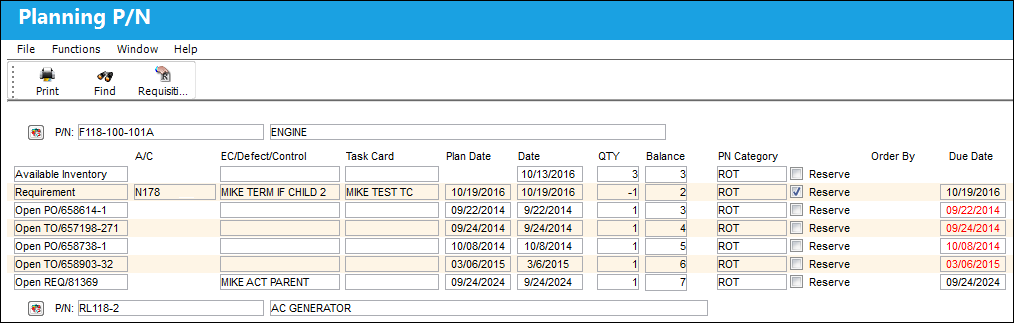
Part Status Indicator  button - The green status button displays that all spares required are available in inventory.
Part Status Indicator  button - The yellow status button displays that some, but not all spares are available in inventory.
Part Status Indicator  button - The red status button displays that no spares are available in inventory.
Note: Planning will always show that it requires the same part as if it were being replaced for P/N Controls.
Note: Parts will not be reserved for P/N Controls unless a Task Card is attached to that part.
TRAX reflects all Part requirements set up in the P/N Control window.
Tool Status Indicator  button

Select the Tool Status Indicator button to display tools available in inventory, on order, or reserved.
All available tools and related information are displayed below:
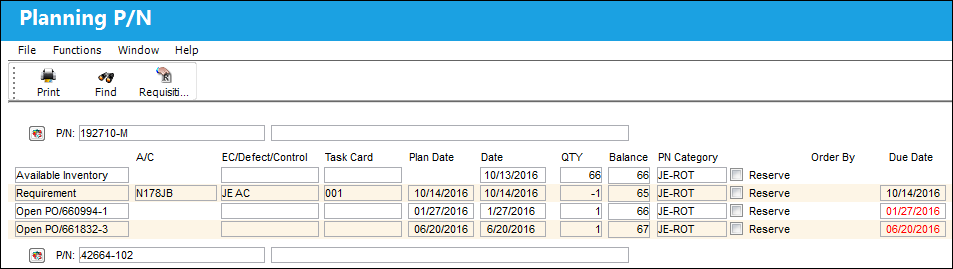
Tool Status Indicator  button - The green status button displays that all tools required are available in inventory.
Tool Status Indicator  button - The yellow status button displays that some, but not all tools are available in inventory.
Tool Status Indicator  button - The red status button displays that no tools are available in inventory.
E/C Called On  Button
The E/C Called On  button allows the user to view the E/C that the current E/C is calling on for its schedule.
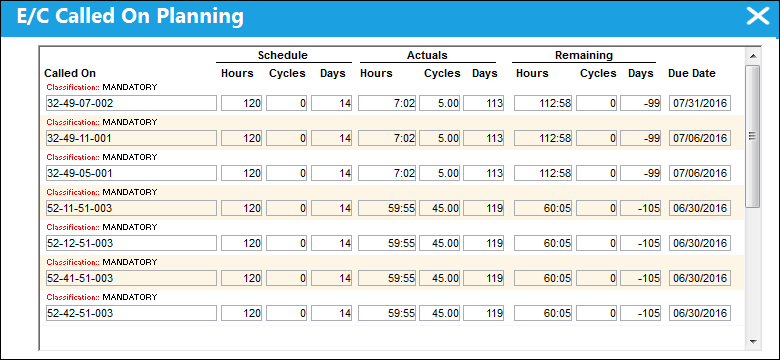
Note: This button only appears when the parent E/C has a schedule and it takes that due date of the parent E/C; the button calculates the 'called ons' to see what are their projected due dates. If the E/C does not have a schedule it will not display the 'called ons' because there is no schedule to drive a due date to allow the view of the projected due dates on the called ons.
Select checkbox
Check the Select Checkbox for items that the user would like to automatically appear on the Work Orders that are created when the Work Order Auto button is used.
The Select Checkbox is used with the Work Order Auto button.
Note: If a planning element is already associated to an Open, Generated or Completed Work Order, it will not be added to another W/O from the Planning Query using the Select Checkbox. It must be attached to the Work Order from the Production module via the W/O Engineering Control window.
Please note the following switches:
- ALWMULTTSK - When set to Yes, all A/C E/Cs, P/N E/Cs, P/N Controls and Defects will be brought on to a Work Order regardless of how many other Work Orders they are against. When set to No, the A/C E/Cs, P/N E/Cs, P/N Controls and Defects will not be brought on to a Work Order.
- PLNHISTML - When set to Yes, the user can use the Config Number field to determine the limit for the Planning History records. The Config Number field is set to 1 hour. When set to No, the Planning History records will default to 8 hours and the Planning Jobs in the Planning History Tab will remain in the Planning From History tab for 8 hours.
_____________________________________________________________________________________
Share
Print
|
©1997-2026 Trax USA Corp. All rights reserved. This manual may not be copied, photocopied, reproduced, translated, or converted to any electronic or machine-readable form, in whole or in part, without prior written approval from Trax USA Corp. |
 |