
 Share
Share
 Print
Print
|
|
|
|
|


Tool Life View, via P/N Explorer
The user may view parts in inventory using the P/N Explorer's Tool Life view:
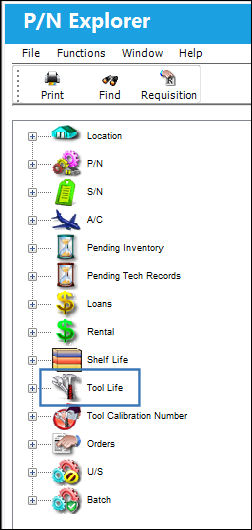
By double-clicking on the Tool Life view, TRAX displays the following:
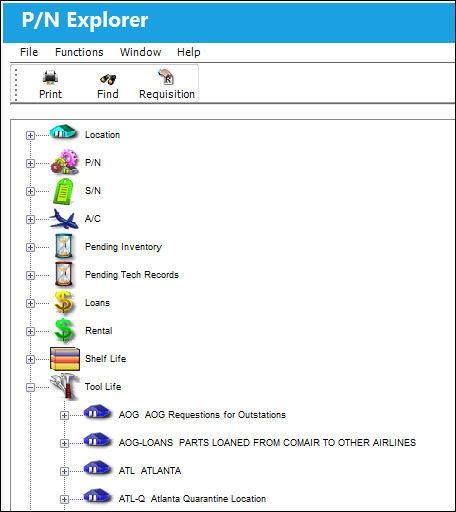
Select a location to see if there are parts associated with the location by clicking on the Expand  icon next to the location.
TRAX displays the following pop-up window:
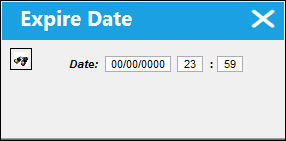
Enter the date and time in this pop-up window and press the Find  button to locate any parts that fall within this classification according to the date/time specified.
If parts are located, then TRAX displays the parts under the selected location.
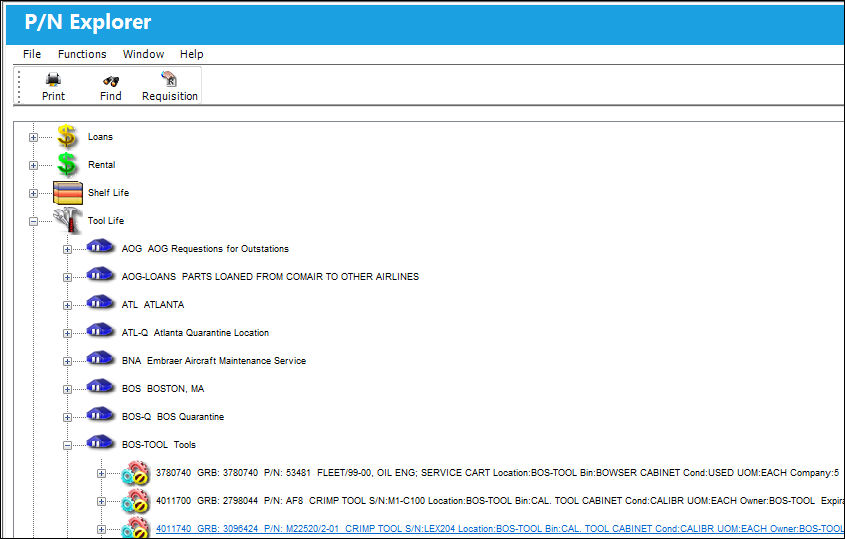
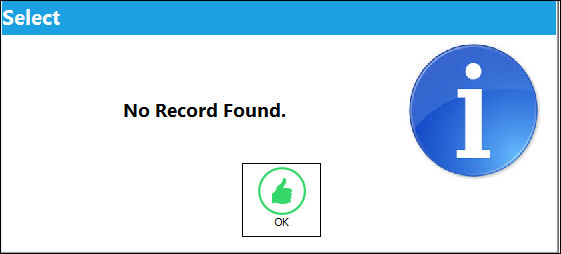
If no parts are located, then TRAX display the following message:
Right click on any Tool Life P/N to access additional options as shown below:
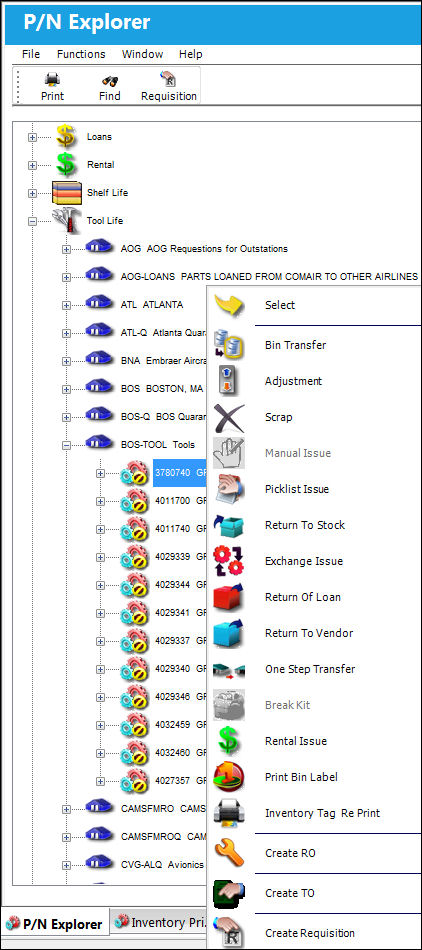
For information on the above buttons, refer to the P/N Explorer Buttons, via the P/N Explorer.
Share
Print
|
©1997-2026 Trax USA Corp. All rights reserved. This manual may not be copied, photocopied, reproduced, translated, or converted to any electronic or machine-readable form, in whole or in part, without prior written approval from Trax USA Corp. |
 |