
 Share
Share
 Print
Print
|
|
|
|
|


Batch View, via P/N Explorer
Users can view parts in inventory using the Batch view.
By selecting the Expand  button next to the Batch view drop down, TRAX displays the following pop-up window:
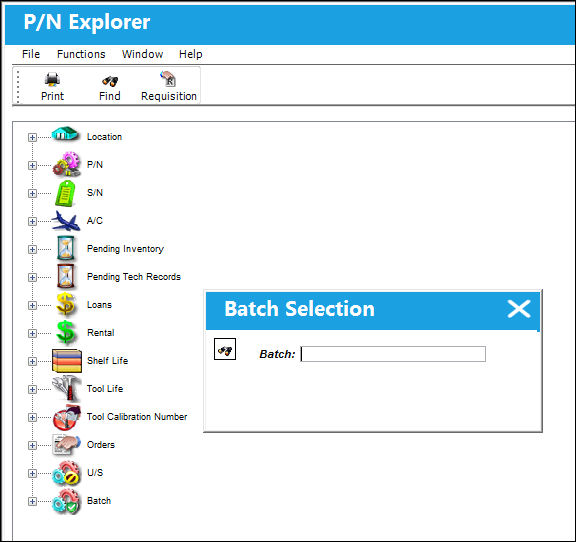
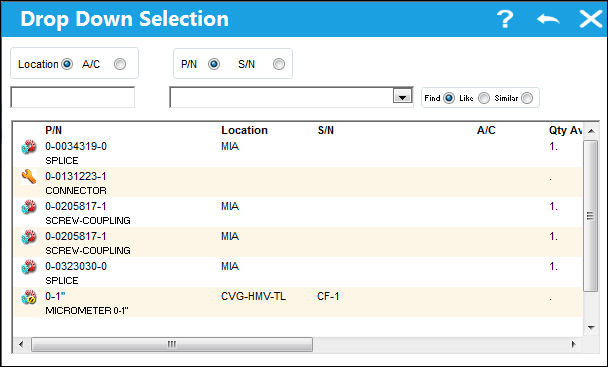
Right-click into the Batch field to access a pop-up window where all registered Batches can be found. Users can select any of the listed Batches or enter one directly into the field.
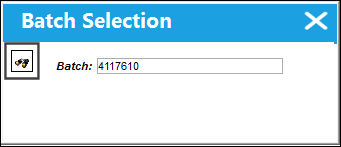
Once the Batch number is entered, select the Find  button.
The Batch information will appear in a line item as follows:
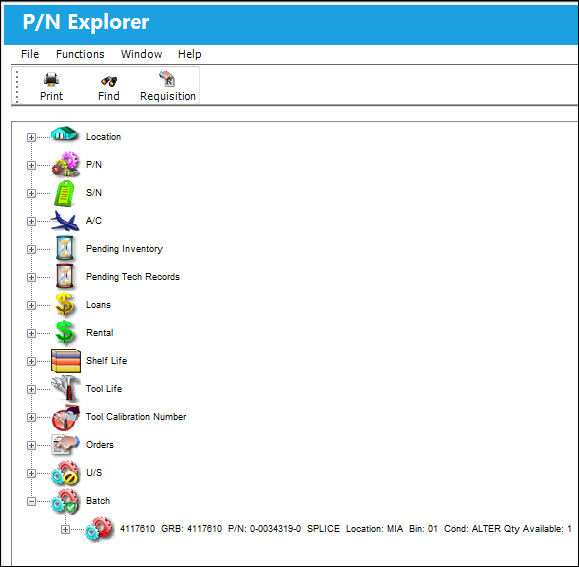
At the end of the informational line item is either the Company field or the Owner field. If the unit has an Owner, the Owner will be shown. If the unit does not have an Owner, then the Company will be shown.
Users will have various options by right-clicking the Batch line item. The following menu items will pop-up:
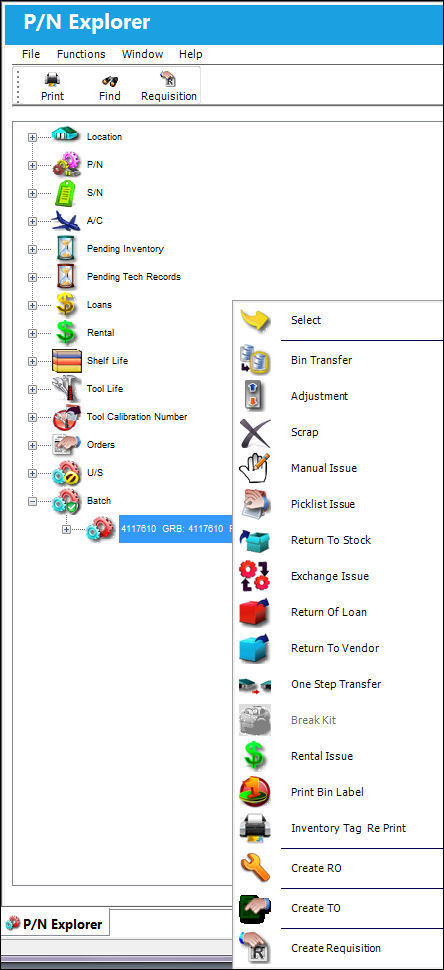
For information on the above buttons, refer to the P/N Explorer Buttons, via the P/N Explorer.
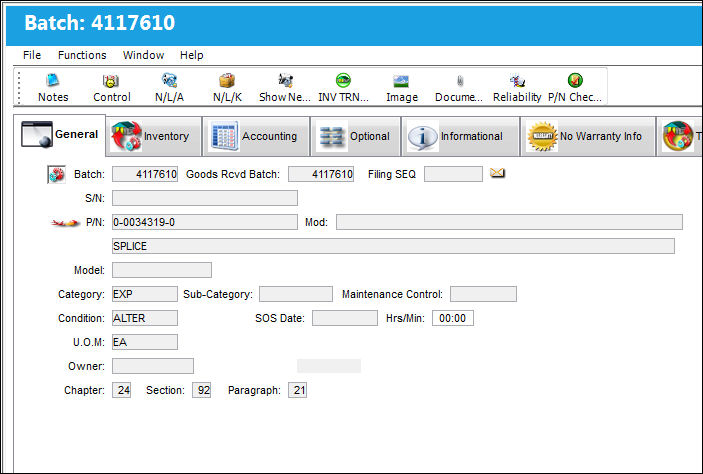
By choosing the Select  button, the Inventory Detail window will appear.
Share
Print
|
©1997-2026 Trax USA Corp. All rights reserved. This manual may not be copied, photocopied, reproduced, translated, or converted to any electronic or machine-readable form, in whole or in part, without prior written approval from Trax USA Corp. |
 |