
 Share
Share
 Print
Print
|
|
|
|
|


11.5 - Orders Module
Order Authorization Explorer
With the Config Other field of Switch  ORDERAUTHBYEMAIL defined, and the Enable Authorization by Email checkbox selected for a user in the Authorization window of the Settings module, authorization can be completed by a user through Email.
The Email and Authorization can also be utilized on a mobile device.
Orders, General Tab
The Order Number field can be used to filter the open orders created by the user to access a particular order.
The Open Orders graph is provided as a pie chart displaying the amount of open orders created by the user, divided by Order Type, with the number of open orders for each type. This graph is not functional, but utilized as a reference.
The Open Orders by Priority graph is provided as a bar graph displaying the amount of open orders created by the user, divided by Priority, for each Order Type. This graph is not functional, but utilized as a reference.
The above mentioned features appear in the following Orders General Tabs: Contract Order, Exchange Order, Exchange Order Out, Loan Order, Manufacture Order, Purchase Order, Rental Order, Repair Order, Sales Order Return, Service Order, Transfer Order, Warranty Claim Order
Orders Detail, General Tab
G/L field (new modification): When Orders switch CAPEXGL is set to Yes, the Capital Expenditure transaction code will contain the Default G/L field (instead of the Cost Center field). When this Capital Expenditure is entered into an order's Optional tab, the transaction code's G/L (if populated) will override the order's G/L field in the General tab. For more information refer to switch CAPEXGL via the Orders Switches Manual and transaction code Capital Expenditure via the Orders Transaction Code Manual.
The G/L field note is applicable to the following Order Detail, General tabs: Exchange Order, Loan Order, Purchase Order, Repair Order, Service Order
FOC checkbox (new modification): At the bottom of this window, the FOC checkbox is displayed next to each line item and is either selected or not selected. If selected, the text is displayed in red.
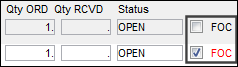
This FOC checkbox note is applicable to the following Order Detail, General tabs: Exchange Order, Loan Order, Purchase Order, Service Order, Manufacture Order
Orders Detail, Optional Tab
Capital Expenditure (new modification): Depending on the setting of Orders switch CAPEXGL, either the Cost Center field or the Default G/L field is available within the Capital Expenditure transaction code.
When set to Yes, the Capital Expenditure transaction code will contain the Default G/L field (instead of the Cost Center field). When this Capital Expenditure is entered into an order's Optional tab, the transaction code's G/L (if populated) will override the order's G/L field in the General tab.
When set to No, the Capital Expenditure transaction code will contain the Cost Center field (instead of the Default G/L field). When this Capital Expenditure is entered into an order's Optional tab, the transaction code's Cost Center will override the order G/L's Cost Center at order receiving. The Journal Entries for the closed order will contain the Capital Expenditure's Cost Center in the G/L.
For more information refer to switch CAPEXGL via the Orders Switches Manual and transaction code Capital Expenditure via the Orders Transaction Code Manual.
The Capital Expenditure field note is applicable to the following Order General tabs: Exchange Order, Loan Order, Purchase Order, Repair Order, Service Order
Purchase Order Detail, General Tab
Spec2000 Changes section: The changes made to the specific Purchase Order that match the required Spec2000 message(s) set up and sent. For more information, refer to the SPEC2000  button, via Company Profile.
 The SPEC2000 feature is an Interface related functionality. For additional information, refer to your TRAX Interface department.
Orders Switch HIDEORDERGRAPH must be set to Yes for the Open Orders and Open Orders by Priority graphs to be removed from the tab and this section to be available to be displayed.
Purchase Order Header, General Tab
Spec2000 Changes section: The changes made to the specific Purchase Order that match the required Spec2000 message(s) set up and sent. For more information, refer to the SPEC2000 button, via Company Profile.
The SPEC2000 feature is an Interface related functionality. For additional information, refer to your TRAX Interface department.
Orders Switch HIDEORDERGRAPH must be set to Yes for the Open Orders and Open Orders by Priority graphs to be removed from the tab and this section to be available to be displayed.
The selection of the Spec2000 Sent Status checkbox, any changes made to which Vendor is specified to the P/O, and any Acknowledgments made to Spec2000 messages through the Acknowledge Message  button has been added to the lower portion of the Order Header in Version 11.5 and later releases.
R/O Creation Queue
The R/O Creation Queue displays a list of part numbers that require placement on a Repair Order. The queue will filter by the user's predefined buyer settings in the Employee Master, Buyer Tab.
Share
Print
|
©1997-2026 Trax USA Corp. All rights reserved. This manual may not be copied, photocopied, reproduced, translated, or converted to any electronic or machine-readable form, in whole or in part, without prior written approval from Trax USA Corp. |
 |