
 Share
Share
 Print
Print
|
|
|
|
|


CONSTRAINTCODETAB - Display Constraint Code Tab

Display Constraint Code Tab
Affected window: w_mel_master_eu
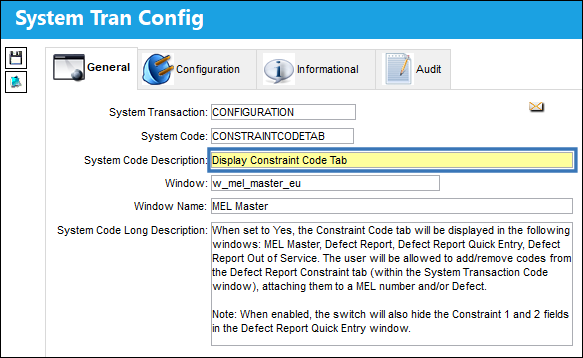
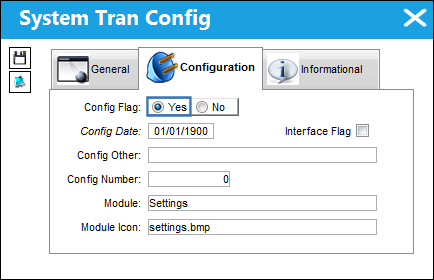
Switch Set to Yes:
When Set to Yes, the Constraints Code tab will be displayed in the following windows: MEL Master, Defect Report Quick Entry, Defect Report Out of Service.
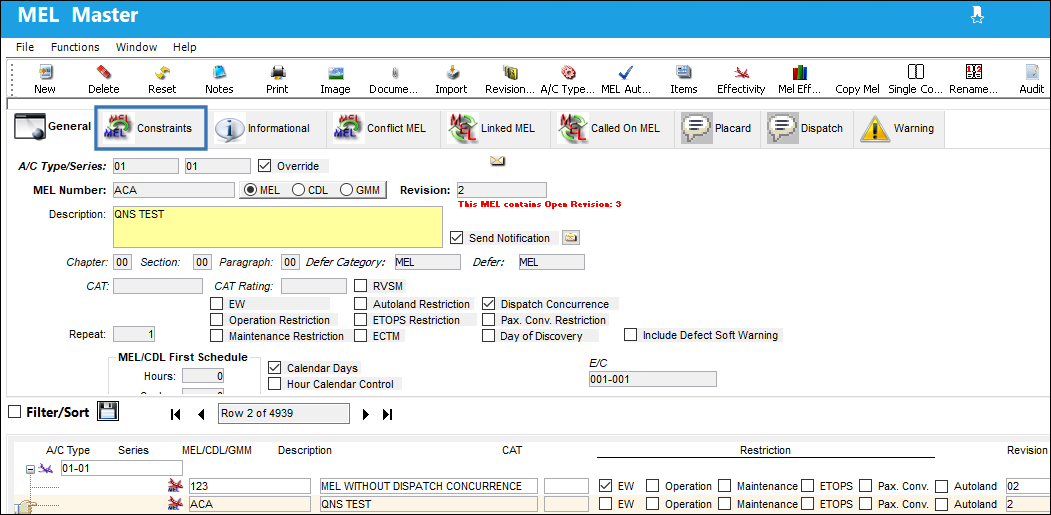
The Constraints Code tab is available in the MEL Master.
From the A/C Controller Panel, select the Quick Entry button. The Defect Report Quick Entry window will open and the Constraints Code tab is available within this window.
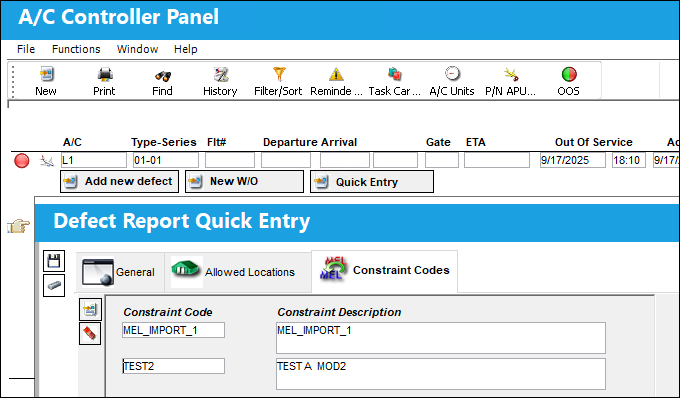
The Constraint Codes are visible. Select the Save  button.
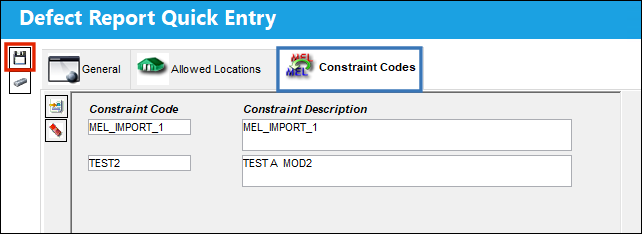
The Defect Report was successfully saved. The Constraint Codes are still visible.
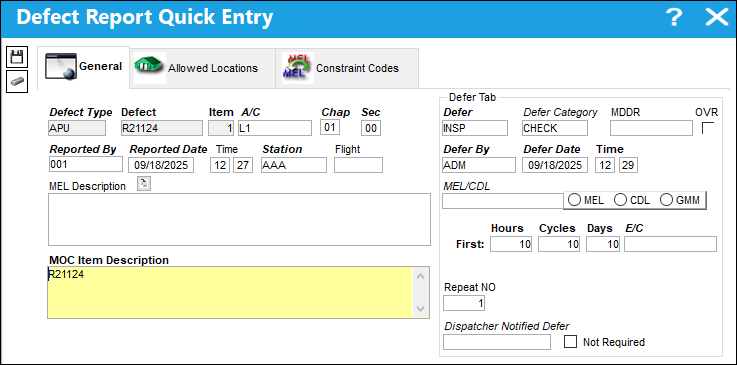
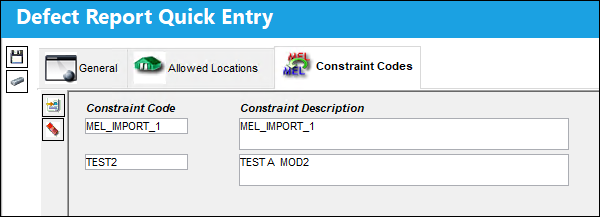
From the A/C Controller Panel window, select the Defect button. The Constraint Codes are still visible.
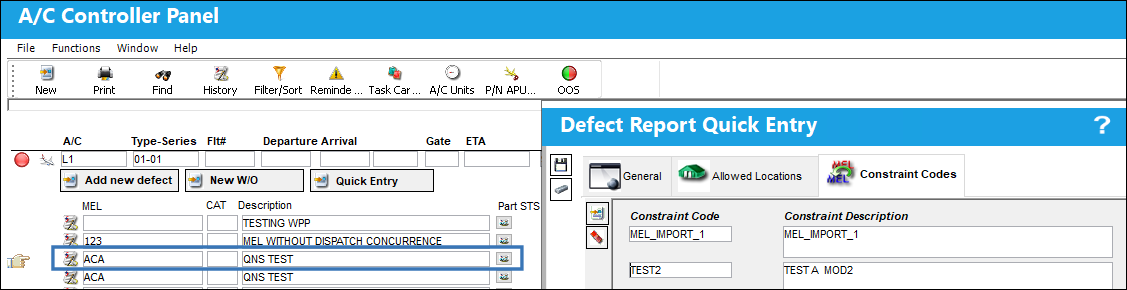
A Defect Report is created. The MEL field is populated and the Constraint Codes are autopopulated. Then, select the Save button.
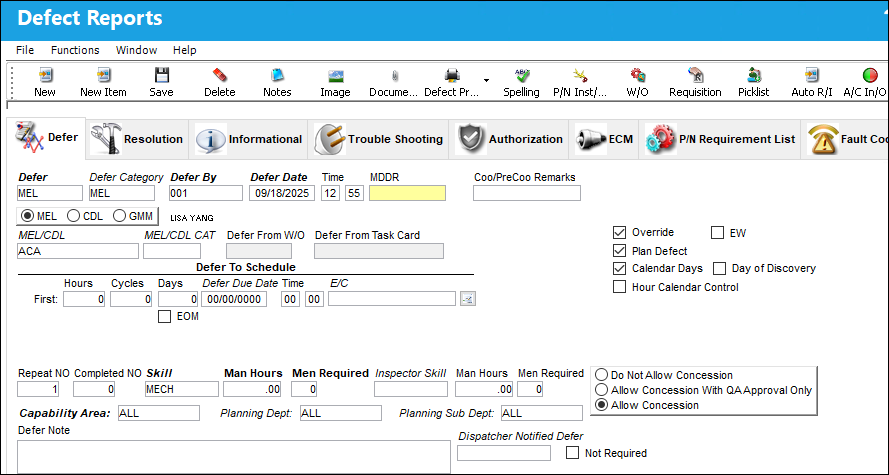
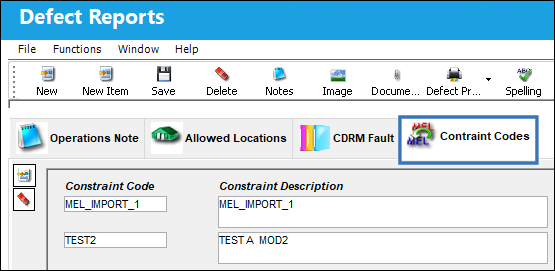
From the A/C Controller Panel window, select the Defect button. The Constraint Codes are still visible.
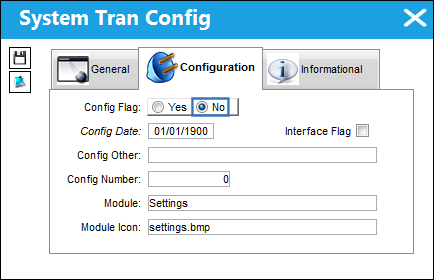
Switch Set to No:
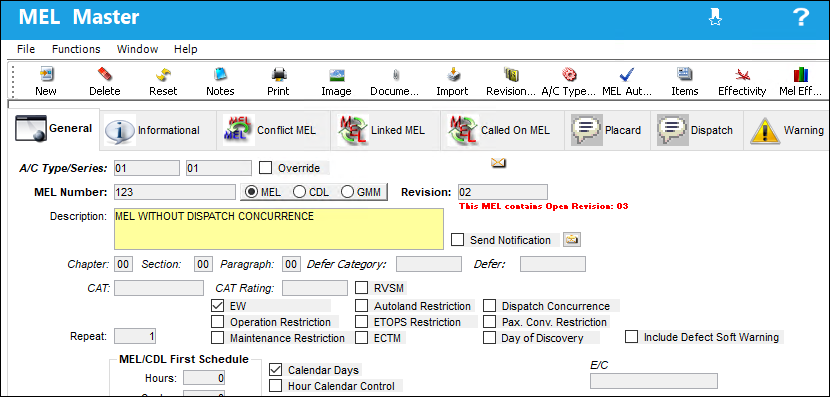
When Set to No, the Constraints Code tab is unavailable in the following windows: MEL Master, Defect Report Quick Entry, Defect Report Out of Service.
The Constraints Code tab is unavailable in the MEL Master.
From the A/C Controller Panel window, select the Quick Entry button. In the Defect Report Quick Entry window the Constraint Code tab is unavailable. The Constraint Code 1 and Constraint Code 2 fields are available in the General tab.
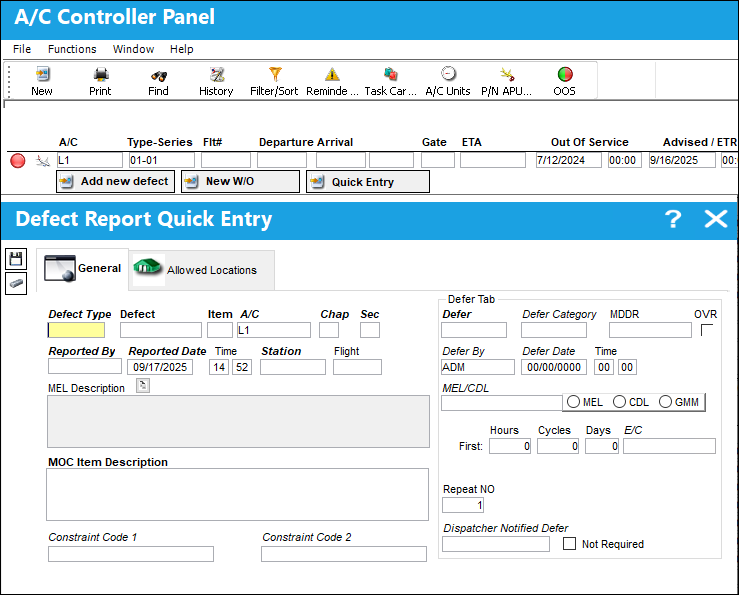
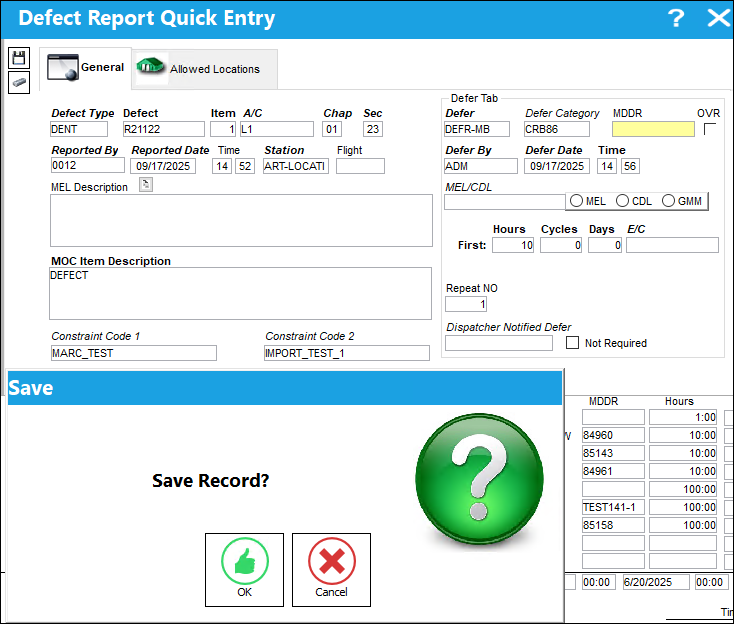
Populate the Constraint Code 1 and Constraint Code 2 tabs and save the record.
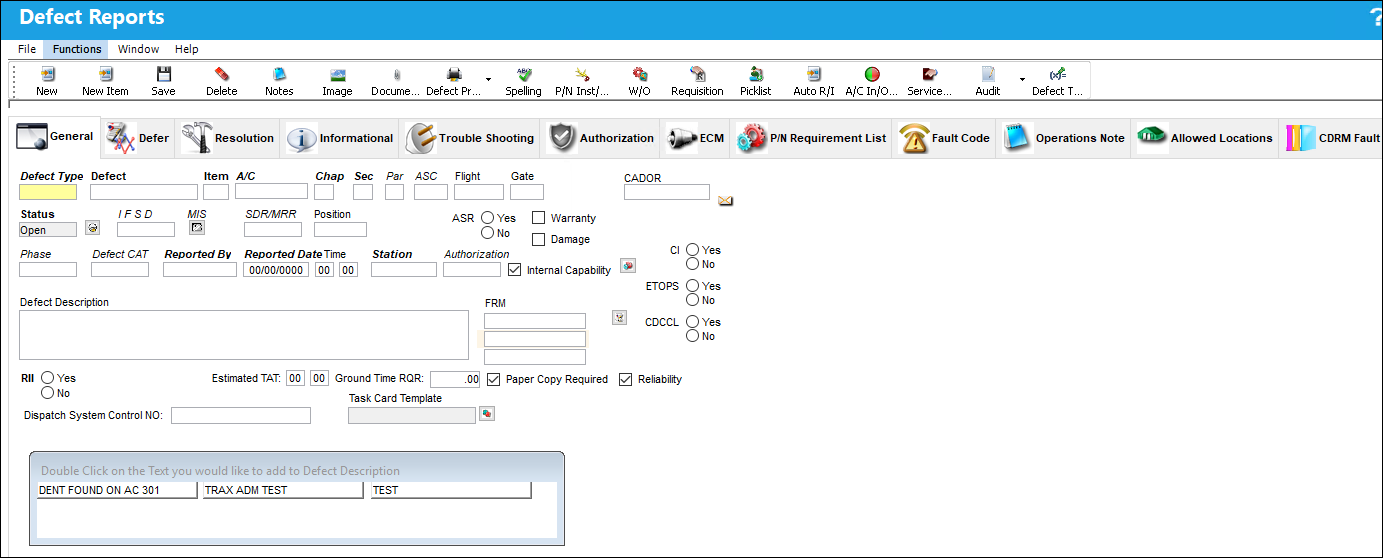
The Constraint Codes tab is unavailable in the Defect Report window.
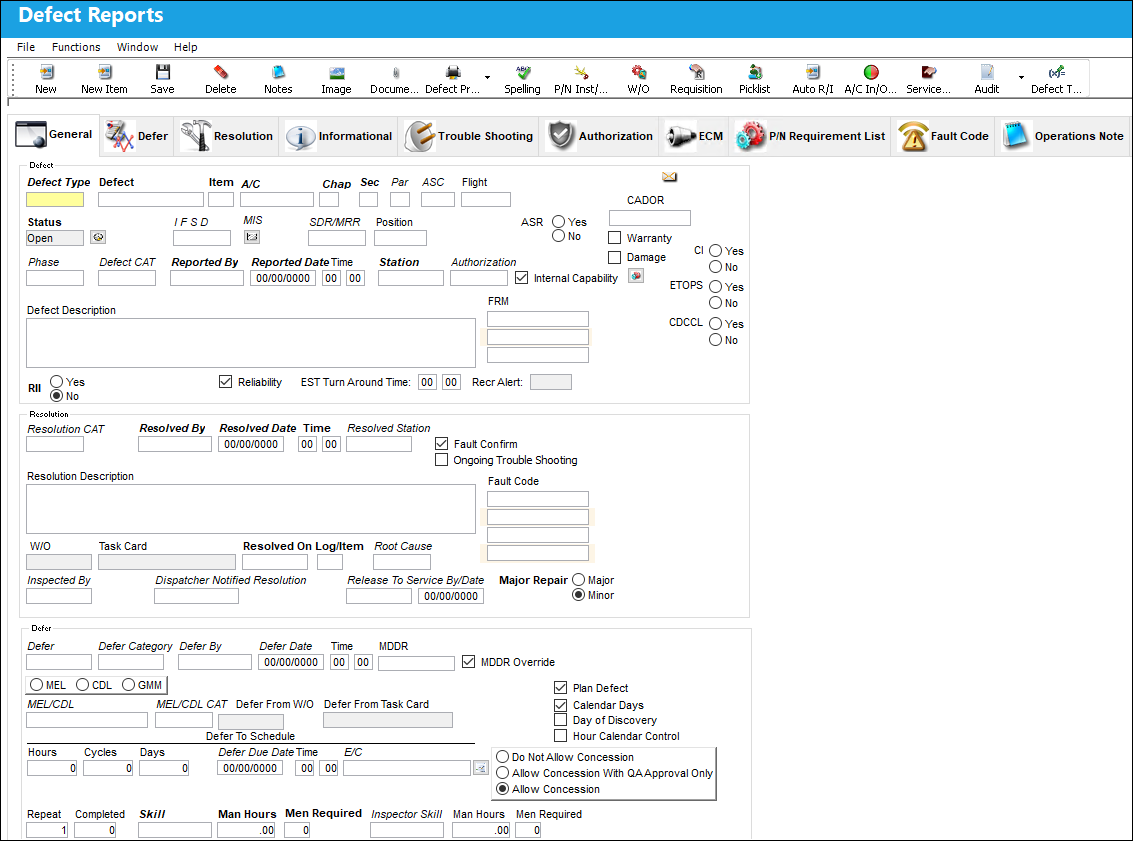
The Constraint Codes tab is unavailable in the Express Defect Reports window.
Share
Print
|
©1997-2026 Trax USA Corp. All rights reserved. This manual may not be copied, photocopied, reproduced, translated, or converted to any electronic or machine-readable form, in whole or in part, without prior written approval from Trax USA Corp. |
 |