
 Share
Share
 Print
Print
|
|
|
|
|


A 'SALE OF ROTABLE' takes place when a Sales Order is created. A picklist must then be created for the Sales Order and issued via Inventory Transactions.
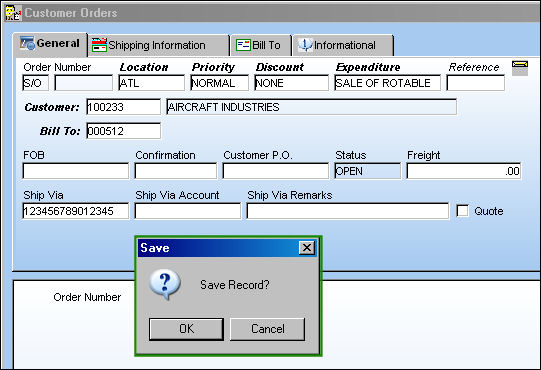
For example, create a Sale Order via Customer Orders/Update/Customer Order. The Sale Order must be created for a component that is in inventory and in the same location. Select the Save  button to save.
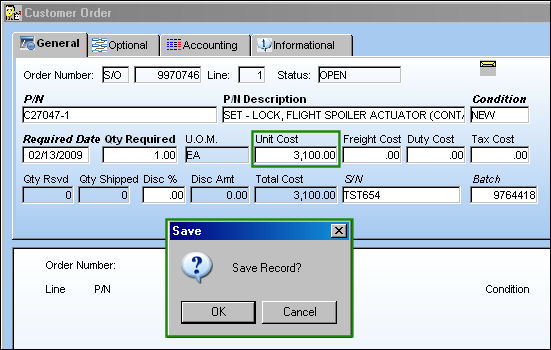
In the Customer Orders detail window, enter the Unit Cost (which is the sale price not the original purchase price) and the exact Part Number, Condition and Serial Number for the component as listed in Inventory Transaction.
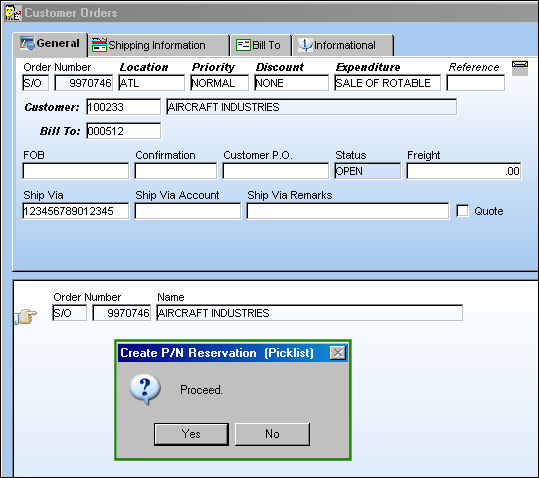
Once created, return to the Customer Orders header window and select the Picklist  button. Select 'Yes'.
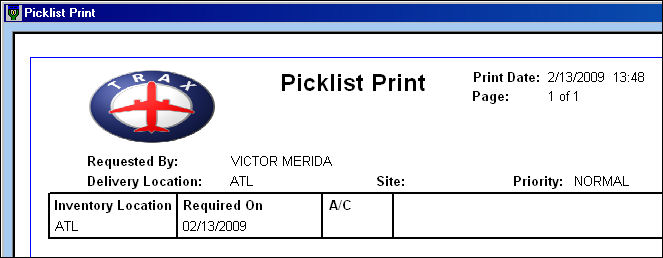
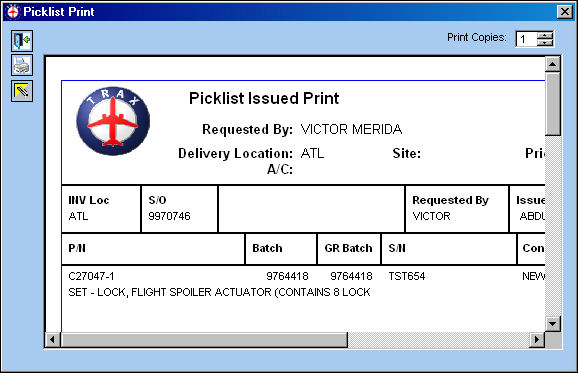
The Picklist Print will appear.
The picklist must now be issued. From the Inventory Transaction window find the exact component then select the Picklist Issue  button.
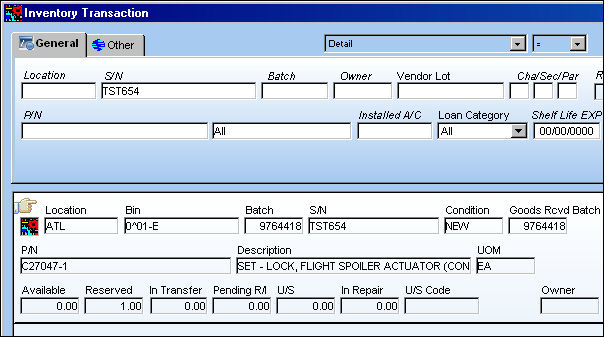
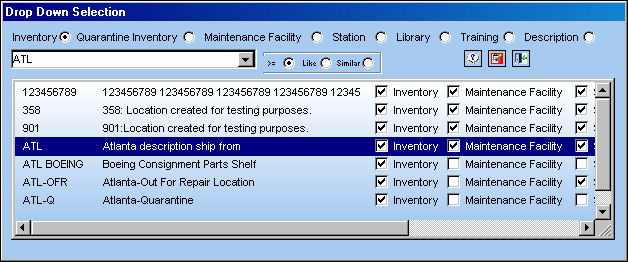
Select the corresponding inventory location.
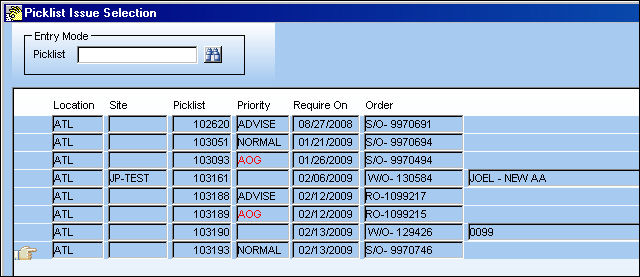
All available picklists for the chosen location will be listed in the Picklist Issue Selection window. Select the newly created picklist.
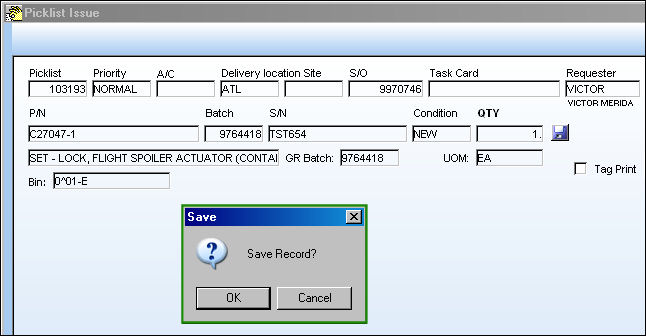
Select the Save button to save the picklist.
Choose the user to issue the picklist to by right-clicking over the Issue To field. Once chosen, select the Continue  button.
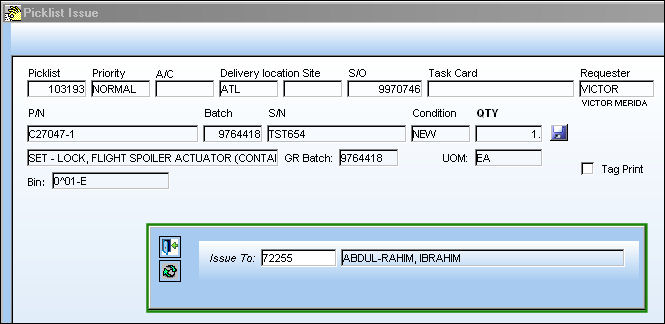
The Picklist Print label will appear.
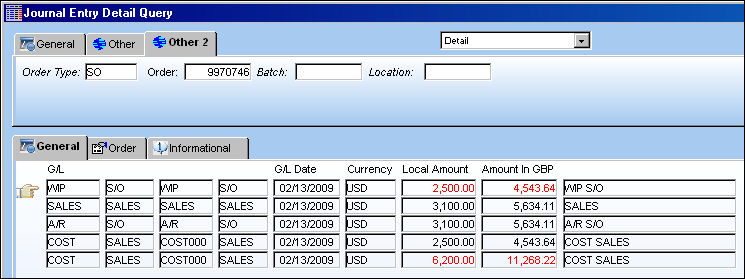
When G/L Interface Switch  COMPANYMULTI is set to 'Yes', Customer Orders for parent companies or their subsidized airlines are reflected in the G/L. For more information regarding the multi-company functionality, refer to Switch COMPANYMULTI via the G/L Interface Switches Manual.
From the Journal Entry Detail Query window users can see the adjustments against the G/L.
Notice the Category Codes in the Order tab read 'SALE OF ROTABLE'.
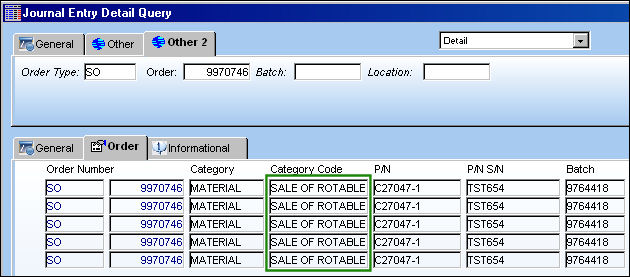
The above screenshot has been altered to highlight the relevant columns for this example.
For more information regarding Sale Orders and Picklists refer to the topics Customer Orders via the Customer Orders manual and Picklist Issue Button via the Inventory manual.
Share
Print
|
©1997-2026 Trax USA Corp. All rights reserved. This manual may not be copied, photocopied, reproduced, translated, or converted to any electronic or machine-readable form, in whole or in part, without prior written approval from Trax USA Corp. |
 |