
 Share
Share
 Print
Print
|
|
|
|
|


A 'ROT/TO/EXP' takes place when a P/N Category is changed from Rotable (ROT) to Expendable (EXP).
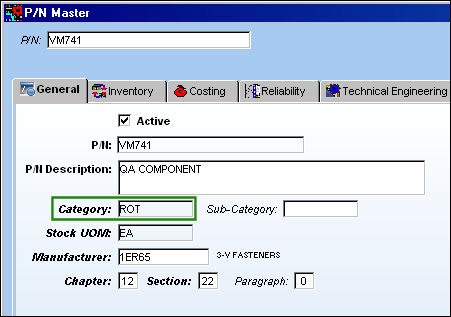
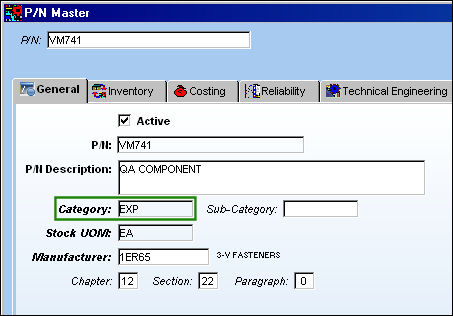
For example, notice the Category field for a P/N via Settings/Update/P/N Master window. This is set when creating a P/N in TRAX.
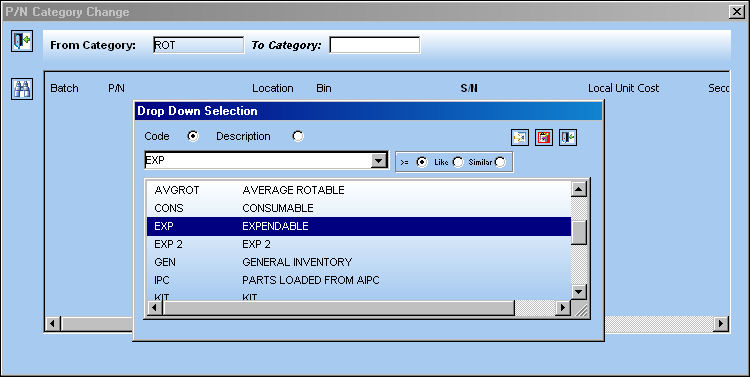
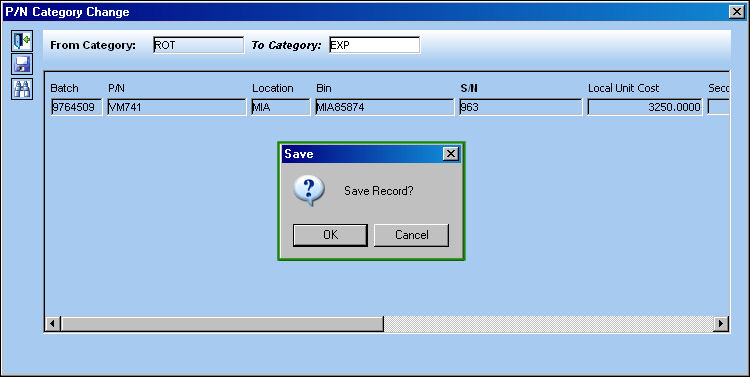
To change the Category of a P/N, select the P/N Category Change  button from the P/N Interchangeability drop down button. From the P/N Category Change window, enter the new category into the To Category field by typing the category code or by right-clicking over the field to select from a list of options.
Users will not be allowed to change the category for specific P/Ns if any of the following scenarios occur.
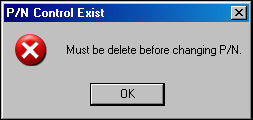
If P/N Controls exist against the P/N, the category change will be blocked and the below message will pop up:
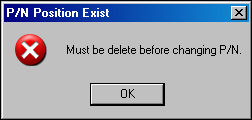
If a P/N Position exists against the P/N, the category change will be blocked and the below message will pop up:
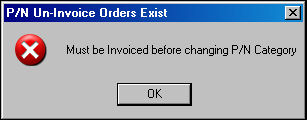
If an un-invoiced order exists against the P/N, the category change will be blocked and the below message will pop up:
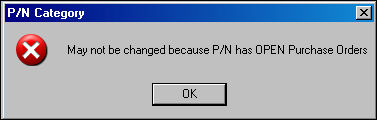
If there are open orders against the P/N, the category change will be blocked and the below message will pop up:
Once selected, users may need to enter a Serial Number if not previously assigned. If it has not been previously assigned, users can select the Auto Serial Number Assign  button. When selected, TRAX creates and assigns a unique S/N to the P/N(s). For more information refer to the topic Auto Serial Number Assign Button via the Settings manual.
Select the Save  button to save.
Notice the Category field in the P/N Master reads 'EXP'.
When G/L Interface Switch  COMPANYMULTI is set to 'Yes', parts owned by a parent company and entered into inventory through a subsidized company will be reflected in the G/L when the category is changed from rotable to expendable. For more information regarding the multi-company functionality, refer to Switch COMPANYMULTI via the G/L Interface Switches Manual.
From the Journal Entry Detail Query window users can see the adjustments against the G/L.
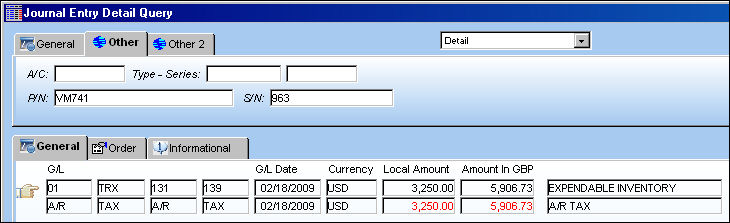
Notice the Category Code in the Order tab reads 'ROT/TO/EXP'.
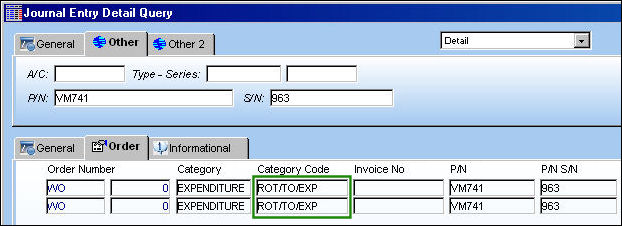
The above screenshot has been altered to highlight the relevant columns for this example.
For more information regarding the changing of a P/N Category, refer to the topic P/N Category Change Button via the Settings manual.
Share
Print
|
©1997-2026 Trax USA Corp. All rights reserved. This manual may not be copied, photocopied, reproduced, translated, or converted to any electronic or machine-readable form, in whole or in part, without prior written approval from Trax USA Corp. |
 |