
 Share
Share
 Print
Print
|
|
|
|
|


A 'LO/INVOICE' takes place when a Loan Order is invoiced. This transaction is used to invoice Loan Order cost.
For example, create a new invoice entry by selecting the New  button via Link/Update/Invoice Entry. Enter all relevant information including the Vendor, a unique Invoice number, the Invoice Amount and the Order Type/Number, etc. By listing the Order Type/Number users will be able to associate the corresponding Order to the invoice. Select the Save
  button to save.
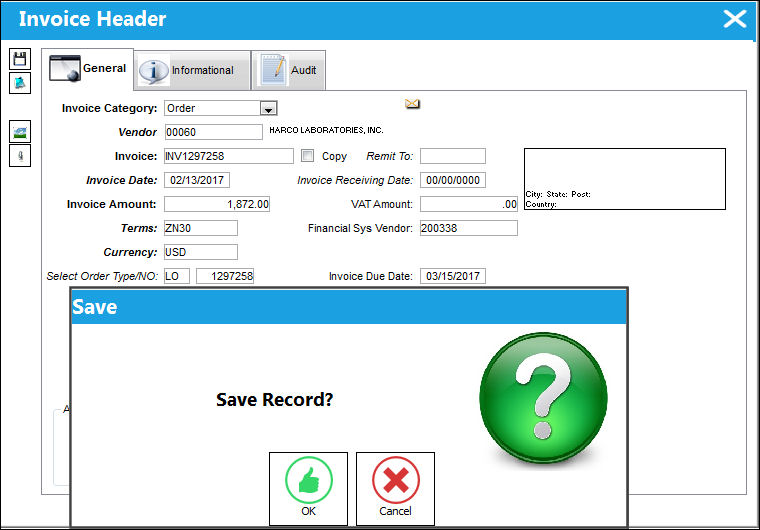
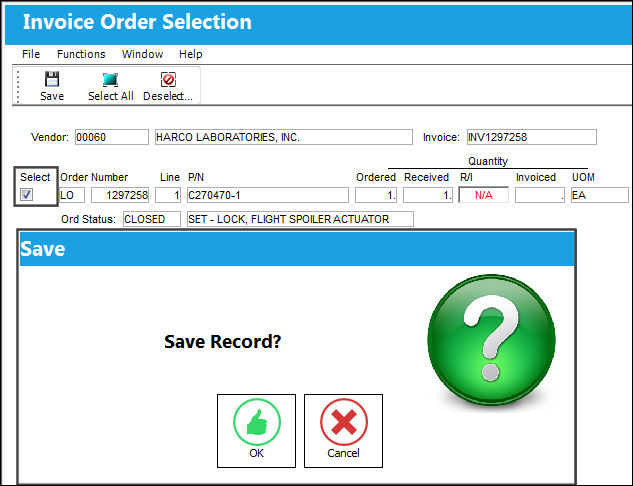
After saving, the Invoice Order Selection window will appear. Select the line item then save.
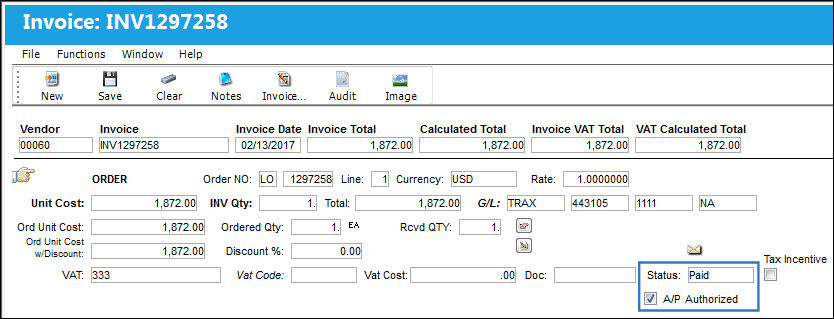
The Invoice Order Detail window will appear. Notice the Invoice Total and the Calculated Total fields are equal. It is important that the totals are balanced and that the A/P Authorized checkbox is flagged and 'Paid' is selected in the Status field. The 'Paid' Status will close the invoice. Users must then select the Save button which will prompt the system to ask if the invoice should be posted for Invoice Closing. Select 'Yes'.
When G/L Interface Switch  COMPANYMULTI is set to 'Yes', the G/L field will be populated with a subsidized airline's G/L Account for an order involving its parent company's part. This is contingent on the code entered into the Company field of the Loan Order header window. For more information regarding the multi-company functionality, refer to Switch COMPANYMULTI via the G/L Interface Switches Manual.
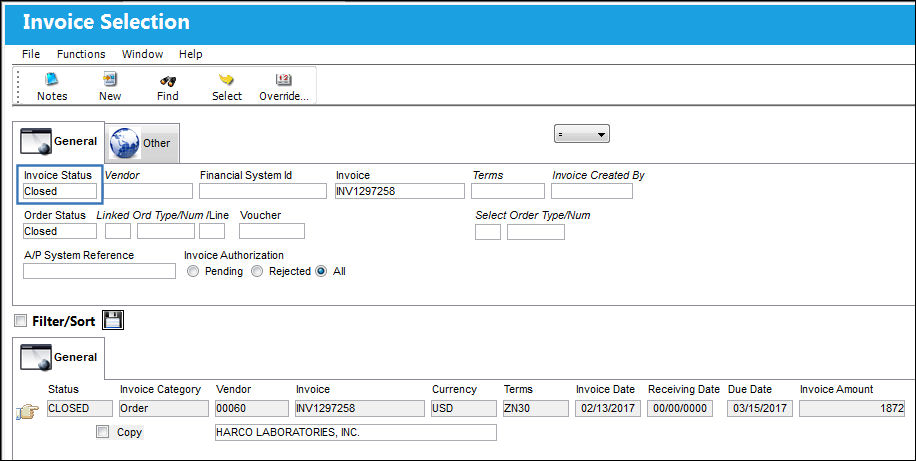
To double check that the invoice has been closed, users should be able to search for the Invoice with the Invoice Status criteria reading 'Closed' via the Invoice Selection window.
In the event that the component needs to be repaired after being returned, vendors will charge the users who created the Loan Order any additional repair costs. When this scenario occurs users must create a LO/Repair invoice. This is created similarly to a regular order invoice, only users must select 'LO/Repair' from the Invoice Category drop down in the Invoice Header window. The cost of the repair is entered in the Invoice Amount field.
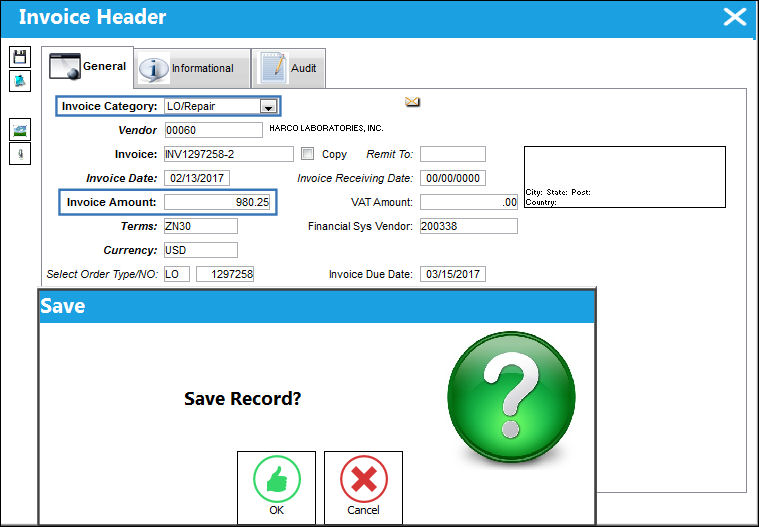
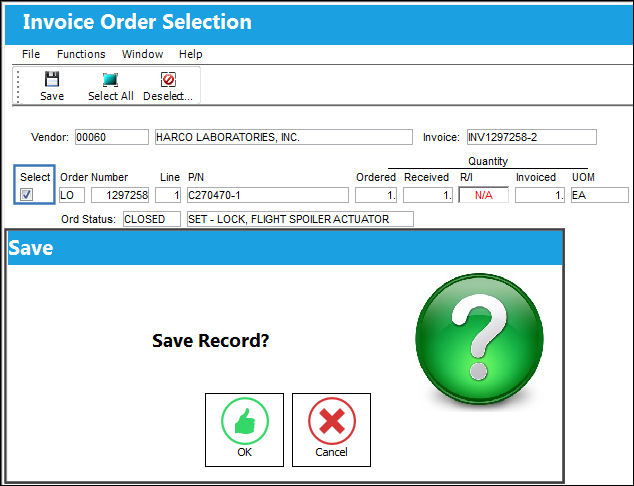
After saving, the Invoice Order Selection window will appear. Select the correct invoice order then save.
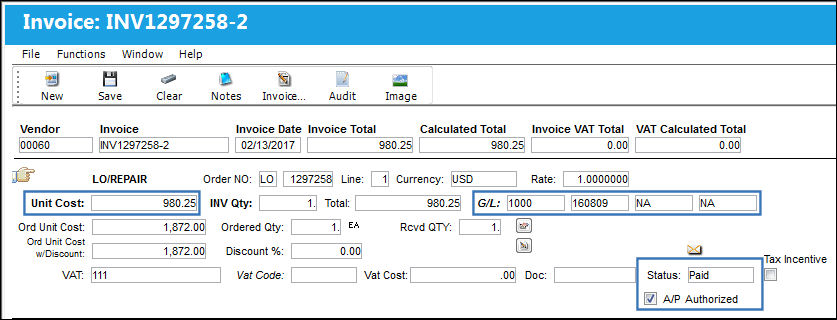
In the Invoice Order Detail window, enter the cost of the repair into the Unit Cost field. Users will also need to select a proper G/L. As above, the Invoice Total and Calculated Total fields must be balanced. Flag the A/P Authorized checkbox, select 'Paid' in the Status field then save.
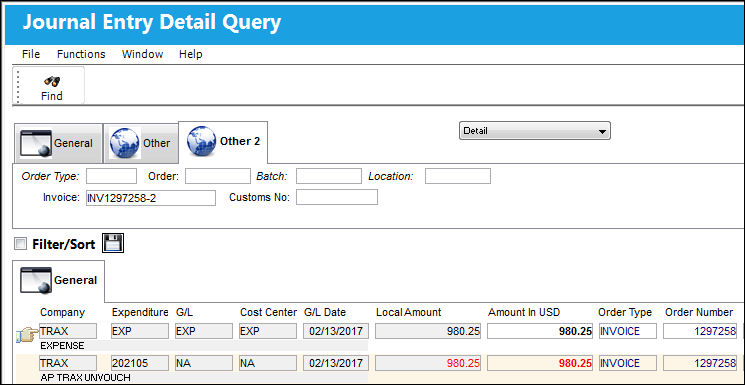
From the Journal Entry Detail Query window, users can see the adjustments against the G/L.
The first transaction refers to the initial 'Order' invoice.
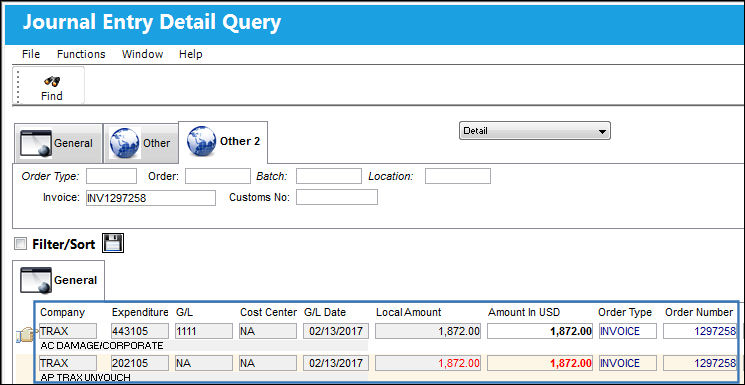
The second transaction refers to the 'LO/Repair' invoice created for the repair costs issued after the component was returned (invoice: 1099211-INV2).
Notice the Category Codes in the Order tab read 'LO/INVOICE'.
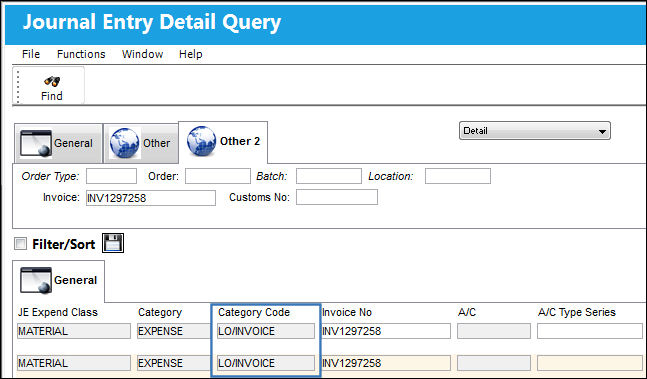
The above screenshot has been altered to highlight the relevant columns for this example.
 After the Loan Order has been invoiced, if the L/O is converted to a Purchase Order, through the Loan P/O
  button, then the Line Item at the Order level is re-opened to allow for the invoicing to be conducted for the Purchase Order, seen as PO/INVOICE, to which the L/O Invoice Journal Entry is then reversed, seen as LO/REVSERSE, after this action is completed.
For more information regarding the invoicing of a Repair Order refer to the topics Loan Order via the Orders manual and Invoice Entry via the Link manual.
Share
Print
|
©1997-2026 Trax USA Corp. All rights reserved. This manual may not be copied, photocopied, reproduced, translated, or converted to any electronic or machine-readable form, in whole or in part, without prior written approval from Trax USA Corp. |
 |