
 Share
Share
 Print
Print
|
|
|
|
|


INVATHREL - Invoice Authorization through Authorization Explorer
Invoice Authorization through Authorization Explorer
Affected Window: w_invoice_order_eu
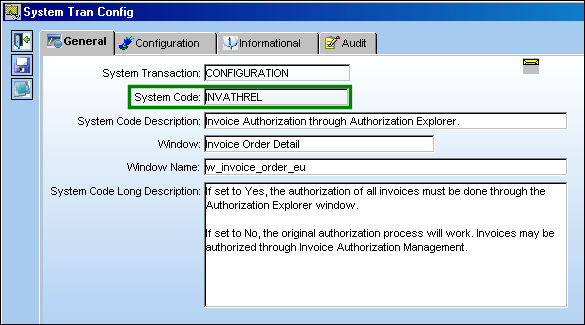
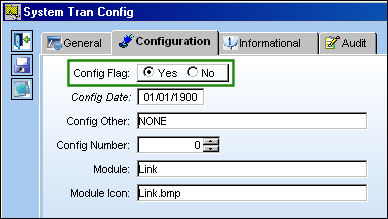
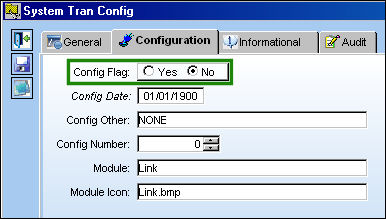
Switch Set to Yes:
When set to Yes, the authorization of all invoices must be done through the Authorization Explorer window.
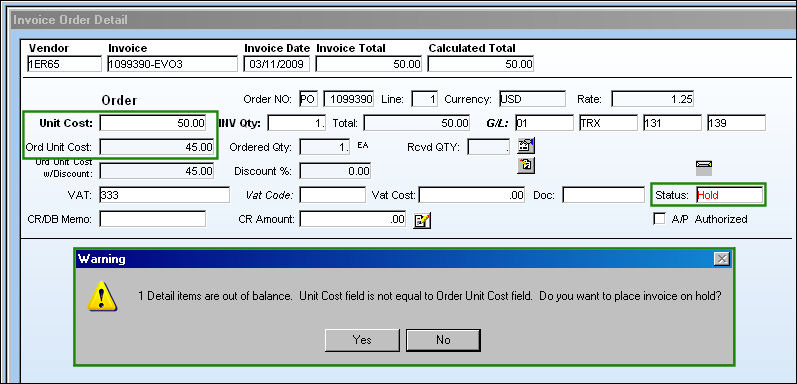
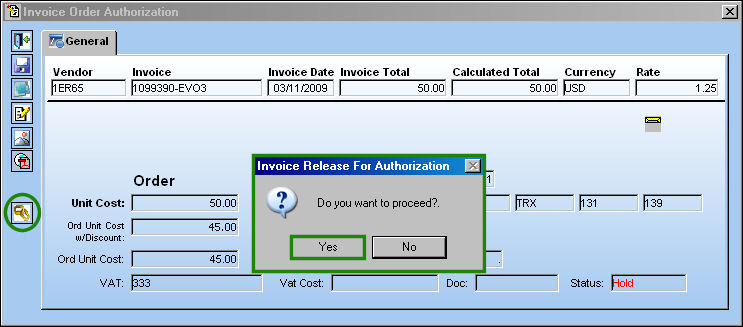
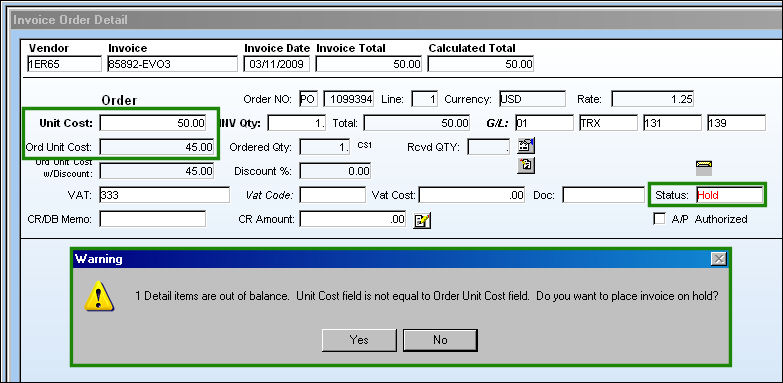
Create a PO and add it to attach it to an invoice. In the below example, the invoice is on 'Hold' status because there is a difference between the Unit Cost and the Ord Unit Cost.
Select 'Yes' to the following warning.
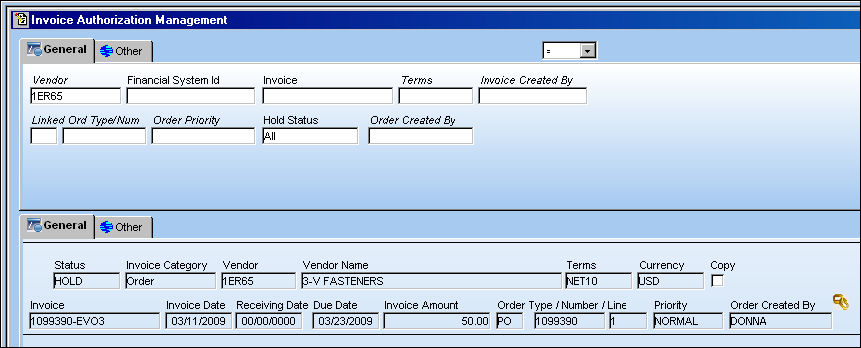
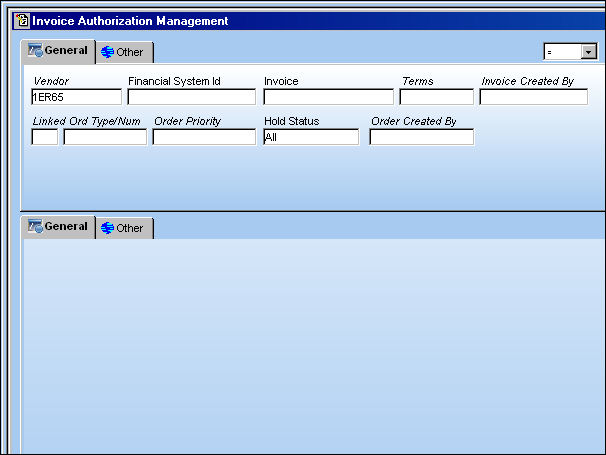
Go to Invoice Authorization Management.
Search for the Invoice that is pending authorization. As with the majority of the query selections on the system, it is better to select as many parameters as required to minimize the search result.
Select the criteria and select the Find  button.
TRAX displays the following search result. Be sure the Hand  pointer is pointing to the correct record. Click on the Select
  button, or double click on the record.
The Invoice Order Authorization window appears. Select the Release For Authorization  button. The Invoice Release For authorization pop up appears. Select 'Yes' to release the invoice for authorization.
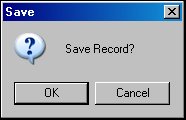
The Save prompt appears. Select 'OK.'
The invoice is no longer appears in the Invoice Authorization Management window.
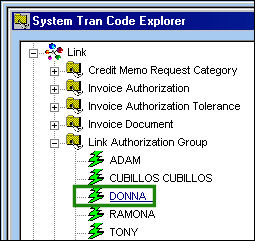
At this point, be sure that the logged on user is part of the Link Authorization Group via the Link Authorization Group transaction code.
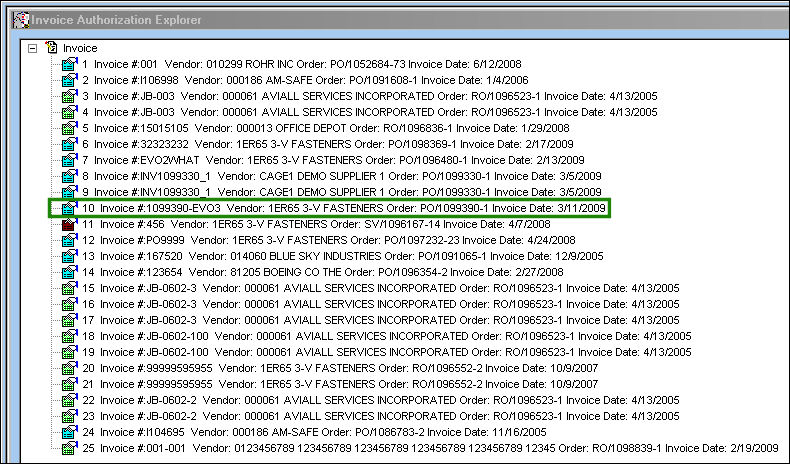
Go to Invoice Authorization via the Explorer menu. Right click on the invoice.
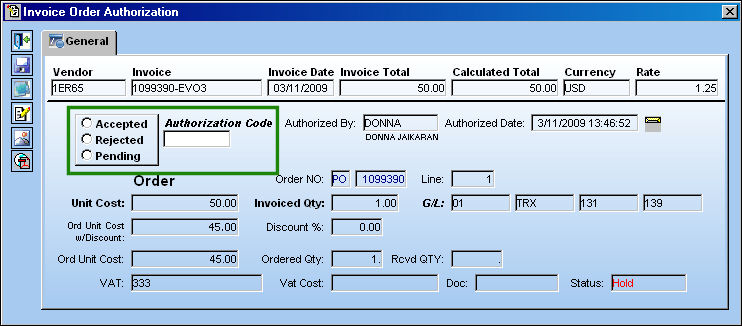
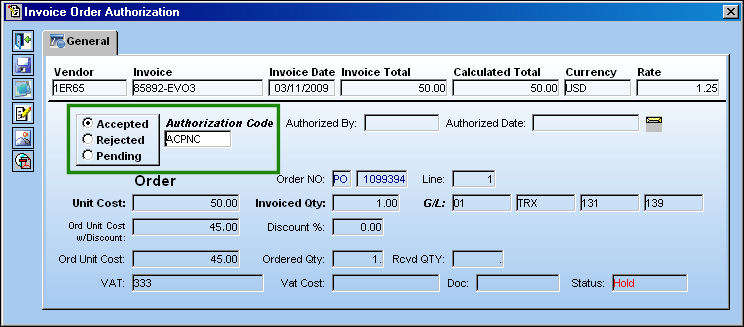
The Invoice Order Authorization appears. The user may accept, reject or place the invoice in pending authorization status in this window.
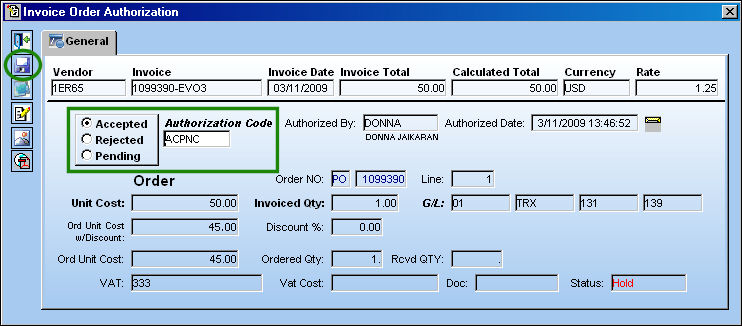
Select the 'Accepted' radio button and populate the Authorization Code field. Select the Save  button. The Save prompt appears. Select 'OK.'
The invoice is authorized and no longer appears in the Invoice Authorization Explorer window.
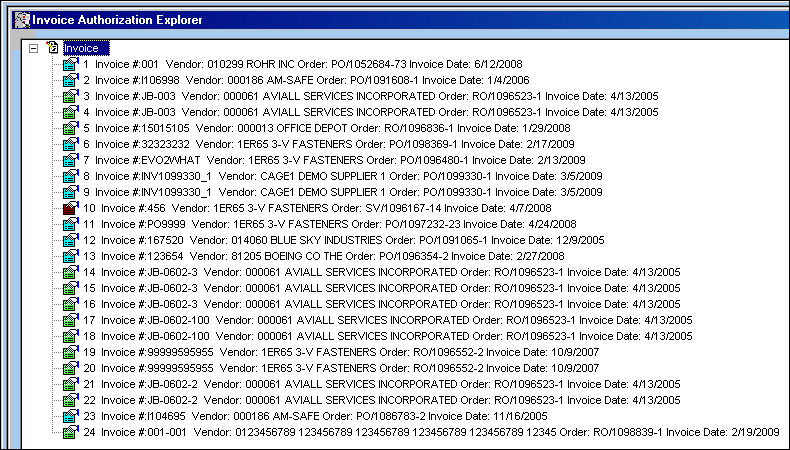
The status of the invoice is now 'Authorized.'
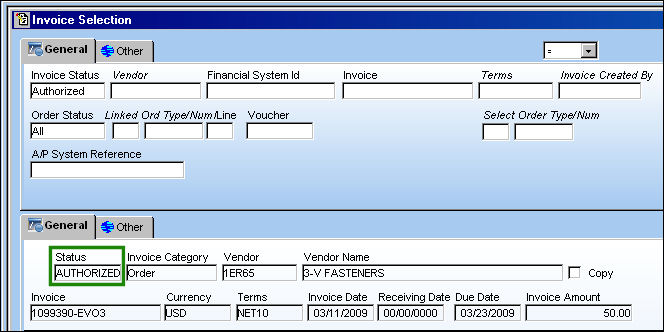
The invoice can now be posted. For information regarding how to post an invoice, refer to the Posting an Invoice section via the Invoice Order Detail section of the Link Training manual.
Switch Set to No:
If set to No, the original authorization process still works. Invoices may be authorized through Invoice Authorization management.
Create a PO and add it to attach it to an invoice. In the below example, the invoice is on 'Hold' status because there is a difference between the Unit Cost and the Ord Unit Cost. Select 'Yes' to the following warning.
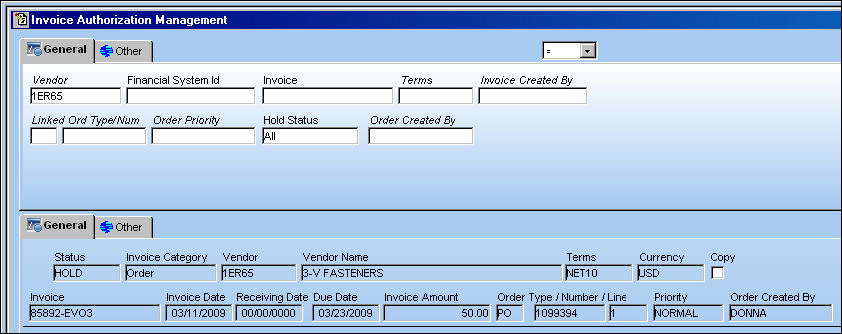
Go to Invoice Authorization Management. Search for the Invoice that is pending authorization and select into the record.
The Invoice Order Authorization appears. The user may accept, reject or place the invoice in pending authorization status in this window. Select the 'Accepted' radio button and populate the Authorization Code field. Select the Save button. The Save prompt appears. Select 'OK.'
If the Line item within the order has been canceled, the Rejected radio button will be selected by default.
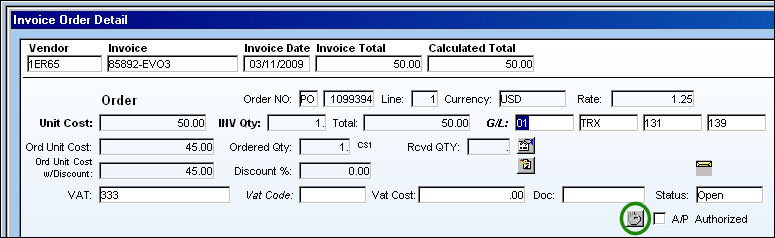
Once an invoice has been authorized, the user may post it. Select the Save button.
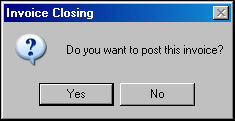
The Invoice Closing pop-up appears. Select 'Yes' to post the invoice.
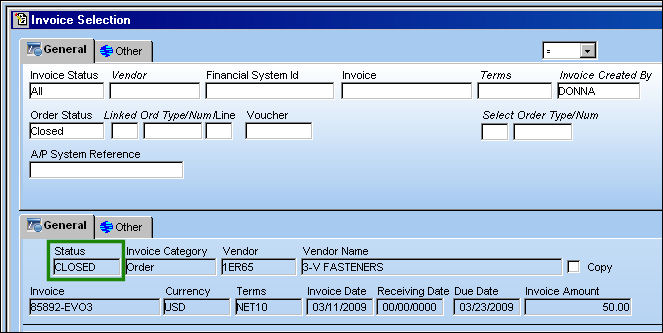
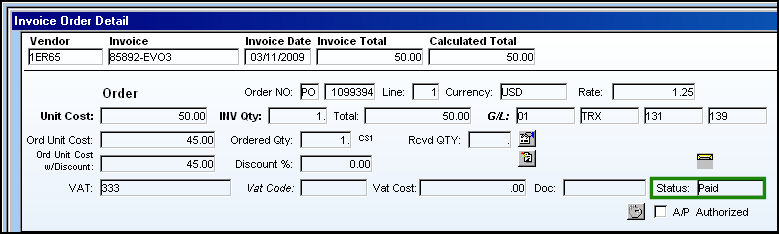
The invoice status is now 'Closed.'
The invoice is now paid.
Share
Print
|
©1997-2026 Trax USA Corp. All rights reserved. This manual may not be copied, photocopied, reproduced, translated, or converted to any electronic or machine-readable form, in whole or in part, without prior written approval from Trax USA Corp. |
 |