Publication Date: 8/17/2026 Share Print

Previous Topic

Next Topic

Book Contents

Book Index

ORDERSURVEY - Create Survey Instead of Checklist

Create Survey Instead of Checklist

Affected Window: w_pn_inventory_ri_eu
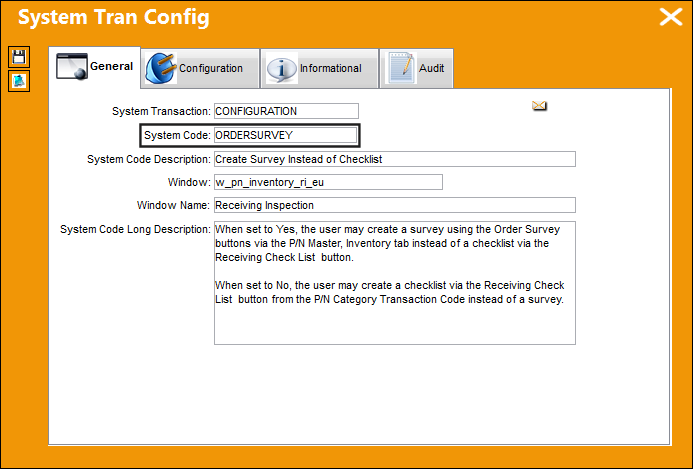
 

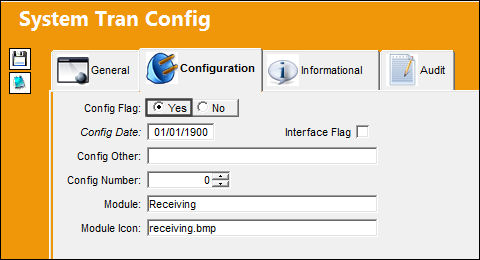
Switch Set to Yes:

When set to Yes, the user may create a survey using the Order Survey buttons via the P/N Master, Inventory tab instead of a checklist via the Receiving Check List but_receiving_check_list_small button.

REC_yes

TRAX displays the Order Survey buttons. Select the appropriate Order Survey button (PO/LO/EX RCV, RO RCV, R/I, Scrap, etc.).

In the following example, the user has selected the R/I button.
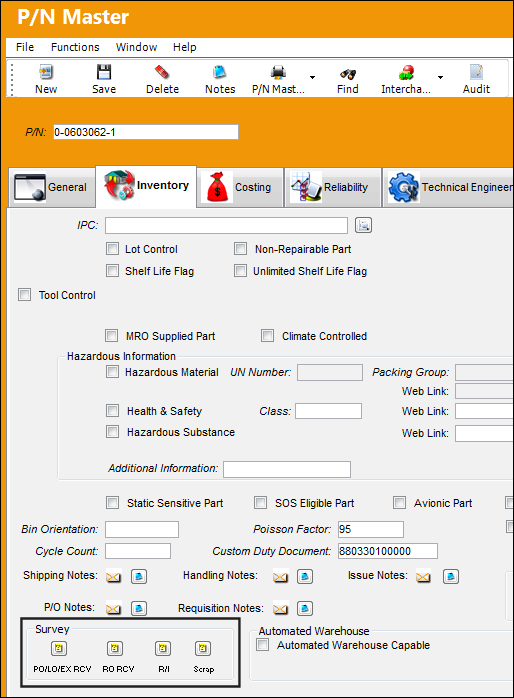
TRAX displays the Survey Master window where a survey may be created or updated.
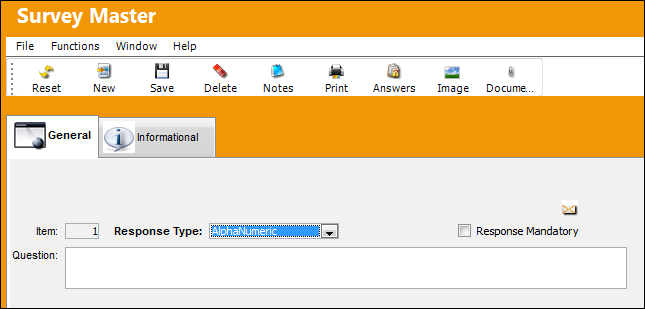
It is possible to enter more than one question and answer per survey, as illustrated below.
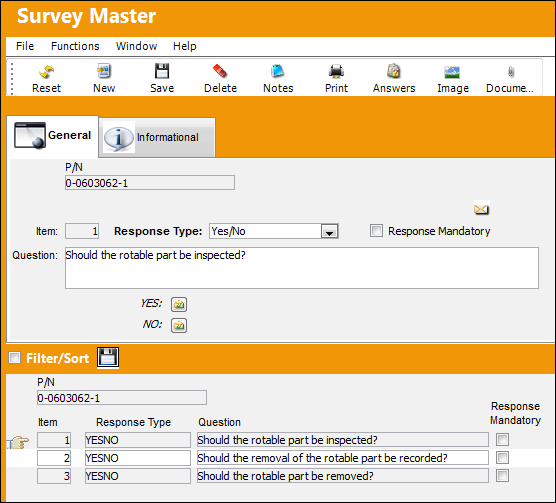
Select the Save but_save_small button to save all information entered/updated in the Survey Master.

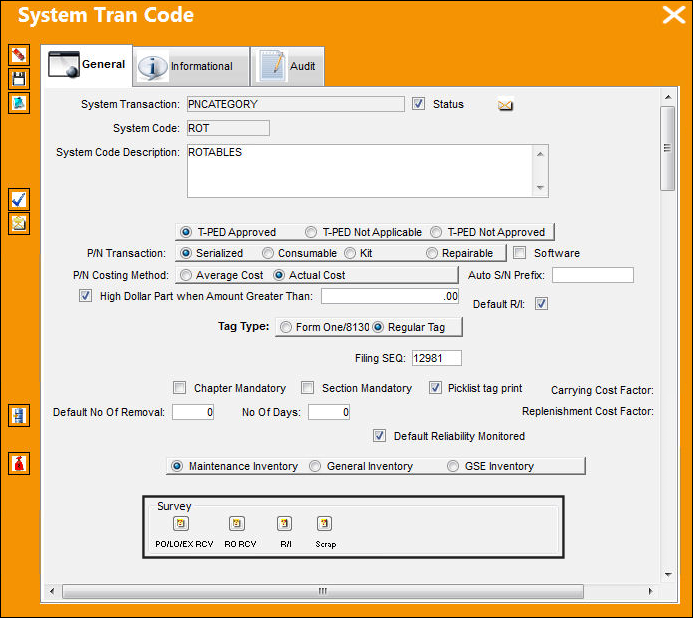
The user may also access the Order Survey buttons via the P/N Category Transaction Code as shown below.

For additional information, refer to the P/N Category Transaction Code via the Settings Transaction Code Manual.
 

Switch Set to No:

When set to No, the user may create a checklist via the Receiving Check List but_receiving_check_list_small button from the P/N Category Transaction Code instead of a survey.
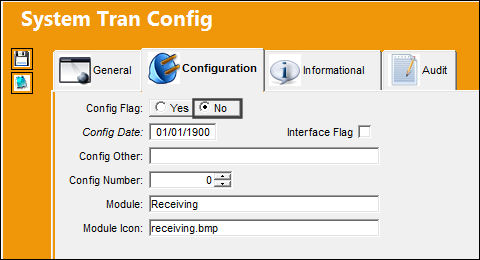
REC_no

TRAX displays and enables the Receiving Check List but_receiving_check_list_small button, as illustrated below.

For information on how to create a checklist and how to access the checklist once it has been created via Order Receiving and Receiving Inspection , refer to Receiving Check List button, via the P/N Category Transaction Code of the Settings Transaction Code Manual.
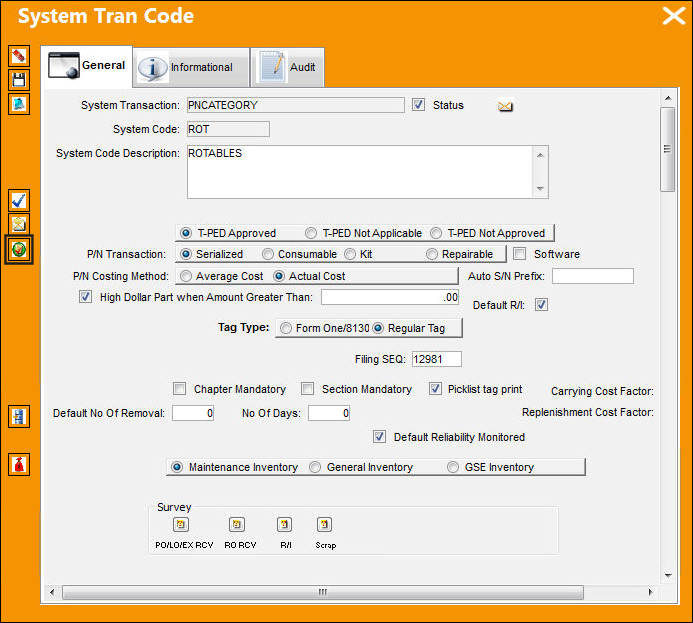
Note: The Surveys option is still visible, but has no functionality when Switch ORDERSURVEY is set to No.


Additional Functionality:

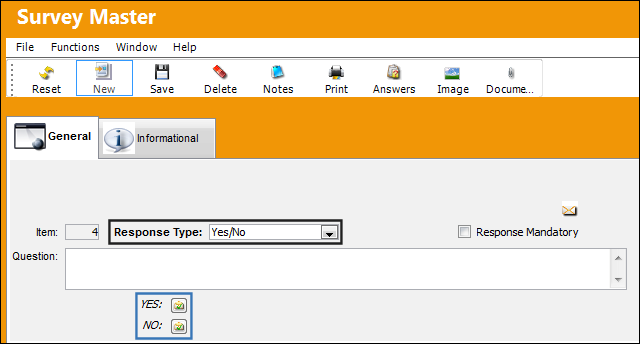
When the Yes/No Response Type is selected, the Yes/No Notification buttons become available.

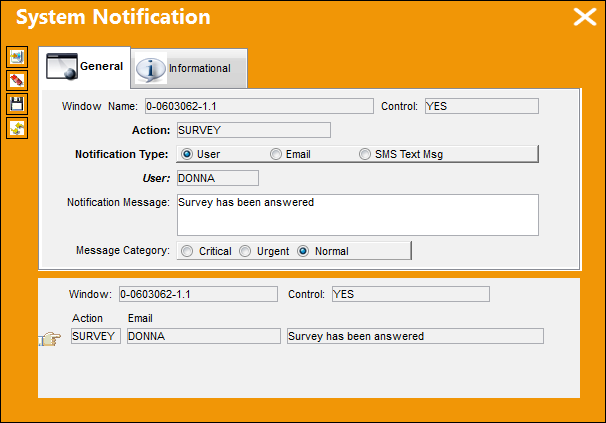
Select the Yes Notification button.
TRAX displays the following System Notification.
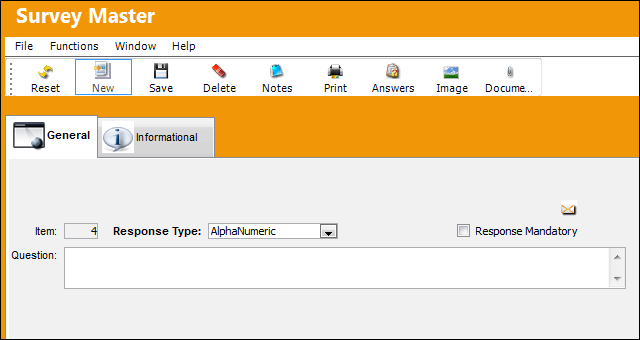
When the Response Type is set to an option other than Yes/No, the System Notification buttons are not available for selection.
See Also

Receiving Switches

ACCDOCMAND - Make Accounting Document and Date Mandatory in Order Receiving

APCERTVAL - Approved Certification Validation at Order Receiving

BARLABEL - Barcode Labels Printed via Order Receiving and Inventory Tag RePrint

CLRPREREC - Do Not Allow Closed Orders to be Saved in Pre-Receiving Window

DNTALWBOG - Do not allow bogus parts to be received

DONTASKCREATETRANORD - No Transfer Order Prompt for Orders Received at Overridden Locations

DRONIP - Deny Receiving of Non-Inventory Parts

ENGCOMP - Upload Engineering Component at Order Receiving or Receiving Inspection

EXCTLRI - E/X or X/O Reset Control at R/I

KEEPCONDIT - N/L/As Keep Condition after R/O Receiving

MSGRCVORD - Show a message on the Receiving window if the order is PO, LO or EX order type

NLATBDSN - NLA Receiving To Be Determined By S/N

NOPNCGRI - No P/N Changed Allowed On R/I for P/O Items

ORDDICRAWB - Order Receiving Discrepancy Make AWB Mandatory

ORDEREQCLOSE - Close All Requisitions When Order Required QTY Has Been Received

PNBIRTHDAY - Activate Birth Date for P/N Calendar Days Calculation

PNCHINTER - Allow P/N to be Changed with Interchangeability in Receiving Inspection or Repair Order Receiving

PNDISABL - Make P/N (field) Disabled at Receiving Inspection

PNECPOSCONT - Allow P/N E/Cs with Position Control to be Available in Receiving

PRERECDAY - Define the Number of Days to Stay on Pre Receiving Status

PRERECSEQ - Pre-Receiving Sequence

RCVAOGMS - Receiving AOG Notification Message

RCVSHTFT - Goods Receiving Check-List Footer

RE/AU/PR - Automatic Print Report At Receiving

RECCDD - Custom Duty Document

RECQTYMD - Populate the Receiving QTY

RECSCRAP - Scrapped P/N Serial Numbers cannot be Received

REMARKSFIELD - Enable/Disable Remarks field in Receiving Inspection

RIAPCRMN - Approved Certificate Field Mandatory

RIAPCRMNNO - Approved Certificate Number Mandatory

RIBIN - Reload Bin At Entrance

RICTLRD - Make Reset Date field of R/O Control Mandatory in Receiving Inspection

RINOQTY - Gray Out Quantity field in Receiving Inspection

RIPNCNTLEXCEED - Allow RI Of A Component Which Has Exceeded A Scheduled Time Control

RIRCVIMAGE - R/I Image Scan Notification

RIRJTEML - Receiving Inspection Rejection E-mail Notification to Creator

RNACCUPRRI - Enter the Rental Accumulated Time in Order Receiving on Receiving or Receiving Inspection

RNRCVPROTECT - Protect Fields for Tool P/Ns During Rental Order Receiving

RNUPDACC - Enter the Rental Accumulated Time on Receiving

ROCTLRI - R/O Control Tab at Receiving Inspection

RODMFS - Auto Populate Compliance (Reset) Date for R/O Receiving Inspection

RORCVIMAGE - R/O Receiving Image Scan Notification

SVODRCP - Print Service Order Receipt Note at Order Receiving Close

TAGCHECK - Allow Tag Print at Receiving

TAGMSG - Tag Print Message Box

TAGRECV - Allow Tag Print at Receiving

TAGUS - Print Different Tag for Unserviceable Parts

TEARDWNL - Automatic Load of Tear Down at L/O Receiving Inspection

TEARDWNP - Automatic Load of Tear Down at P/O Receiving Inspection

TEARDWNR - Automatic Load of Tear Down at R/O Receiving Inspection

TEARDWNX - Automatic Load of Tear Down at E/X Receiving Inspection

TEARDWNXO - Automatic Load of Tear Down at X/O Receiving Inspection

TEARREPORTESIGN - Create Tear Down Report Electronic Signature Certificates

TOOLIFR - Default Tool Life at Receiving

TRDWNROR - Automatic Load of Tear Down at R/O Receiving

WRNPRHLD - Prevent Warranty Claim Authorization Below Set Percent

Top of Page Publication Date: 8/17/2026 Share Print