
 Share
Share
 Print
Print
|
|
|
|
|


ROPNAUSEL - R/O Auto-Selects P/N Control or E/C based on the Warning % Due
R/O Auto-Selects P/N Control or E/C based on the Warning % Due
Affected Window: w_ro_order_detail_eu
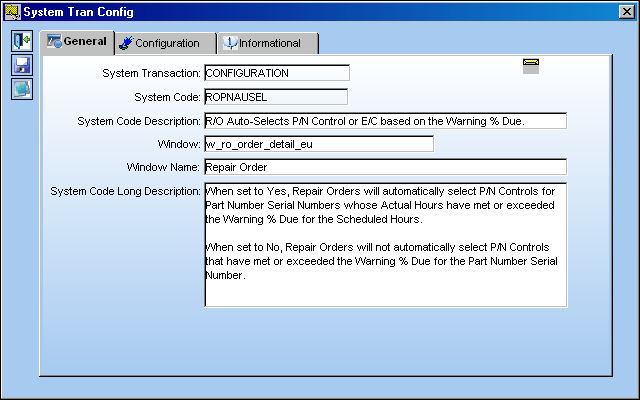
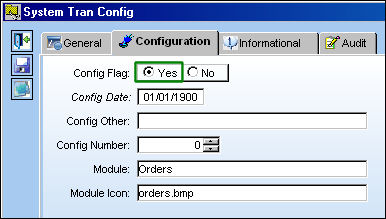
Switch Set to Yes:
When set to Yes, Repair Orders will automatically select P/N Controls or Engineering Controls for Part Number Serial Numbers whose Actual Hours have met or exceeded the Warning % Due for the Scheduled Hours.
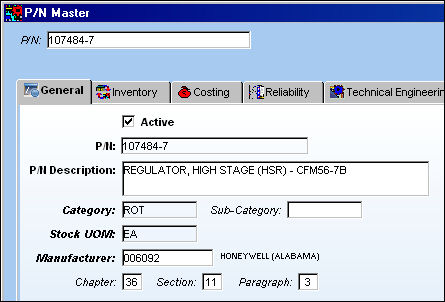
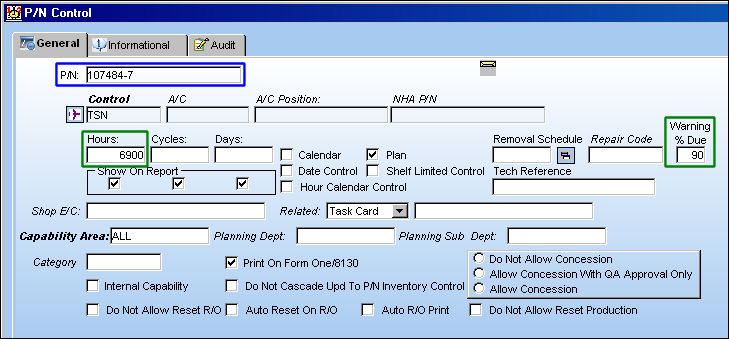
Select a Part Number with P/N Controls then select the P/N Control  button.
From the P/N Control window, notice the control entries. For this particular example, the controls are 'TSLSV' and 'TSN.'
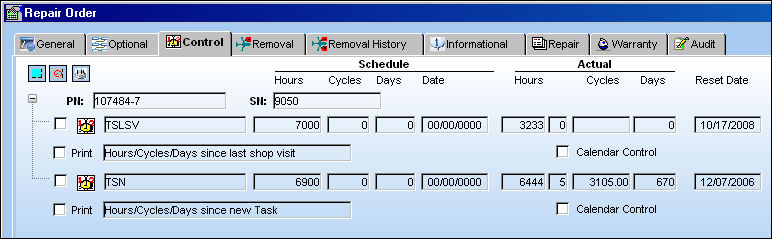
'TSLSV' is set to 7000 Hours and the Warning % Due is 90.
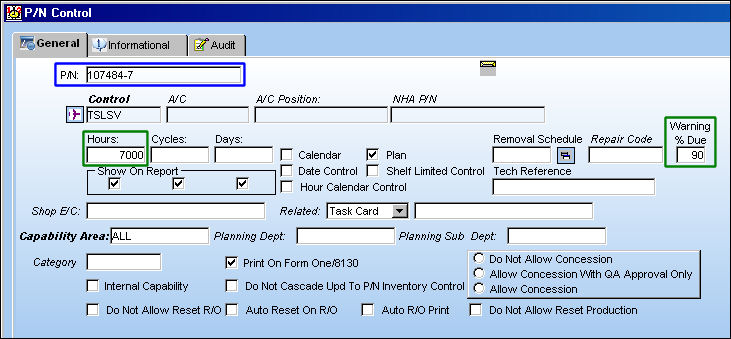
'TSN' is set to 6900 Hours and the Warning % Due is also 90.
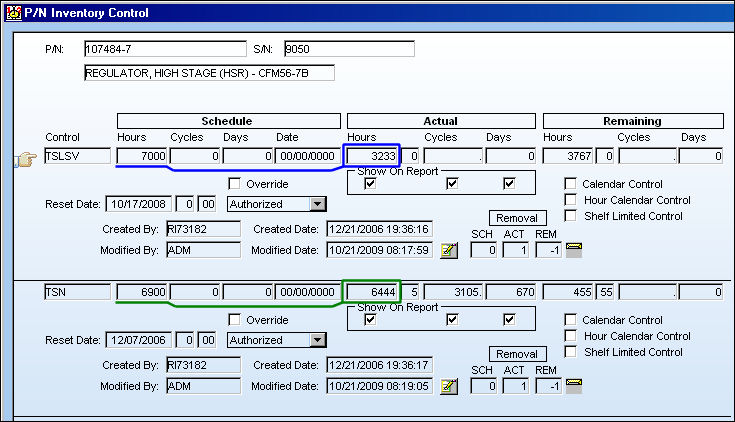
Now notice the accumulated inventory control for the Part Number and a particular Serial Number with an accrued schedule via Inventory Transactions Detail/P/N Inventory Control button.
- Control 'TSLSV' has accumulated 3233 Actual Hours, which is below 90% of the 7000 Scheduled Hours.
- Control 'TSN' has accumulated 6444 Actual Hours, which is above 90% of the 6900 Scheduled Hours.
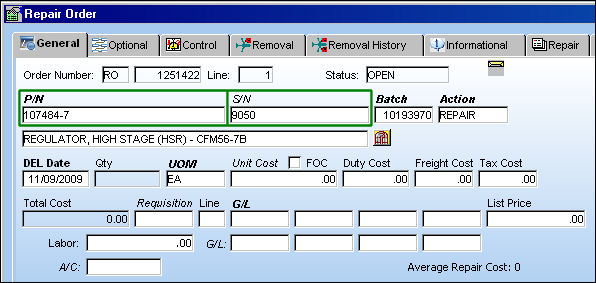
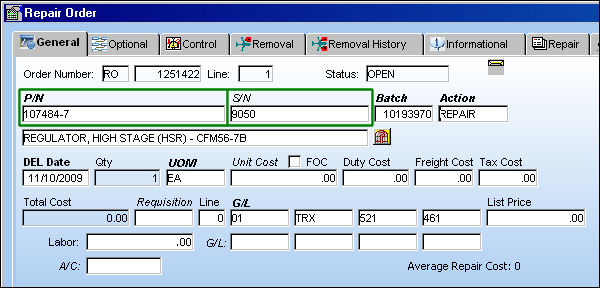
Create a Repair Order and enter the Part Number and Serial Number listed above.
Once the Serial Number is entered, the Control tab will automatically populate the available controls with the 'TSN' control selected. Control 'TSN' is auto-selected because the Actual Hours (6444) exceeds the Warning % Due (90%) for the Scheduled Hours (6900). (6444 = 93.4% of 6900)
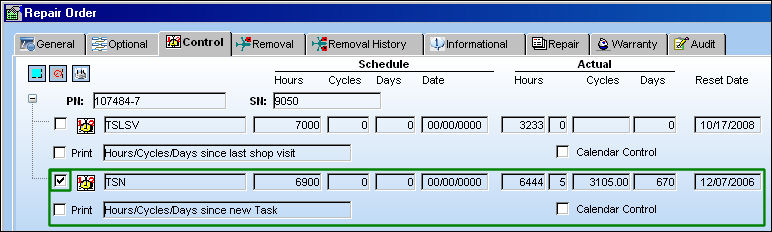
Control 'TSLSV' is not auto-selected because the Actual Hours (3233) does not meet or exceed the Warning % Due (90%) for the Scheduled Hours (7000). (3233 = 46.2% of 6900)
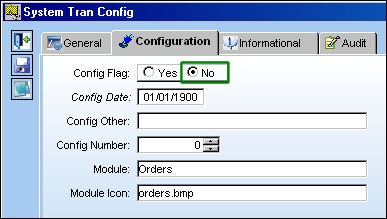
Switch Set to No:
When set to No, Repair Orders will not automatically select P/N Controls that have met or exceeded the Warning % Due.
For example, create a Repair Order with the same Part Number and Serial Number listed above.
From the Control tab, notice that neither of the controls are auto-selected even though the 'TSN' control contains Actual Hours that have exceeded the Warning % Due for the Scheduled Hours.
Share
Print
|
©1997-2026 Trax USA Corp. All rights reserved. This manual may not be copied, photocopied, reproduced, translated, or converted to any electronic or machine-readable form, in whole or in part, without prior written approval from Trax USA Corp. |
 |