
 Share
Share
 Print
Print
|
|
|
|
|


AUTOMESSAGELOAD - Send Message Load messages Automatically upon receiving Order Completion Message

Send Message Load messages Automatically upon receiving Order Completion Message
Affected Window: w_ro_order_detail_eu
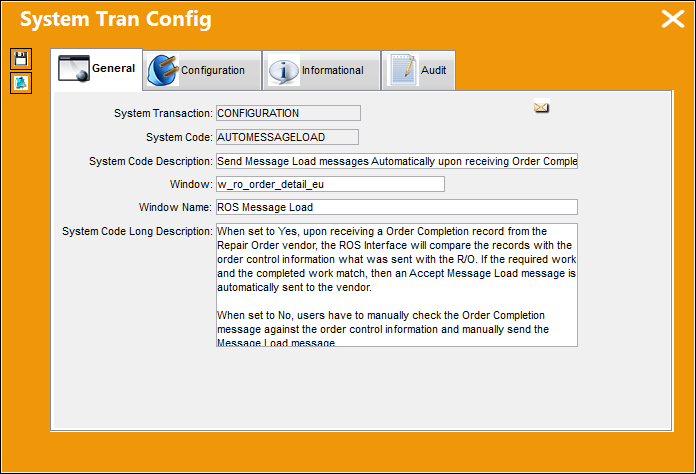
 This Switch is used in conjunction with the ROS (Repair Order Service) Interface. Therefore, it is only available for TRAX users implementing the customized interface.
Switch Set to Yes:
When set to Yes, upon receiving a Order Completion record from the Repair Order vendor, the ROS Interface will compare the records with the order control information that was sent with the R/O. If the required work and the completed work match, then an Accept Message Load message is automatically sent to the vendor.
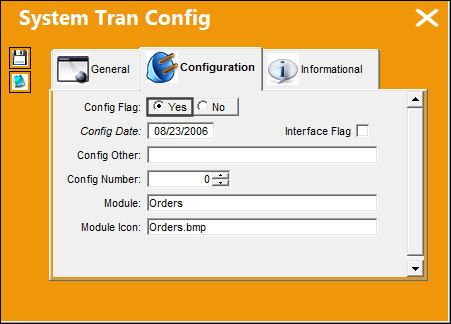
For example, the following Repair Order was created for an ROS vendor.
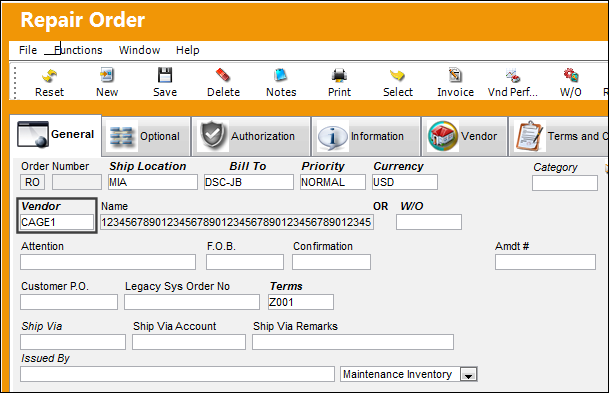
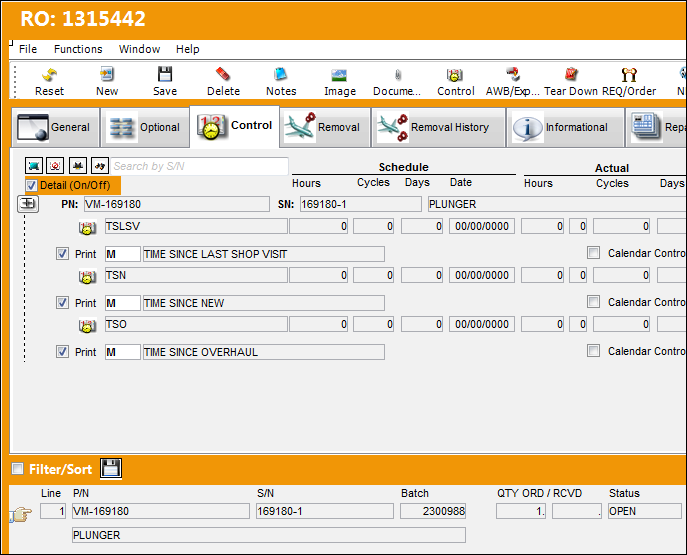
The following part was added.
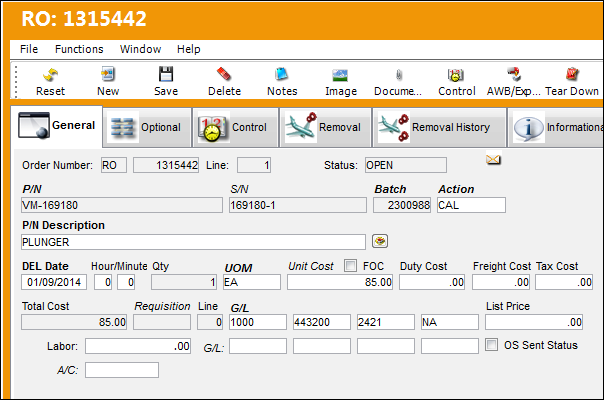
From the Repair Order Detail, Control tab, the following P/N Controls were added to the R/O because they came along with the P/N. Each of these Controls detail work that must be performed on the part.
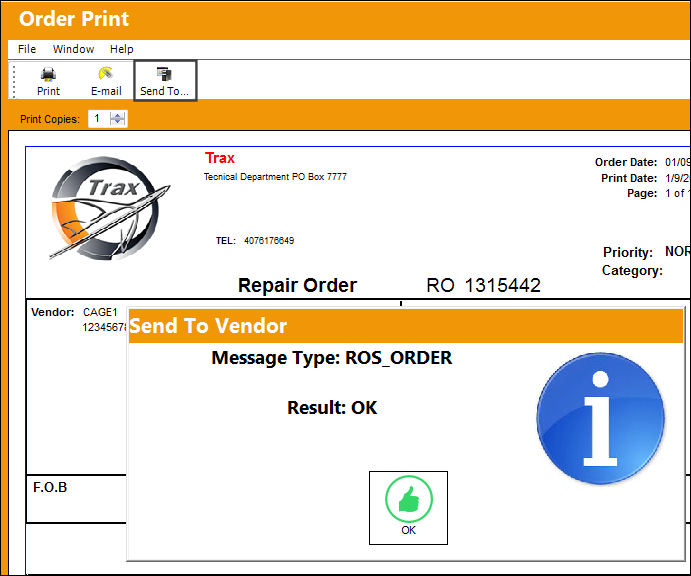
When the R/O is saved, the Send to Vendor  button is selected. The following prompt indicates that the message was sent to the vendor.
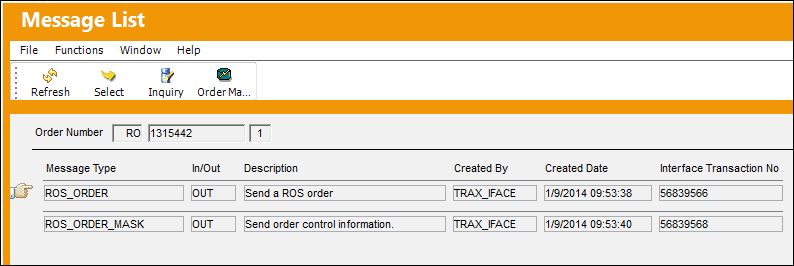
The following messages were sent to the vendor through the interface: the ROS order and the order's control information.
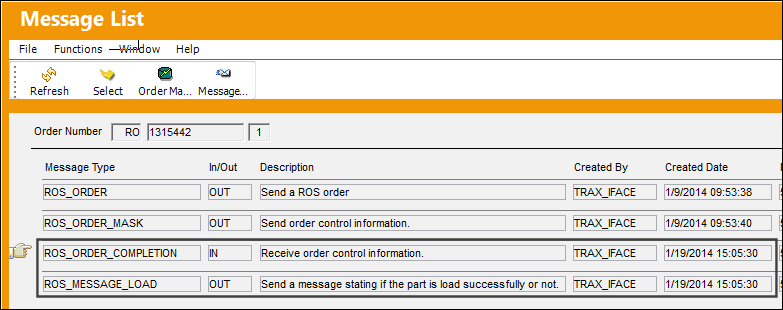
Once the repairs are done to the part, the vendor sends the Order Completion message back to TRAX. If this Order Completion matches with the control requirements for the part, then TRAX will automatically reply by sending a Message Load message to the vendor.
Switch Set to No:
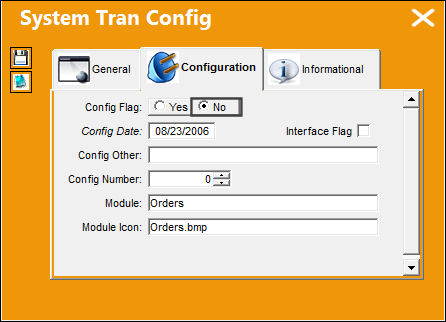
When set to No, users have to manually check the Order Completion message against the order control information and manually send the Message Load message.
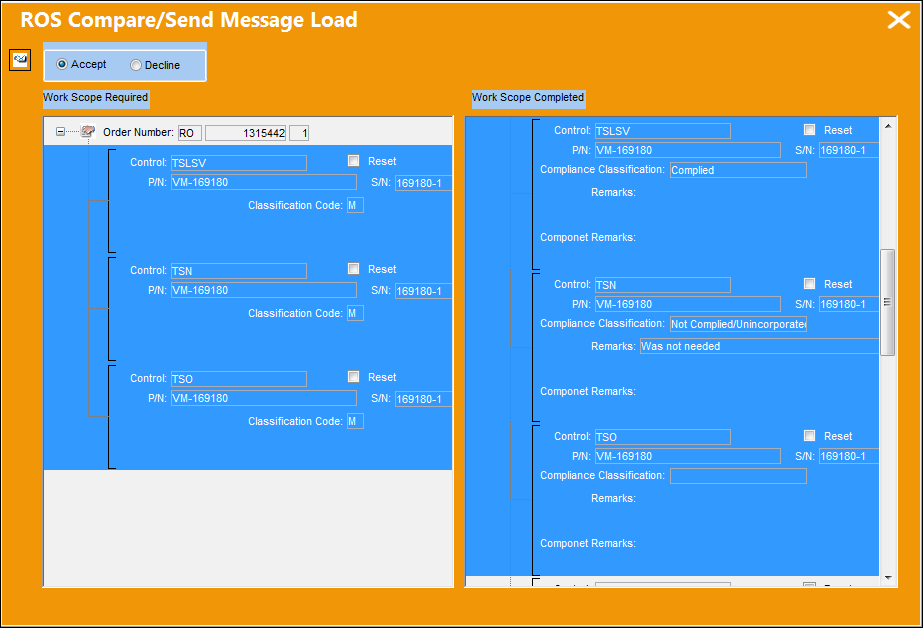
For example, when the Order Completion message is sent to TRAX, the Order Completion must be verified manually and the Message Load message must be sent manually. To do so, select the Message Load button from the Message Content window to access the ROS Compare/Send Message Load window, then select the Controls which had the correct work completed, select the Accept radio button, then select the Message Load button.
Share
Print
|
©1997-2026 Trax USA Corp. All rights reserved. This manual may not be copied, photocopied, reproduced, translated, or converted to any electronic or machine-readable form, in whole or in part, without prior written approval from Trax USA Corp. |
 |